On this page
The Glossary lets you define how specific words or phrases should be translated, so the automatic translation engine consistently uses your preferred wording (brand names, product terms, industry jargon). A companion tool, Search & Replace Translations, lets you retroactively correct wording in translations that were already generated.
You will find both under TranslatePress → Settings → Automatic Translation → Glossary.
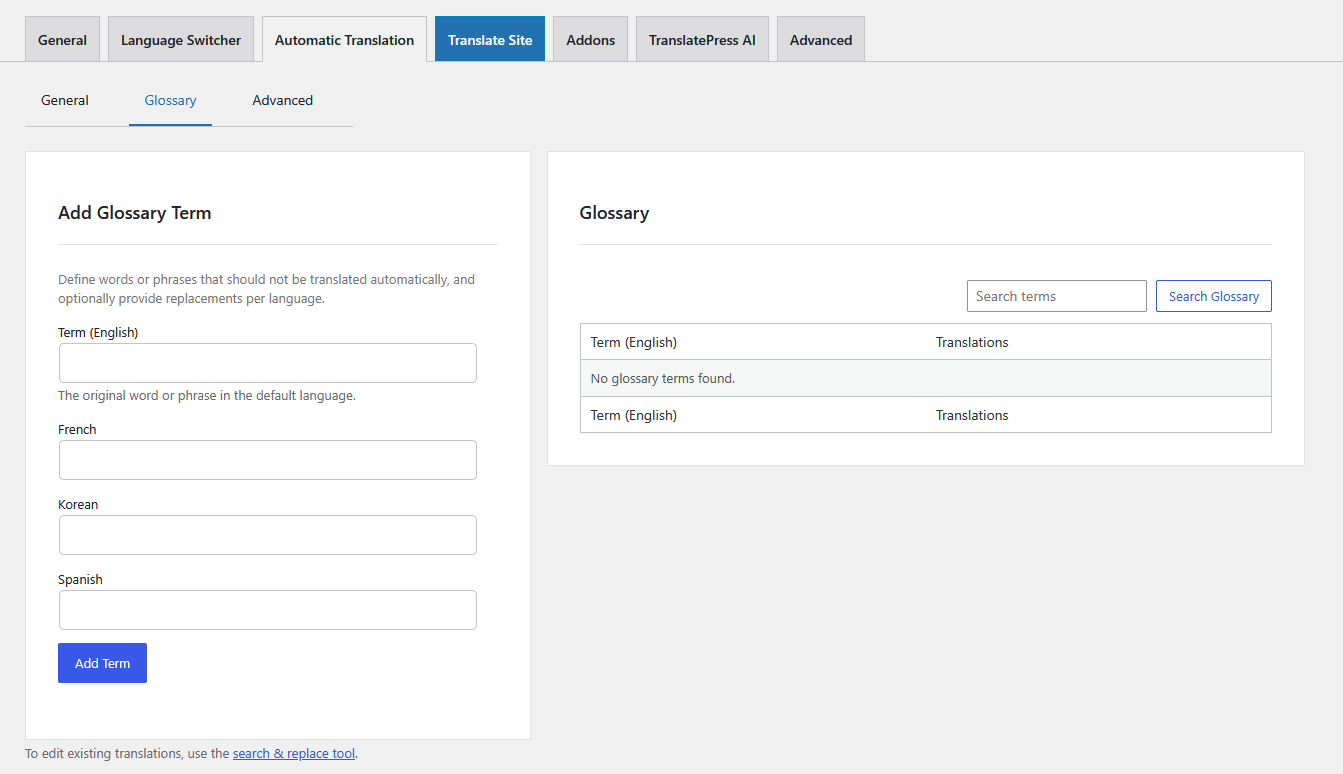
Glossary
A glossary term is a word or phrase in your default (original) language, together with the exact translation you want for one or more of your translation languages. When the automatic translation engine encounters that term, it uses your translation instead of whatever the engine would have produced on its own.
Note: Glossary terms only affect new automatic translations — content that is translated after the term is added. They do not rewrite translations that already exist in your database. To fix translations that were already generated, use Search & Replace Translations (described below).
Adding, Editing, and Deleting Terms from the Glossary
- Add a term — In the Add Glossary Term box, type the word/phrase in the default-language field, fill in the translation for each language you want to control, then click Add Term. The default-language term must be filled in and at least one translation is required; leave a language blank if you don’t want to control it. Duplicate terms are rejected.
- Edit a term — Hover a row and click Edit to open an inline quick-edit form. You can change any translation and even rename the term itself, then click Update.
- Delete a term — Hover a row and click Delete, then confirm.
You can filter the list with the Search terms box.
How Glossary Terms Behave
- Lowercase is recommended. Enter terms and translations in lowercase. TranslatePress adapts the capitalization of the result to match the original text it finds on the page: an all-caps occurrence produces an all-caps translation, a Capitalized occurrence produces a Capitalized translation, and a lowercase occurrence stays lowercase. Example: with the term
cat→ Germankatze, the sentence “I have a Cat.” becomes “…Katze.”, “CAT” becomes “KATZE”, and “cat” becomes “katze”. - Whole-word matching. A term is matched as a whole word, so it won’t be applied inside a larger word. Example:
catis replaced in “a cat” but not in “category” or “cats”. The same applies to multi-word terms:grated cheesematches in “grated cheese” but not in “ungrated cheese”. - Languages without spaces between words. For languages that don’t separate words with spaces — Chinese, Japanese, Thai, Lao, Khmer, Burmese, Tibetan — whole-word matching cannot apply, so the term is matched as a substring instead.
- Languages without a translation are translated normally. If a term has no glossary translation for a particular language, the engine translates that word normally for that language (it is not left in the original language).
Availability
The Glossary influences automatic translation only when the TranslatePress AI engine is selected. If another engine is active, the Glossary management screen is shown greyed out with a notice.
For the other engines, use their own built-in glossary features instead:
- Google Translate — Google Cloud Translation glossaries
- DeepL — DeepL glossaries
Search And Replace Translations
While the Glossary only affects future translations, Search & Replace Translations corrects translations that are already stored in your database. Open it from the search & replace tool link at the bottom of the Glossary page (or from the notice shown after you add a term that already exists in your translations).
Note: Unlike Glossary management, the Search & Replace tool is available on every automatic translation engine.
Searching Existing Translations
Use the Search box to look up a term and see how it is currently translated in each language. Each language is shown in its own table, displaying up to 5 entries at a time; use the pagination controls under a table to browse more.
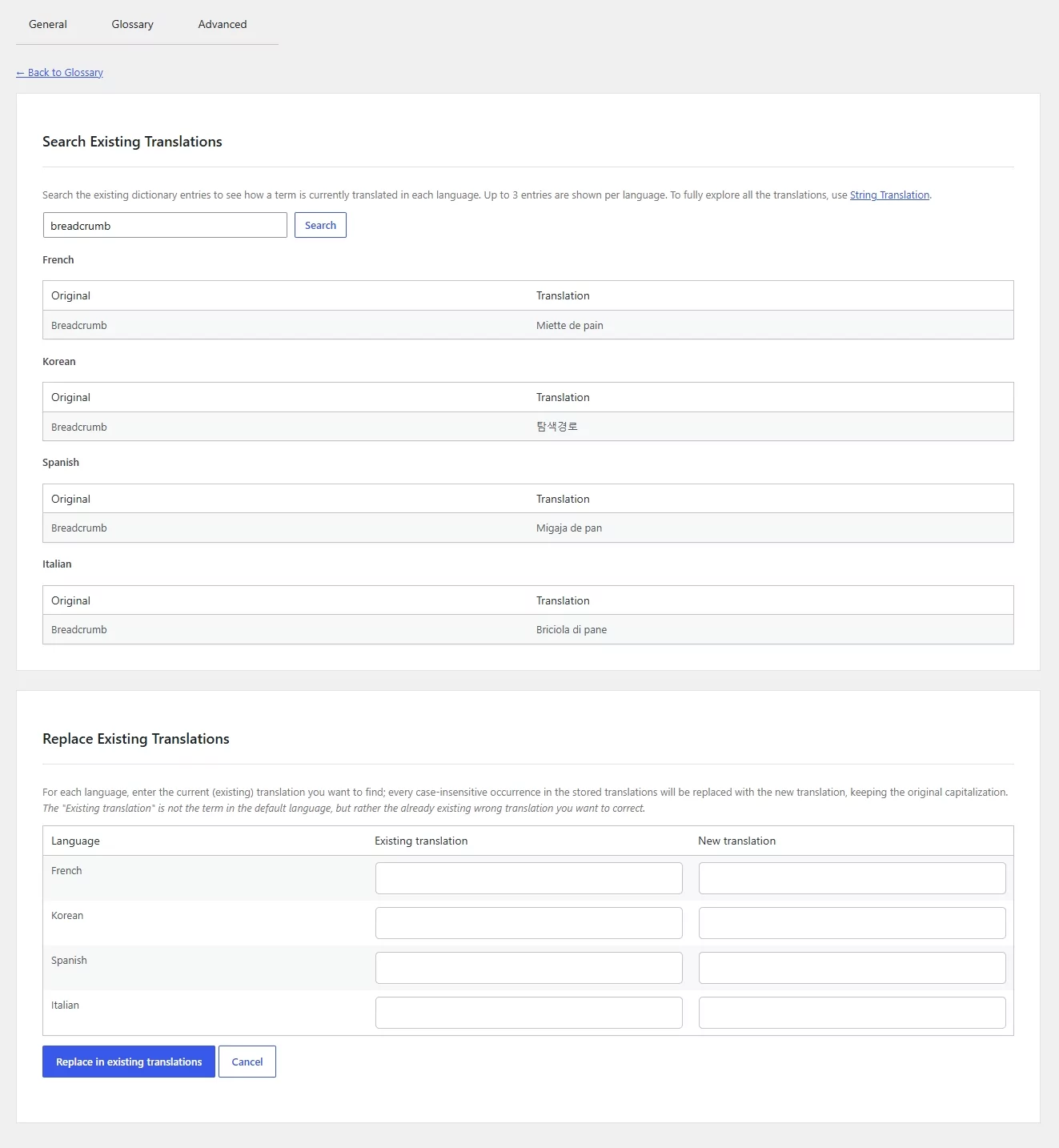
To browse and edit the full set of translations for a language, use the linked String Translation editor.
Searching is performed by key term, in the original language, not in the translations themselves. If the searched term exists on your site but there are no translations for it, no entries will be shown.
Replacing Existing Translations
Replacements are made using Existing translation → New translation pairs, one per language:
- Existing translation — the wording currently stored in your translations that you want to correct.
- New translation — the wording you want to use instead.
The most important thing to understand: the Existing translation field is not the original (default-language) text — it is the wrong translation that was already produced, in the target language.
Example: Your English word “support” was auto-translated into Italian as “assistenza”, but you want “supporto”. You do not type “support”. In the Italian row you enter Existing translation:
assistenzaand New translation:supporto.
Every case-insensitive occurrence of the existing translation is replaced with the new one across that language’s stored translations. Leave a language row empty to skip it. Only one pair per language can be entered per run — if you have several corrections for the same language, run the tool again with the next value.
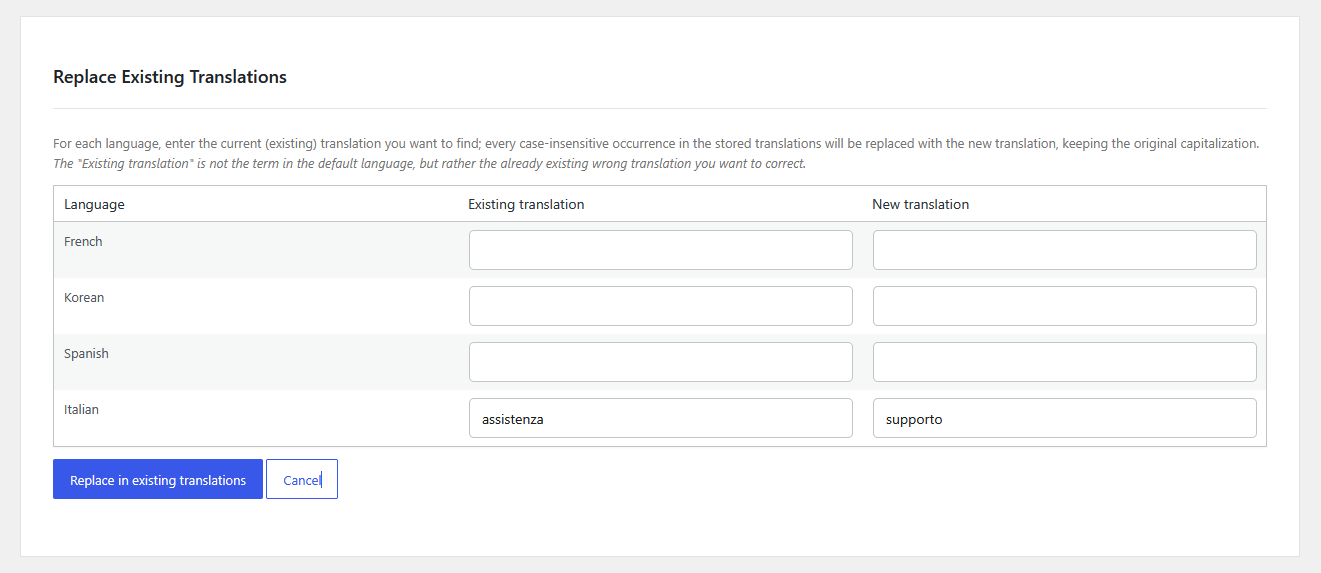
- Capitalization is adapted to the existing translation. For each occurrence found, the new value takes the capitalization of the matched text. Example: replacing
assistenzawithsupportoturns “assistenza” into “supporto”, “Assistenza” into “Supporto”, and “ASSISTENZA” into “SUPPORTO”. - Whole-word vs. substring. As with the Glossary, matching is whole-word for languages that use spaces, and substring-based for languages that don’t (Chinese, Japanese, Thai, Lao, Khmer, Burmese, Tibetan).
- All matching entries are updated, not only entries related to a specific term — the existing translation is corrected everywhere it appears in that language.
This action cannot be undone. It edits your translation database directly and may affect a large number of rows. Make a backup of your database before running it. A confirmation dialog is shown before the replacement starts.
Large Replacements And Background Processing
Small and medium replacements finish immediately and report how many entries were updated per language.
If there are many translations to update, TranslatePress runs it as a background process, so the operation is never cut off by a timeout. When the background task completes, an admin notice is shown across all TranslatePress Settings pages to let you know the replacement has finished.ce Translations corrects translations that are already stored in your database. Open it from the search & replace tool link at the bottom of the Glossary page (or from the notice shown after you add a term that already exists in your translations).
Note: Unlike Glossary management, the Search & Replace tool is available on every automatic translation engine.