
En esta publicación
WordPress da servicio a casi 43% de todos los sitios web, y no todos ellos están en inglés. De hecho, el número de sitios web que no están en inglés va en aumento, con El 56% de los sitios de WordPress se crean en idiomas distintos del inglés de EE. UU.. Esto demuestra que existe una gran oportunidad para volverse multilingüe y traducir su sitio a varios idiomas.
Pero empezar puede ser confuso, incluso para usuarios experimentados de WordPress. Es posible que te preguntes cuáles son los mejores complementos multilingües para WordPress. ¿Cuáles son los desafíos técnicos de configurarlo sitio web multilingüe¿Hay alguna implicación de SEO? ¿Debería usar traducciones automáticas o humanas?
En esta publicación, te guiaré a través de lo que necesitas saber sobre la traducción de tu sitio de WordPress y espero responder a todas tus preguntas. Cubriremos desde cómo determinar si necesitas traducir tu sitio a otros idiomas, los diferentes métodos y complementos de WordPress para la traducción, hasta las mejores maneras de traducir tu contenido.
Traducir el índice de WordPress
- ¿Necesitas traducir tu sitio web de WordPress?
- Beneficios de traducir WordPress
- Traducción Automática vs Traducción Humana
- Elegir una solución para traducir su sitio de WordPress
- ¿Qué debes traducir?
- ¿Qué estructura de URL debes usar?
- ¿Qué son las etiquetas hreflang?
- Cómo traducir WordPress con TranslatePress
- Empieza a traducir WordPress
¿Necesitas traducir tu sitio web de WordPress?
Traducir tu contenido de WordPress no es algo que hagas por diversión; es algo que haces con una estrategia en mente. Así que si te preguntas si necesitas un sitio multilingüe, lo mejor es empezar por comprobar si ya estás recibiendo tráfico internacional.
La manera más fácil de hacerlo es con Google Analytics. Para comprobar los idiomas que tus visitantes han configurado en sus navegadores, ve a Informes → Audiencia → Geo → Idioma.
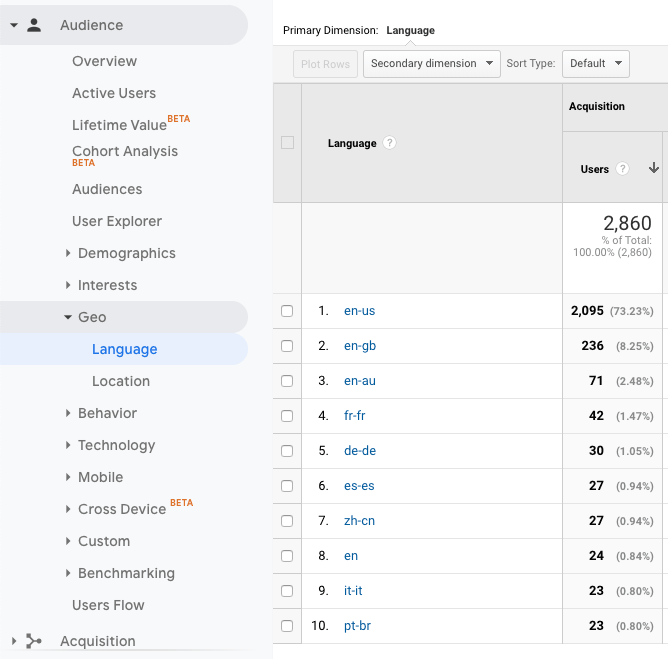
Ayuda comparar estos datos con las ubicaciones de sus visitantes, que encontrará en Informes → Audiencia → Geo → Ubicación.
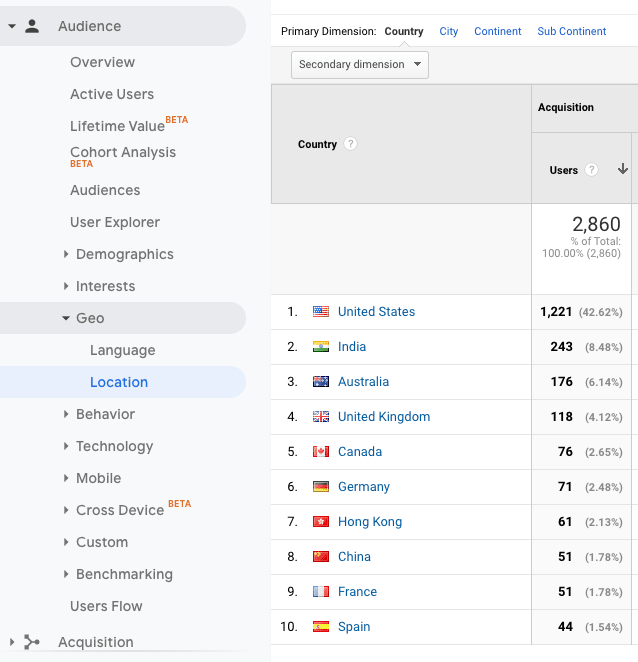
Entonces, ¿qué significa todo este dato? Se pueden sacar algunas conclusiones:
- La mayoría de los visitantes navegan por este sitio en inglés.
- Las personas de la India no están navegando en sus idiomas nativos, pero tal vez les gustaría hacerlo.
- Los visitantes de España, Francia y China están navegando en sus respectivos idiomas y podrían sentirse más cómodos accediendo al sitio en español, francés y chino simplificado.
El resultado final es que existen oportunidades para traducir este sitio a otros idiomas, incluidos el hindi, el español, el francés y el chino.
Beneficios de traducir un sitio de WordPress
Traducir WordPress no solo beneficia a tus visitantes, sino que también ofrece muchas ventajas para tu negocio. Si te va bien a nivel local y nacional, puede que sea el momento de pensar en expandirte a otros países. Escalar tu negocio es una razón de peso para considerar la traducción de tu contenido.
1. Mejora tu SEO
Una de las mayores ventajas de tener idiomas adicionales es el aumento que obtendrás en el tráfico.
Digamos, por ejemplo, que tú Traduce tu contenido al español y al francés.. La próxima vez que Google rastree su sitio, reconocerá sus nuevos idiomas como contenido separado de sus páginas en inglés. Esto significa que su sitio aparecerá en los resultados de búsqueda en inglés, español y francés.
Además, aunque la competencia por las SERP en inglés es feroz, es posible que te resulte más fácil posicionarte para tus palabras clave en otros idiomas.
Por ejemplo, la frase clave ‘translation plugins’ es competitiva, como puede verse en los resultados de KWFinder a continuación:
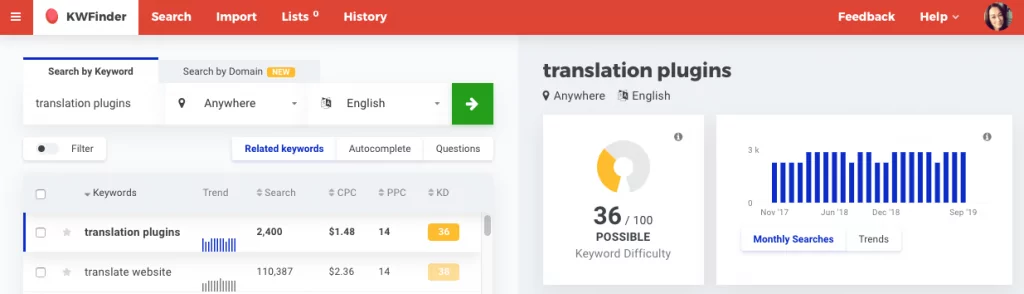
Si buscas las mismas palabras clave en español, de repente resulta mucho más fácil posicionarse:
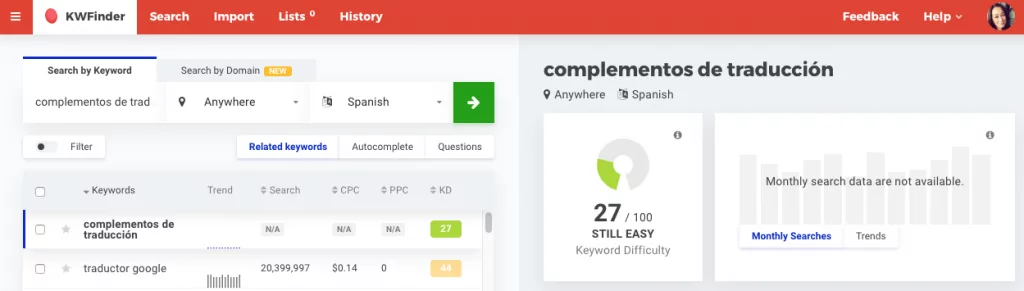
Y una búsqueda de ‘plugins de traduction’ en francés muestra que hay aún más potencial para posicionarse alto en las SERP.
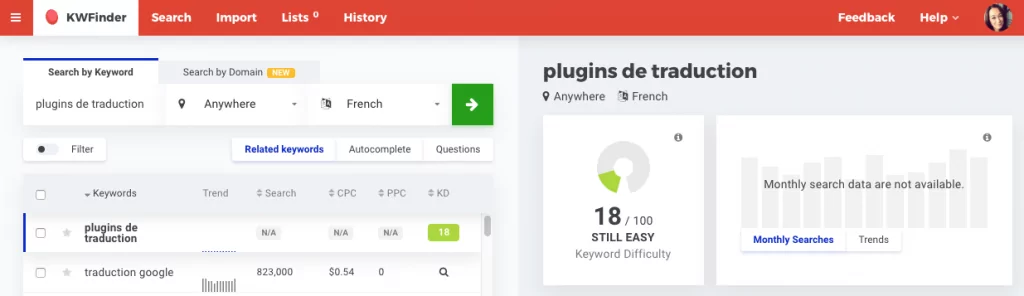
Creación de un sitio de WordPress multilingüe, junto con un sistema bien pensado estrategia de palabras clave internacionales, puede ayudarte a orientarte hacia una gama más amplia de palabras clave. Esto aumentará tus posibilidades de aparecer en la primera página de los resultados de búsqueda para más de un idioma.
2. Mejorar la experiencia del usuario
Cuando te conectas a internet, probablemente das por sentado que puedes navegar en tu idioma nativo, ¿verdad? Para gran parte del mundo de habla no inglesa, este no es el caso.
Traducir WordPress mejora instantáneamente la experiencia de usuario para los visitantes que hablan otros idiomas. No solo podrán entender tu contenido, sino que se sentirán bienvenidos y querrán seguir navegando. Esto tendrá un efecto en cadena en todo tu sitio, aumentando el tráfico, reduciendo la tasa de rebote e impulsando las conversiones.
3. Construir confianza y credibilidad
Es importante que las empresas hablen los mismos idiomas que sus mercados objetivo. ¿Por qué? Porque las personas se sienten más cómodas conversando en su idioma nativo, ya que es la cultura en la que se han criado.
Tener un sitio web completamente traducido puede ayudar a establecer su negocio como una oferta creíble en sus mercados objetivo. El contenido multilingüe de calidad también reducirá cualquier malentendido y tergiversación de su marca en el extranjero.
4. Alto ROI
Llevando la traducción un paso más allá con localización —el proceso de adaptar su contenido al idioma, las costumbres y la cultura de un mercado específico— puede afectar aún más a la marca de su empresa, las relaciones con los clientes y, en última instancia, a los resultados financieros.
Según el Grupo de Especificación de la Industria para la Localización (ISG), Por cada US$1 que se invierta en localización, una empresa obtendrá un beneficio de $25.. Así es: una rentabilidad de 2.500%.
Traducción Automática vs Traducción Humana
Hay dos principales tipos de traducción: traducción automática y traducción humana.
1. Traducción automática
También conocido como traducción automática, la traducción automática utiliza paquetes de traducción o inteligencia artificial para convertir las palabras de una página a otros idiomas. Uno de los ejemplos más conocidos de traducción automática es Google Traductor y su sistema de traducción automática neuronal.
2. Traducción realizada por un traductor humano
La traducción humana se basa en la inteligencia humana para convertir una forma de decir las cosas en otra. Hay muchos servicios de traducción profesionales disponibles, listos para traducir contenidos a cambio de una tarifa. La traducción humana suele ser más precisa y sonar más natural, ya que las personas son mejores que las máquinas a la hora de interpretar los matices del lenguaje.
Elegir una solución para traducir su sitio de WordPress
Antes de ponerte manos a la obra con la traducción de tu página web o de tu sitio de WordPress, hay tres aspectos clave que debes tener en cuenta:
- ¿Cuál es tu presupuesto? ¿Quieres una solución gratuita o te parece bien pagar una suscripción mensual continua para obtener traducciones de alta calidad?
- ¿Cuánto tiempo tienes? ¿Tienes tiempo para traducir manualmente tus contenidos y gestionarlos de forma continua, o prefieres una solución que lo haga automáticamente por ti?
- ¿Qué importancia tienen la calidad y la precisión? ¿Tu empresa comercializa productos o servicios en los que no cabe lugar a la confusión y la precisión es fundamental? Por ejemplo, en el ámbito médico, financiero o jurídico. ¿Son suficientes las traducciones automáticas o tu empresa necesita traducciones realizadas por traductores humanos?
Hay muchas formas diferentes de traducir el contenido de WordPress, pero vamos a repasar las tres más habituales:
- Plugins de WordPress
- Copiar y pegar contenido manualmente
- Confía en los navegadores
1. Complementos de WordPress
La forma más habitual de traducir WordPress es mediante un plugin de traducción de WordPress. Los plugins de traducción son la solución más práctica para añadir varios idiomas a un sitio web.
Esto contrasta fuertemente con hace apenas unos años, cuando tenías que lidiar con paquetes de idiomas, archivos .PO y .MO, y traducir cadenas de texto. Ahora, existen complementos de traducción intuitivos que te permiten traducir fácilmente el texto en la interfaz pública de tu sitio, de forma visual y sin complicaciones.
Una búsqueda rápida en el repositorio de plugins de WordPress.org muestra los plugins gratuitos más populares de WordPress para la traducción:
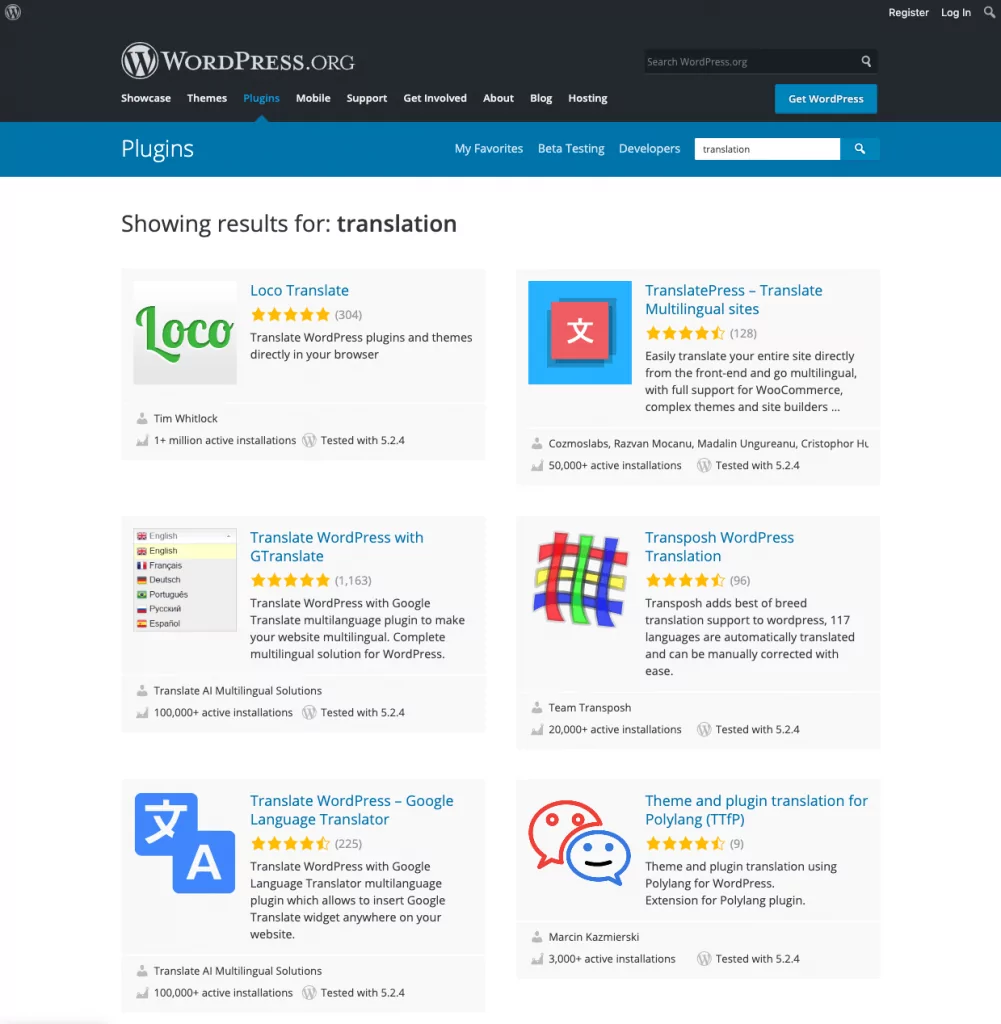
Si has buscado en Google ‘plugins de traducción’, probablemente te hayas topado con otros plugins para crear un sitio web multilingüe en WordPress, como TranslatePress, Loco Translate, WPML, Polylang o Transposh.
Todas estas opciones gratuitas y prémium tienen diferentes funciones e interfaces para traducir contenido. Vale la pena consultar sus pros y contras para decidir cuál se adapta mejor a ti.
TranslatePress: un plugin de traducción para WordPress que cualquiera puede usar
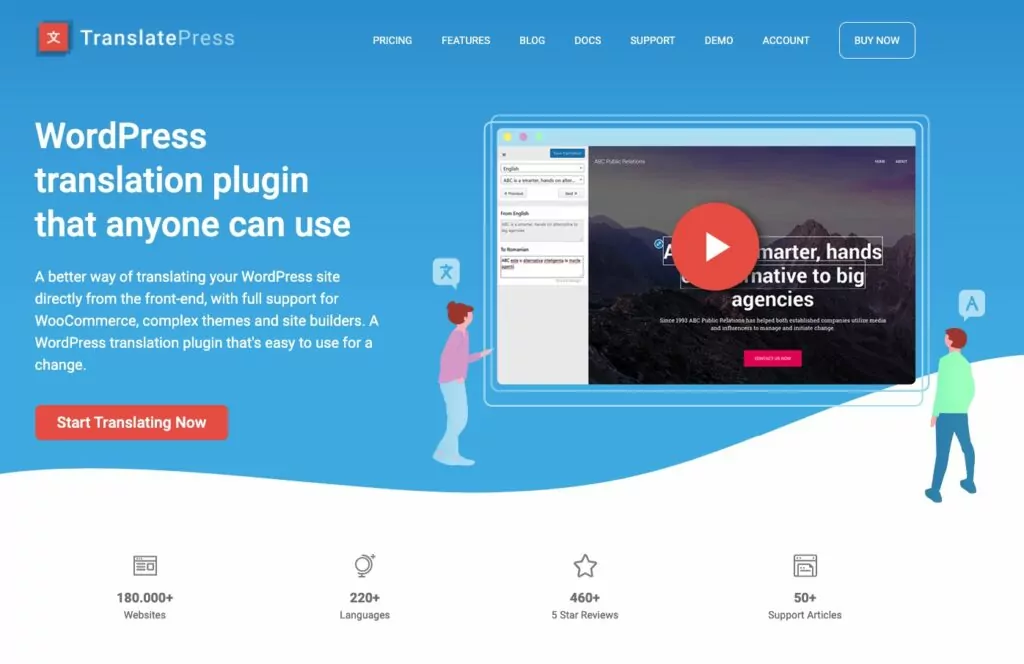
El mejor plugin de traducción para WordPress en cuanto a precio, calidad, precisión y facilidad de uso es TranslatePress.
Te permite traducir tu sitio web de forma manual y mediante traducción automática impulsada por Google Traductor o DeepL—súper útil para empezar con la traducción automática y luego hacer ediciones manuales para mayor precisión y matiz.
Características clave incluyen:
- Traducir todo en su sitio, incluidas las publicaciones y páginas, la salida de complementos, códigos cortos y formularios de contacto.
- Interfaz visual fácil de usar para traducir contenidos.
- Añade tantos idiomas como necesites.
- Traducir imágenes (es decir, mostrar imágenes diferentes para cada idioma de tu sitio web).
- Optimizado para SEO. Crear mapas del sitio multilingües y versiones indexables de su sitio para cada idioma.
- Compatible con WooCommerce, tipos de publicaciones personalizadas, temas complejos y constructores de páginas.
- Personalizable selector de idioma.
Más adelante en esta entrada veremos cómo traducir tu sitio de WordPress con TranslatePress.
2. Copiar y pegar contenido manualmente
Copiar y pegar es uno de los métodos de traducción de WordPress más sencillos porque no necesitas instalar ningún complemento ni pagar por servicios prémium.
Para utilizar esta técnica de traducción manual, simplemente copie el texto que desea traducir en un documento, el cual luego comparte con un traductor privado o servicios de traducción profesional como Gengo o Straker Translations. Cuando el texto traducido esté listo, cópielo y péguelo en las nuevas páginas de su sitio.
Esta es una solución básica si solo necesita traducir parte del texto fuente en su sitio web. Sin embargo, puede requerir mucho tiempo y quizás no valga la pena debido a las importantes desventajas de SEO.
Google busca el atributo hreflang en las cabeceras de las páginas para obtener información sobre el idioma en el que está publicado el contenido. Sin este marcado, Google no tendrá ni idea de si tu sitio está en inglés o en otro idioma. (Analizaremos las etiquetas hreflang con más detalle más adelante en este artículo.)
Así que si sigues el camino de copiar y pegar, hay muy pocas probabilidades de que tu contenido se posicione en varios idiomas.
Podrías añadir tú mismo las etiquetas hreflang, pero es mucho más fácil dejar que un plugin como TranslatePress se encargue de ello por ti. Además, obtendrás la ventaja añadida de Beneficios de SEO de traducción de slugs de URL, compatibilidad con WooCommerce, traducción automática y traducción de imágenes.
3. Confía en los navegadores
La forma más fácil —¡y perezosa!— de traducir WordPress es no traducirlo en absoluto. Gracias a navegadores como Chrome, puedes dejar que sean tus visitantes quienes traduzcan tu contenido.
Los navegadores pueden traducir automáticamente todo el contenido de una página. La ventaja de esto es que el visitante puede decidir si quiere navegar por su sitio en el idioma original o cambiar a su idioma preferido.
La desventaja es que no tendrás ningún control sobre cómo se traduce tu página web. Google Translate podría malinterpretar tu contenido y cualquier matiz o toque personal de tu redacción se perdería en la traducción.
Además, perderás la confianza y credibilidad tan importantes que conlleva ofrecer contenido multilingüe. Depender de los navegadores para la traducción solo debe ser una opción si ofrecer contenido multilingüe no es una prioridad.
¿Qué debes traducir?
Por lo general, la mejor práctica es traduce todo en tu sitio. Esto es tanto para la experiencia de usuario como para el SEO. Si traduces parte del contenido de una página y el resto no, no solo resulta desconcertante para el visitante, sino también confuso para los motores de búsqueda.
1. Contenido
Esto incluye las publicaciones del blog y el contenido de las páginas, así como el contenido del encabezado y del pie de página, categorías y etiquetas, widgets, y elementos del menú.
No olvides traducir los tipos de publicación personalizados y las páginas de tu política de privacidad y de términos y condiciones.
2. Metadatos de SEO
El meta título y la descripción de tus páginas y publicaciones suelen mostrarse en los resultados de búsqueda, así que traduce también estos fragmentos de texto. Hacerlo ayudará a impulsar tu tráfico orgánico en otros idiomas.
Asegúrate de elegir un complemento de traducción que sea compatible con SEO multilingüe y mapas del sitio (TranslatePress es compatible con ambos).
3. URL
Las mejores prácticas de SEO recomiendan incluir palabras clave en los slugs de las URL. Probablemente esto ya lo hagas en tus páginas y entradas. Por lo tanto, lógicamente, es una buena idea Convierte tus URL, también.
Por ejemplo, su página de contacto podría usar este slug en inglés:
example.com/contactenos
Y en alemán se vería así:
example.com/ponte-en-contacto-con-nosotros
Aunque algunas herramientas de traducción de WordPress no permiten traducir los slugs de las URL, el complemento ’SEO Pack» de TranslatePress ofrece esta función imprescindible.
4. Imágenes
La traducción de imágenes es fundamental para mantener una experiencia de usuario coherente. Cuando has traducido todo el contenido de una página, puede resultar confuso para los visitantes que las imágenes que contienen texto estén en otro idioma.
Con TranslatePress, puedes utilizar la interfaz de traducción visual para especificar imágenes diferentes para cada idioma de tu página web. Esto te permite cambiar las imágenes en toda la página, en función del idioma que utilice el visitante.
Para más información, consulta Cómo traducir imágenes en WordPress [Guía completa].
¿Qué estructura de URL debes usar?
Google ofrece algunos consejos sobre cómo gestionar las versiones multilingües de tu sitio. Él recomienda utilizar una estructura de URL que facilite la segmentación geográfica de su sitio:
- Dominio específico para cada país y cada idioma – example.de (o example.com para visitantes en inglés)
- Subdominio para cada idioma – de.example.com
- Subdirectorio para cada idioma – example.com/de/
Google aconseja no utilizar parámetros de URL (por ejemplo, ejemplo.com?loc=de), ya que es posible que los usuarios no reconozcan la segmentación geográfica a partir de la URL y no sea posible realizarla desde Google Search Console. Esto es bastante fácil de evitar en WordPress gracias a los enlaces permanentes bonitos.
TranslatePress utiliza subdirectorios, también conocidos como subcarpetas, para cada idioma, lo cual es una práctica recomendada por Google.
¿Qué son las etiquetas hreflang?
etiquetas hreflang son un método para marcar páginas traducidas que tienen un significado similar, pero que están dirigidas a diferentes idiomas y/o regiones.
Como explica Yoast, hay tres formas comunes de implementar hreflang:
- Contenido con variaciones regionales como es-us y en-gb.
- Contenido en diferentes idiomas como en, de y fr.
- Una combinación de diferentes idiomas y variaciones regionales.
Las etiquetas hreflang indican a los motores de búsqueda como Google la versión de una página que está optimizada para el idioma y la ubicación del usuario.
En el ejemplo siguiente, puede ver que el atributo hreflang especifica el inglés de EE. UU.:
<link rel=”alternate” href=”http://example.com” hreflang=”en-us” />
Las etiquetas hreflang también evitan el problema del contenido duplicado. Por ejemplo, si tienes el mismo contenido en inglés, pero para EE. UU., el Reino Unido y Australia, la diferencia en el contenido de estas páginas puede ser mínima. Con el atributo hreflang, puedes indicar a los motores de búsqueda que estas páginas no son contenido duplicado.
Si utilizas TranslatePress, este añade automáticamente etiquetas hreflang para cada idioma de tu sitio web.
Cómo traducir una página web de WordPress con TranslatePress
¿Buscas una manera sencilla de añadir idiomas a tu sitio de WordPress? No te equivoques con TranslatePress.
Echemos un vistazo a cómo empezar a utilizar el versión gratuita de TranslatePress. En este ejemplo, estoy configurando un sitio en Inglés y alemán.
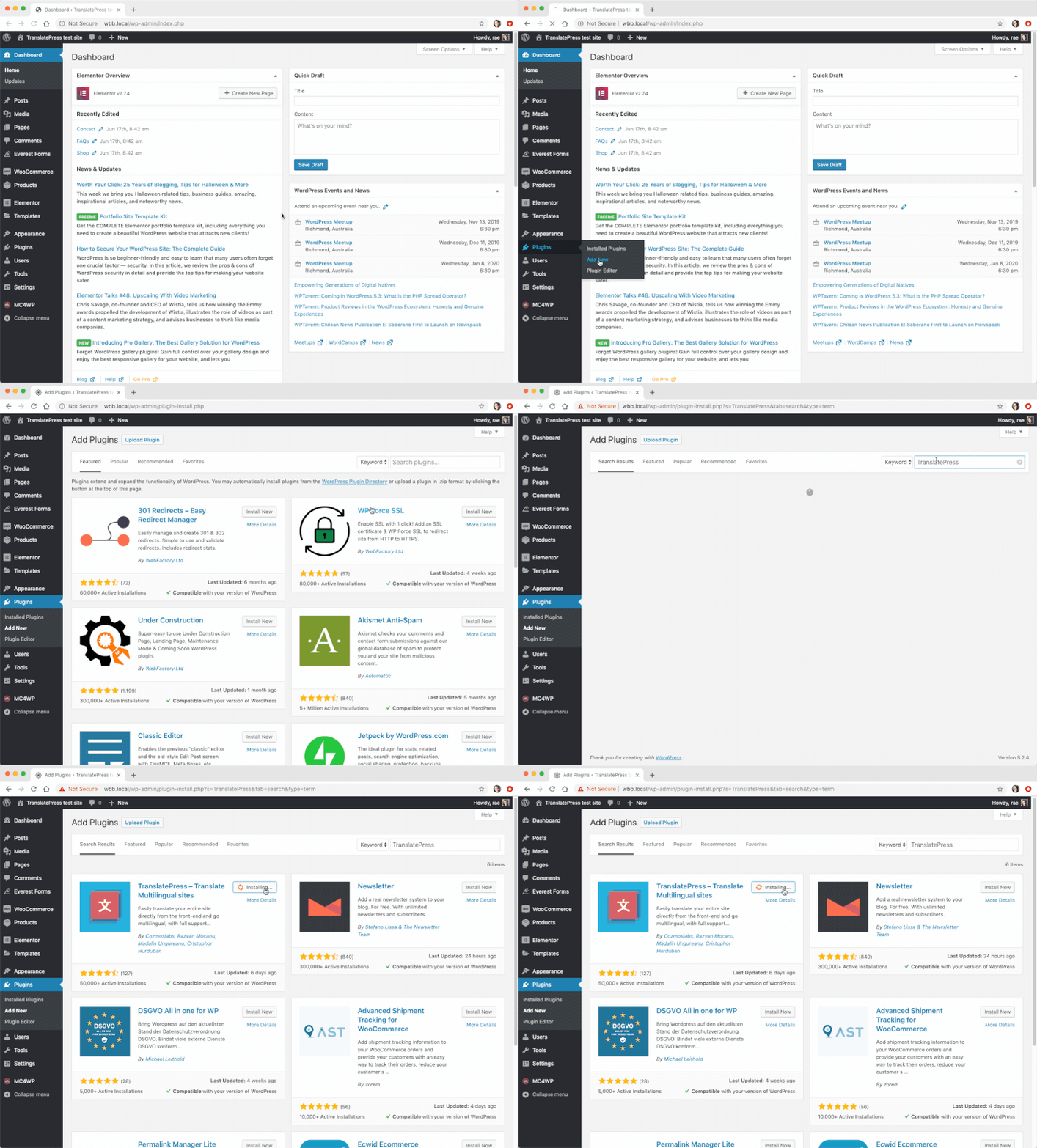
Paso 1: Instalar y activar TranslatePress
En el panel de WordPress, ve a Complementos → Añadir Nuevo y busca ‘translatepress’. Instala y activa el complemento.
Paso 2: Elige tus idiomas
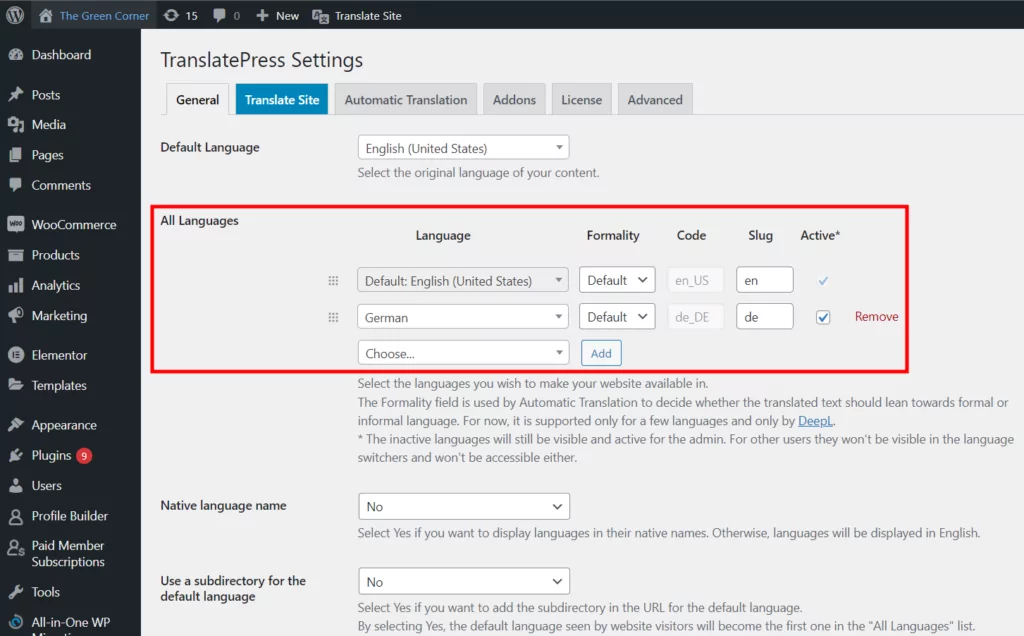
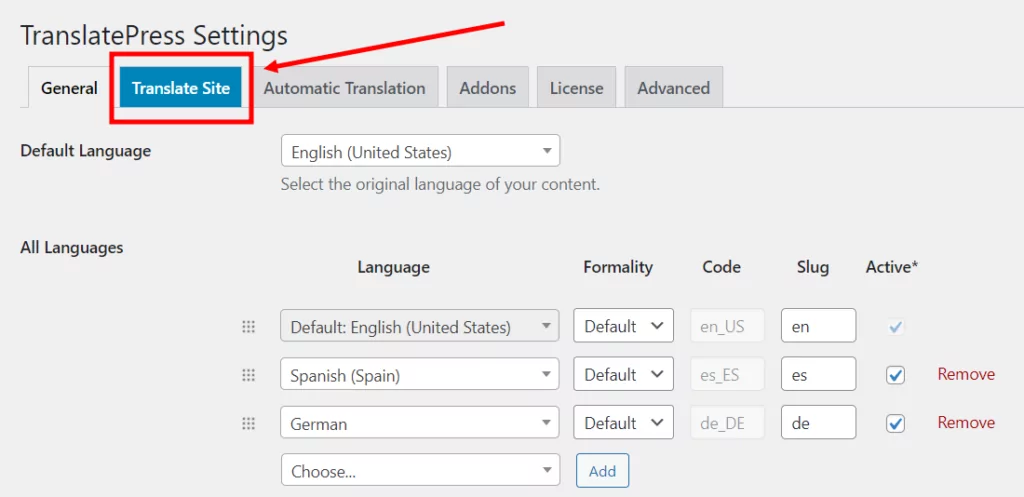
A continuación, dirígete a Configuración → TranslatePress para configurar algunas opciones básicas.
En la configuración general, puedes elegir tu idioma predeterminado y los idiomas adicionales a los que deseas traducir tu contenido. Como puedes ver a continuación, he añadido el alemán.
Paso 3: Personalizar el selector de idioma
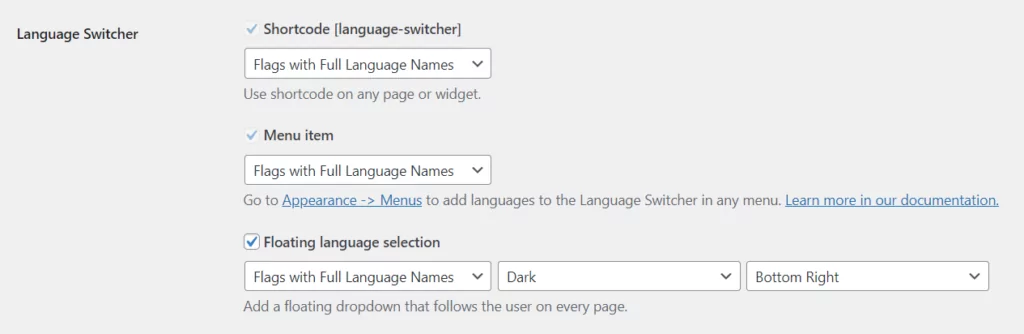
De forma predeterminada, TranslatePress añade un botón flotante para cambiar de idioma en la interfaz de tu sitio web. Permite a los visitantes cambiar entre los diferentes idiomas que hayas configurado.
Puedes personalizar el aspecto del selector de idioma, con opciones para nombres de idioma completos y abreviados, banderas y una combinación de ambos.
Paso 4: Elige cómo quieres traducir el contenido
Si quieres que tu contenido se traduzca automáticamente, el Traducción automática la pestaña te permite elegir si deseas habilitar o no la traducción automática.
Si eliges ‘sí’, tendrás que conseguir un Clave de API de Google Translate para conectarse al servicio. También hay una opción para usar Traducción automática de DeepL con la versión premium de TranslatePress.
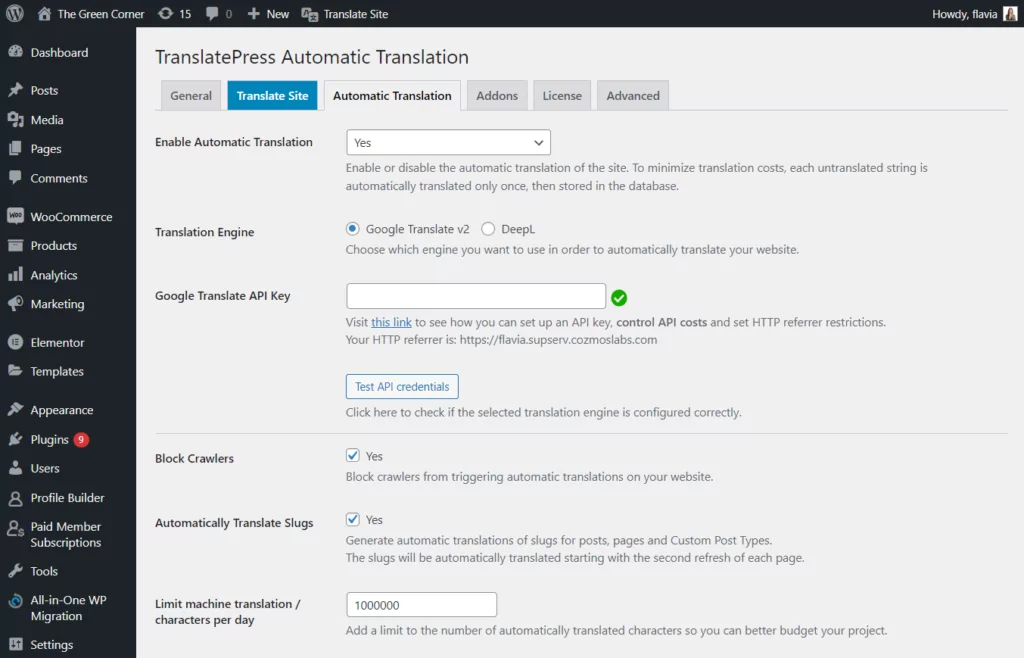
Cuando hagas clic en ‘Guardar cambios’, el plugin procederá a traducir tu sitio la próxima vez que tú o un visitante elijan otro idioma.
Paso 5: Comienza a traducir tu sitio de WordPress
Ahora que has terminado con las configuraciones básicas, puedes empezar a traducir tu contenido de WordPress.
Lo mejor de TranslatePress es que su interfaz visual, muy fácil de usar, te permite traducir todo en tu sitio directamente desde la interfaz, lo que facilita muchísimo cambiar cualquier texto.
Para acceder a la interfaz de traducción, busca el botón ‘Traducir página’ en la barra de herramientas de administración de WordPress cuando hayas iniciado sesión. (También verás el selector de idioma en la esquina inferior derecha).

También puedes acceder a la interfaz desde los ajustes de TranslatePress.
Para traducir un texto o editar una traducción existente:
- Pasa el cursor sobre el texto que deseas traducir y haz clic en el icono del lápiz, o
- Utiliza el menú desplegable de la izquierda para buscar el contenido de la página.
Verá que el texto que desea traducir aparece en la barra lateral. Agregar una traducción es tan fácil como introducir su texto y guardar la traducción, así:

Ahora todo lo que tienes que hacer es navegar por tu sitio, página por página, utilizando el editor de traducción visual. Continúa haciendo clic para seleccionar ciertos elementos, introduce tus traducciones y pasa al siguiente fragmento de texto.
¡Con TranslatePress tendrás tu página web totalmente traducida en un abrir y cerrar de ojos!
Además de traducir texto estándar, TranslatePress te permite traducir diferentes elementos de tu sitio web, entre ellos: ventanas emergentes, deslizadores, formularios, productos de WooCommerce, imágenes y más.
Recomiendo encarecidamente consultar la guía completa sobre Cómo crear un sitio web WordPress multilingüe.
Empieza a traducir WordPress
Esperamos que esta guía haya ayudado a aclarar cualquier confusión que puedas tener sobre la traducción de WordPress. Puede parecer abrumador al principio, pero con algo de planificación y el plugin de traducción adecuado, puedes crear un sitio web de WordPress multilingüe con poco esfuerzo.
Además de proporcionar una interfaz visual fácil de usar para las traducciones, TranslatePress se encarga de todos los desafíos técnicos que conlleva la configuración de un sitio multilingüe. Esto incluye SEO y etiquetas hreflang, traducción de slugs de URL, configuración de traducciones automáticas, personalización de botones de cambio de idioma y más.
TranslatePress Multilingüe
¿Tienes alguna pregunta sobre la traducción de WordPress? ¿O tienes algún consejo propio para crear un sitio web multilingüe? Háznoslo saber en los comentarios a continuación.
Si encontraste útil esta publicación, por favor visita nuestro Canal de YouTube, donde subimos constantemente tutoriales en video cortos y fáciles de seguir. También puedes seguirnos en Facebook y Twitter ser el primero en enterarte cada vez que publicamos.

¡Gracias por el artículo! ¡Ayuda! Si cambio el idioma predeterminado, ¿perderé mi contenido anterior?
Si cambias el idioma predeterminado (desde «Configuración» de TranslatePress), tendrás que adaptar todo el contenido que hayas escrito al nuevo idioma y, a continuación, volver a traducir toda la información.
No hay una forma adecuada de automatizar esto, ya que las traducciones son direccionales. Además, su contenido no tendrá sentido, ya que se espera que esté escrito en el idioma predeterminado.
Gracias por la información. Ya lo estoy probando y pensando en adquirir la versión pro.
¿Hay alguna manera de evitar que las cadenas traducidas vuelvan al idioma original cuando haces un pequeño cambio en el texto original?
¡Gracias!
En este momento no, porque un “cambio pequeño” es difícil de medir al comparar cadenas de texto. Pero estudiaremos la posibilidad de mejorar esto en una versión futura.
En mi opinión, translatepress es la mejor opción para esto. Sin embargo, recomiendo encarecidamente optar por la versión Pro; al fin y al cabo, solo cuesta ocho dólares al mes por una página web. No me convence mucho Google Translate. Me pregunto si los desarrolladores se plantearán incluir deepl.com en el futuro.