
In questo post
Cerchi la soluzione migliore per la traduzione di stringhe in WordPress?
Tradurre e localizzare completamente il tuo sito WordPress richiede molto più della semplice traduzione dei contenuti dall'editor di WordPress. Avrai anche contenuti dal tuo tema, plugin, widget, ecc. ed è qui che entra in gioco la traduzione delle stringhe di WordPress.
In questo post, vi mostreremo come tradurre qualsiasi stringa sul vostro sito WordPress utilizzando TranslatePress e il suo semplice editor visivo.
Ma che dire di altre stringhe che non possono essere tradotte automaticamente sul front-end? Quali sono e come si trovano?
Vi mostreremo anche quali sono queste stringhe e come tradurle utilizzando la nuova e migliorata interfaccia di traduzione delle stringhe di TranslatePress.
Indipendentemente dalla sua provenienza, TranslatePress rileverà automaticamente ogni stringa presente nel front-end del tuo sito fin da subito (e persino alcune nel back-end, come le impostazioni di Yoast SEO). In questo modo, potrai tradurre ogni stringa utilizzando un'unica interfaccia unificata, senza dover passare continuamente da un'interfaccia all'altra come ti costringono a fare altri plugin:
Puoi tradurre il tuo sito in pochissimi minuti, gratis!
Quali sono i diversi tipi di stringhe di WordPress?
Se vuoi tradurre completamente un sito WordPress, dovrai gestire contenuti da molte fonti diverse.
Il più ovvio è il contenuto dell'editor di WordPress. Ma dovrai tradurre anche altri contenuti come:
- Stringhe Gettext – si tratta di contenuti statici del tuo tema o plugin. Ad esempio, il link “Pagina successiva” nel tuo tema che controlla la paginazione o il pulsante “Aggiungi al carrello” in WooCommerce.
- Contenuto del tema generato dall'utente – per esempio, il testo personalizzato che hai aggiunto al piè di pagina utilizzando le impostazioni del tuo tema.
- Contenuto del plugin generato dall'utente – per esempio, una descrizione prodotto di WooCommerce o un design che hai creato con un page builder di WordPress.
- Widget
- Menù
Cosa ti serve per la traduzione delle stringhe di WordPress
Per tradurre le stringhe sul tuo sito, hai bisogno di Plugin di traduzione per WordPress.
Qui ci sono alcune differenze.
Alcuni plugin permettono di tradurre solo determinati tipi di stringhe.
Altri richiedono di saltare continuamente da un'interfaccia all'altra per tradurre le stringhe. Ad esempio, potresti tradurre il contenuto di un post un secondo e poi dover passare a un'interfaccia separata per tradurre le stringhe del tuo tema.
Inoltre, alcuni plugin popolari richiedono di contrassegnare manualmente alcune stringhe per la traduzione. Ad esempio, un plugin di traduzione potrebbe essere in grado di rilevare le stringhe gettext statiche dal tuo tema, ma potresti dover contrassegnare manualmente i contenuti del tema generati dagli utenti per la traduzione.
TranslatePress è gratis Plugin di traduzione per WordPress con un approccio unico alla traduzione delle stringhe.
Anziché utilizzare interfacce separate e/o richiedere di contrassegnare manualmente alcune stringhe da tradurre, TranslatePress…
- Ti consente di gestire tutte le tue traduzioni da un'unica semplice interfaccia visiva che assomiglia molto al Customizer di WordPress;
- Rileva automaticamente tutte le stringhe fin dal primo utilizzo, compresi i contenuti di temi o plugin generati dagli utenti.
Tutto quello che devi fare è cliccare sulla stringa che desideri tradurre e potrai modificarla:
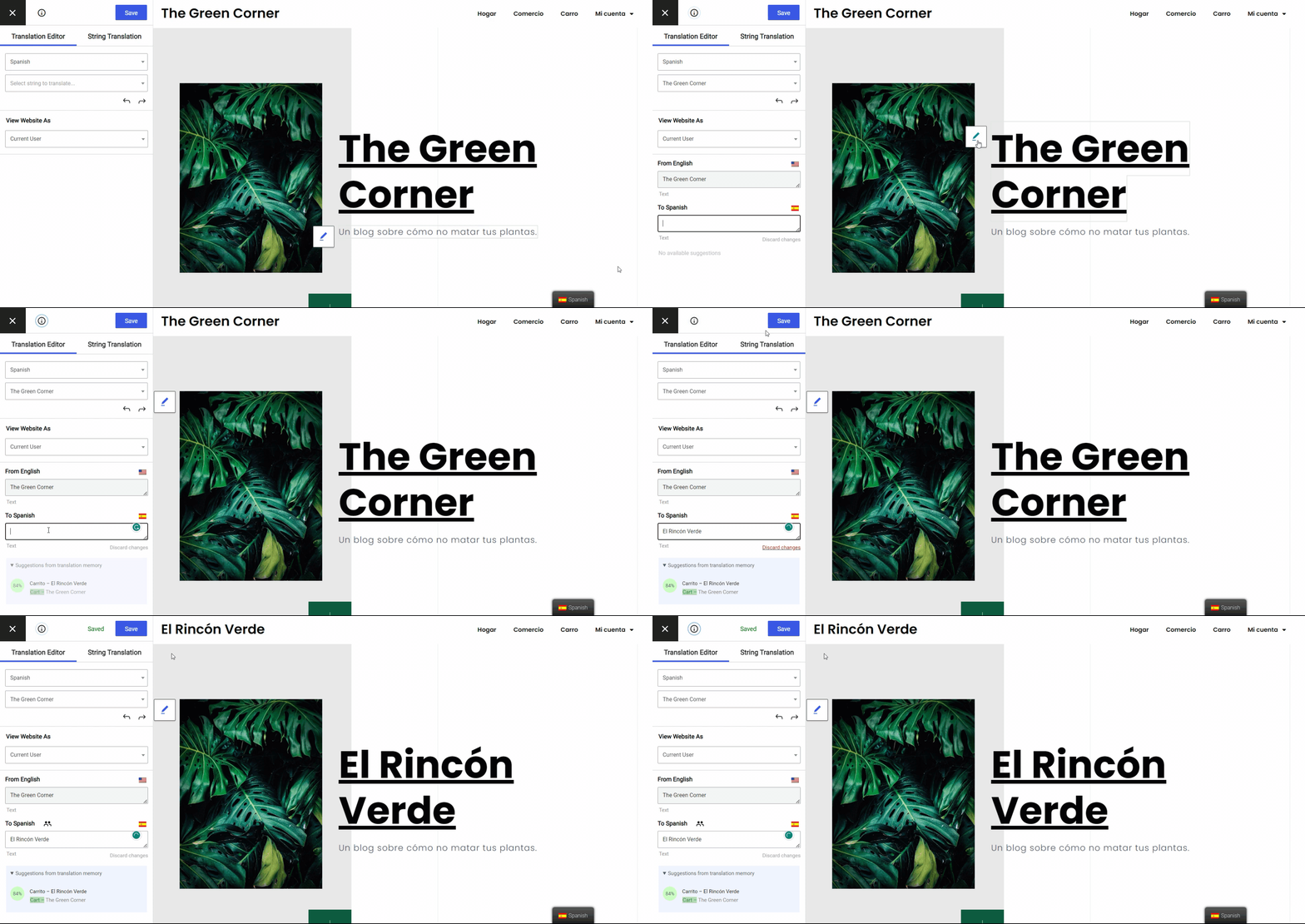
Oppure, sarai anche in grado di cercare stringhe utilizzando una ricerca in tempo reale e modificali usando il Traduttore di Stringhe.
TranslatePress funziona immediatamente con:
- Contenuto del tema, incluse le stringhe gettext e generate dall'utente;
- Contenuto dai tuoi plugin, inclusi gettext e stringhe generate dall'utente;
- Voci di menu;
- Widget;
- Contenuto dall'editor del post (l'editor a blocchi o il classico editor TinyMCE);
- Stringhe di back-end, come i titoli/le descrizioni SEO, le descrizioni di condivisione sui social media (ad esempio i tag Open Graph) e altro ancora (funzionalità premium).
In sostanza, indipendentemente dalla provenienza delle stringhe, TranslatePress ti consentirà di tradurle tramite questa interfaccia grafica.
Oltre a semplificare la traduzione di 100% del tuo sito, TranslatePress offre anche:
- Ospita tutto sul server del tuo sito WordPress;
- Supporta la traduzione automatica tramite Google Traduttore (gratis) o DeepL (funzionalità premium);
- Ti permette di tradurre i tuoi contenuti in una nuova lingua (gratis) o nuove lingue illimitate (funzionalità premium).
TranslatePress Multilingue
Come tradurre tutti i tipi di stringhe di WordPress
Ora passiamo alla guida passo passo su come utilizzare TranslatePress per la traduzione delle stringhe in WordPress.
1. Installa TranslatePress e seleziona le lingue
Per iniziare, installa plugin gratuito TranslatePress disponibile su WordPress.org.
Poi, vai a Impostazioni → TranslatePress per scegliere la lingua o le lingue in cui desideri tradurre il tuo sito.
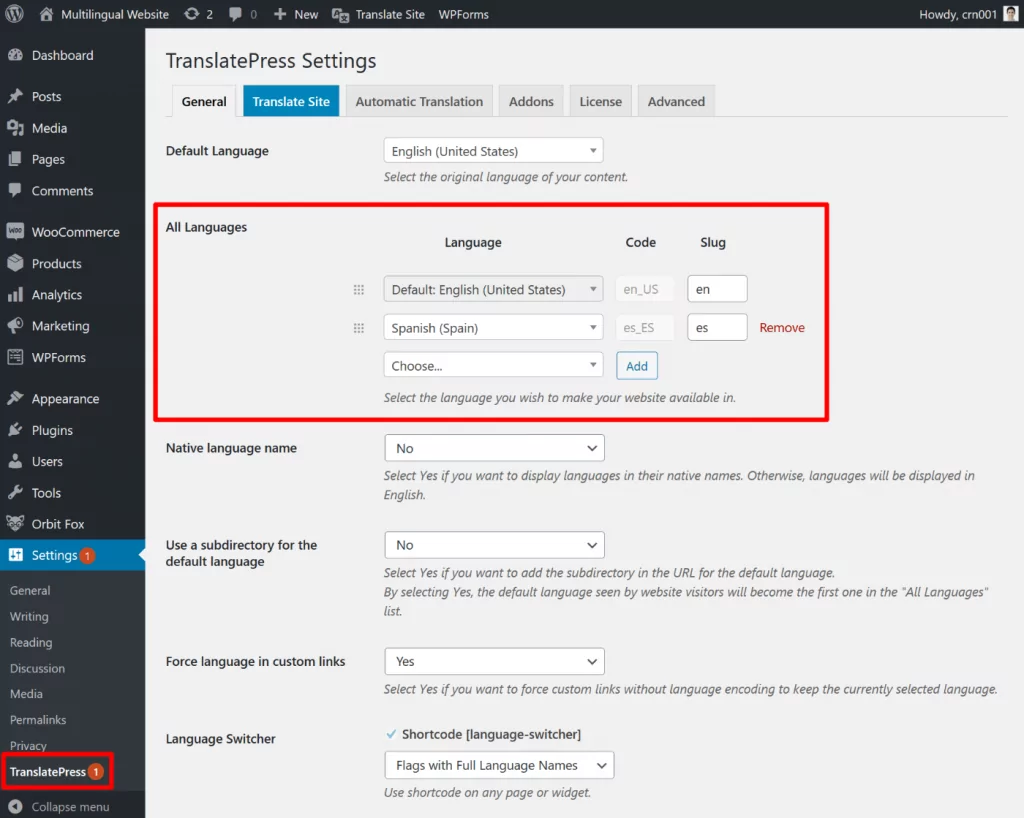
Di nuovo, la versione gratuita ti consente di tradurre il tuo sito in una nuova lingua, mentre la versione premium ti permette di utilizzare un numero illimitato di lingue.
TranslatePress supporta anche la traduzione automatica delle stringhe tramite Google Translate o Deepl. È possibile utilizzare questi servizi per generare traduzioni di base per ogni singola stringa del proprio sito e poi, se necessario, apportare modifiche manuali.
La traduzione automatica è opzionale (100%): puoi anche effettuare tutte le traduzioni manualmente. Se desideri utilizzare la traduzione automatica, puoi configurarla da Traduzione automatica scheda—dai un'occhiata al nostro guida completa su come tradurre automaticamente WordPress.
2. Apri l'Editor di traduzione visiva
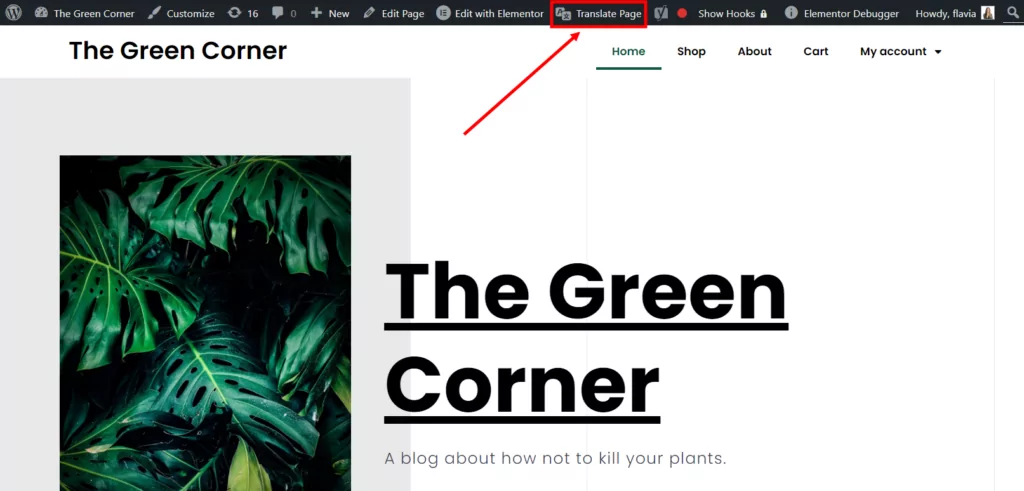
Una volta scelta la lingua o le lingue, apri il contenuto che desideri tradurre nel front-end del tuo sito. Dopodiché, fai clic su Traduci pagina pulsante sulla barra degli strumenti di WordPress per aprire l'editor di traduzione visiva di TranslatePress:
Traduci le stringhe
Per tradurre una stringa, tutto ciò che devi fare è passare con il mouse sul testo e fare clic sull'icona della matita. Questo aprirà la traduzione di quella stringa nella barra laterale, dove potrai aggiungere la tua traduzione:
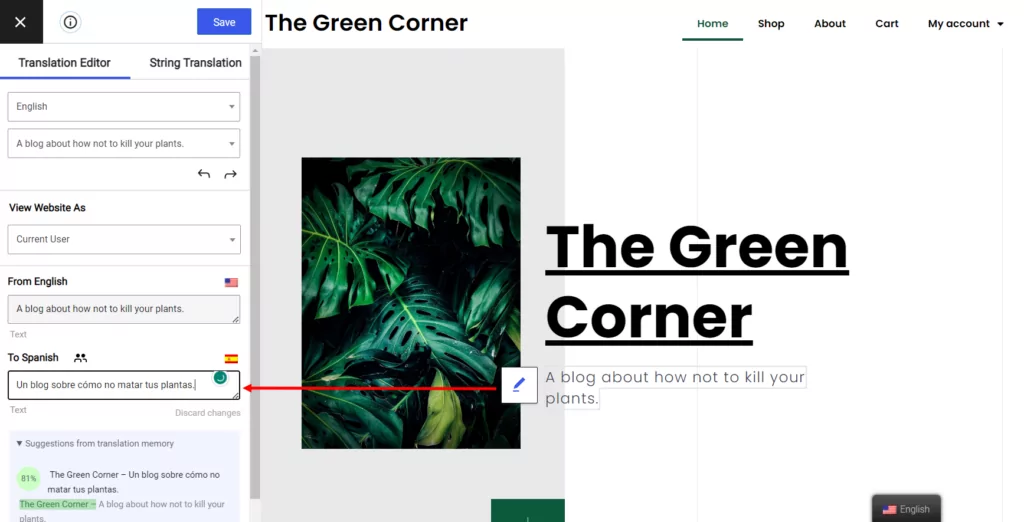
Puoi anche usare il menu a tendina nella barra laterale per cercare direttamente determinate stringhe. In alcuni casi, potresti trovare più veloce la ricerca rispetto al clic sull'anteprima dal vivo. Dopo aver cercato la stringa, potrai tradurla nella stessa barra laterale:
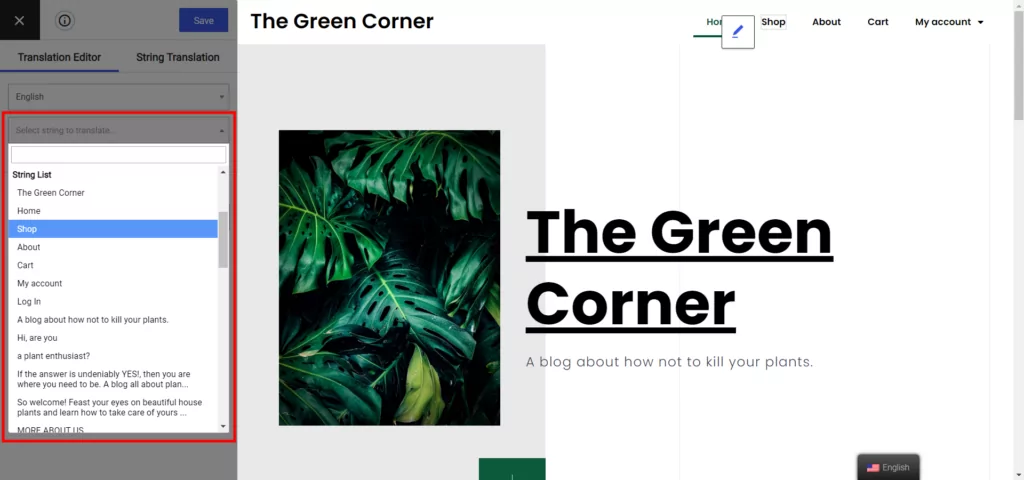
Il processo generale è lo stesso indipendentemente dal tipo di contenuto che stai traducendo, ma esaminiamo alcuni esempi per chiarire meglio il concetto...
Stringhe Gettext
Per aiutarti a individuare rapidamente quali stringhe provengono da gettext, TranslatePress contrassegnerà automaticamente tutte le stringhe gettext con l'icona di una matita verde (al contrario della normale icona blu).
Se non hai familiarità con questo termine, le stringhe gettext sono stringhe cablate nel tuo tema o plugin. Il filtro gettext ti consente di tradurre facilmente tali stringhe. Scopri di più su gettext.
Per esempio, prendiamo la parte di testo nel tuo tema che elenca le “Categorie”. Le singole categorie non sarebbero gettext, ma il testo che precede quelle categorie sì. Puoi vedere un esempio qui sotto, contrassegnato dall'icona della matita verde:
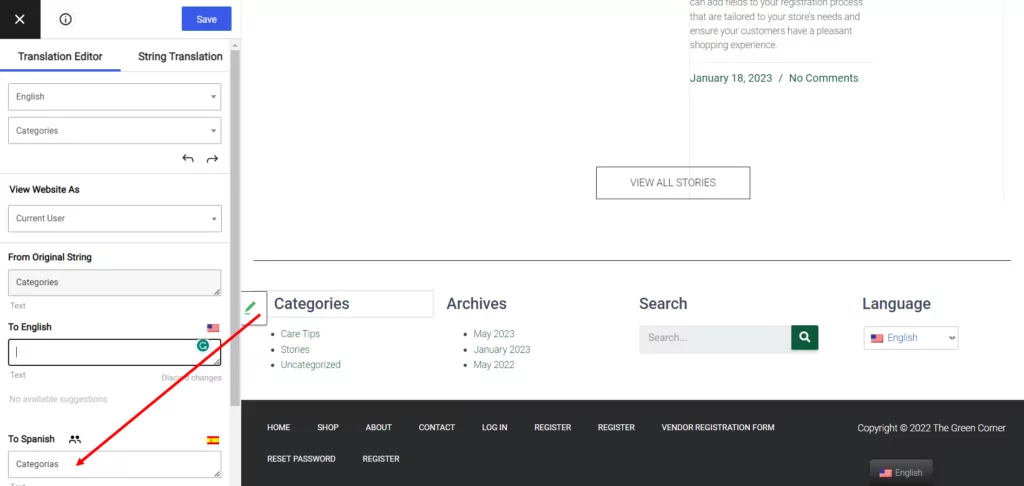
Quando traduci le stringhe gettext, potrai tradurre sia la versione originale (nella lingua nativa del tuo sito) e la versione tradotta.
Se il tuo tema o plugin include già delle traduzioni per una determinata stringa gettext, TranslatePress inserirà automaticamente quella traduzione, ma avrai comunque la possibilità di modificarla.
TranslatePress applicherà automaticamente queste traduzioni a ogni singola occorrenza di "gettext". In altre parole, non sarà necessario tradurre manualmente le stringhe "gettext" in ogni pagina.
Altre stringhe del tema
La maggior parte dei temi include contenuti aggiuntivi oltre a gettext. Ad esempio, il tema Hestia offre opzioni nell'editor di WordPress per personalizzare il design della homepage a pagina unica.
TranslatePress funziona con queste stringhe proprio come con qualsiasi altra. La GIF animata che vi abbiamo mostrato poco fa è in realtà un ottimo esempio di come si traducono queste stringhe dei temi generate dagli utenti.
Ecco una guida completa su come tradurre un tema WordPress.
Altre stringhe di plugin
TranslatePress può aiutarti a tradurre qualsiasi stringa proveniente da un plugin, indipendentemente dal fatto che sia in formato gettext o meno. Ciò include moduli, prodotti WooCommerce, contenuti del page builder, ecc.
Ecco un esempio di come appare la traduzione di un prodotto WooCommerce...
Alcune parti della traduzione, come il pulsante “Aggiungi al carrello”, sono gettext:
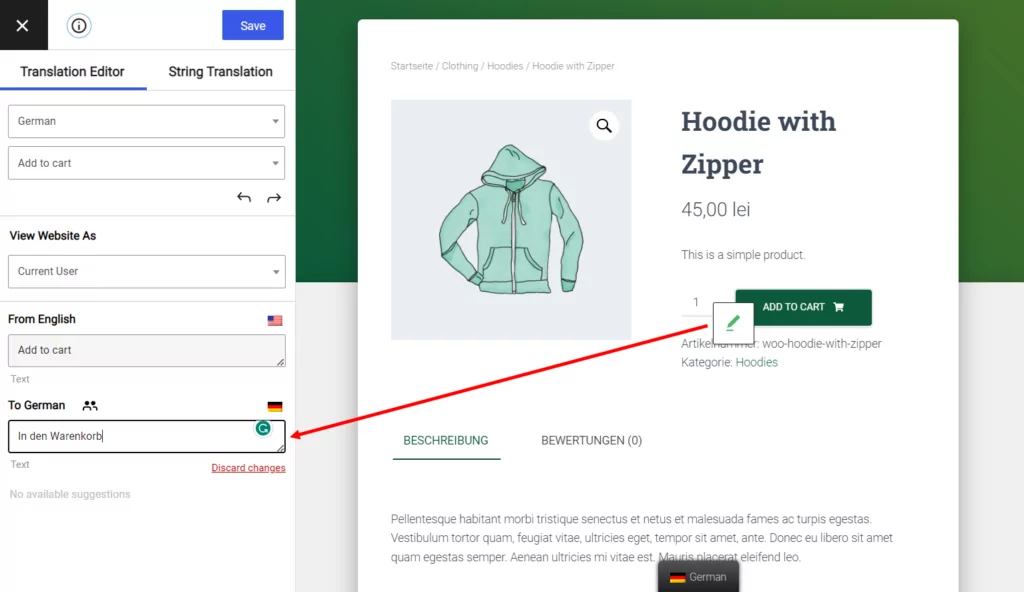
Altri, come il titolo e la descrizione del prodotto generati dall'utente, hanno la normale icona blu:
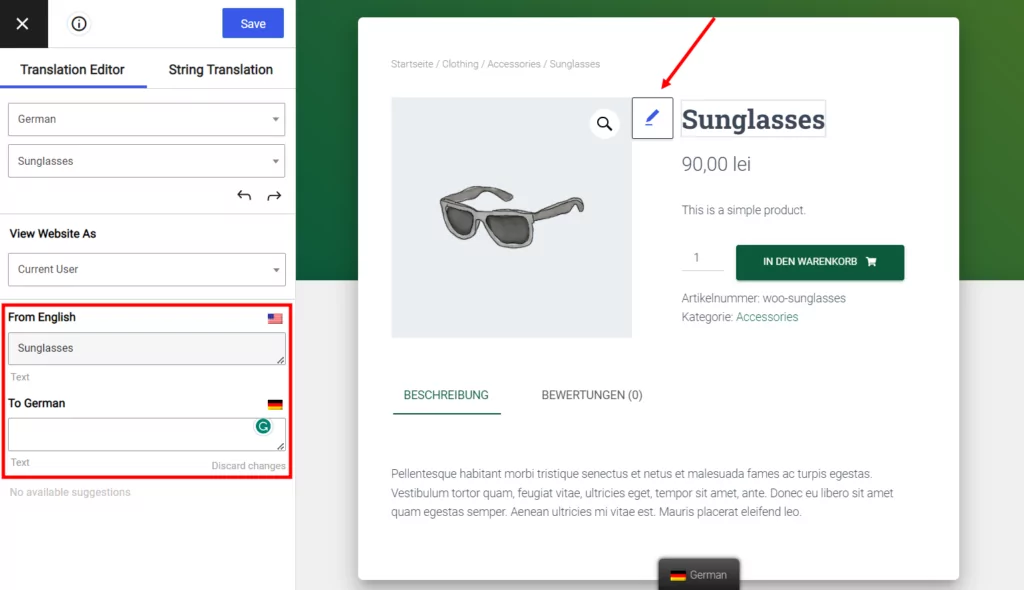
Ecco alcuni tutorial per tradurre tipi specifici di contenuto dei plugin:
TranslatePress funziona anche con i plugin per la creazione di pagine di WordPress:
Infine, puoi anche traduci il contenuto del campo personalizzato da plugin come Advanced Custom Fields, Toolset, Pods, ecc.
Voci di menu
Le voci di menu funzionano esattamente come qualsiasi altro tipo di stringa:
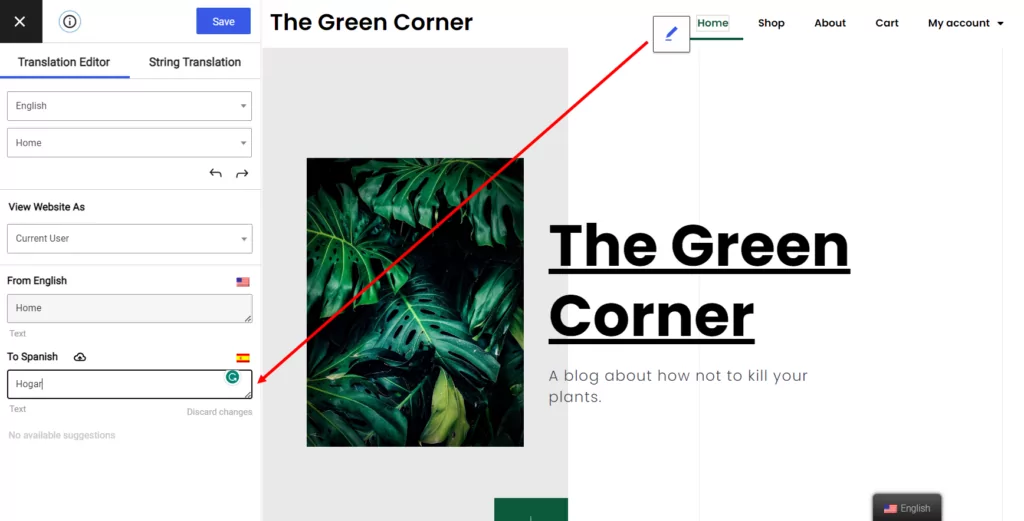
? Come tradurre i menu di WordPress
Widget
Puoi utilizzare lo stesso approccio per i widget di WordPress. Alcune stringhe dei widget proverranno da gettext (icona verde), mentre altre saranno generate dall'utente. In entrambi i casi, potrai tradur-le dall'interfaccia visiva:
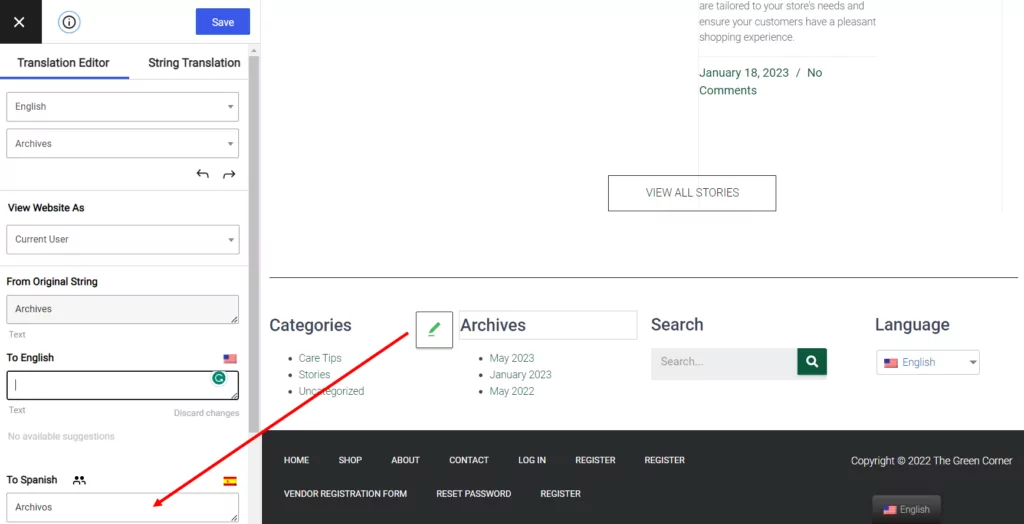
Puoi anche mostrare widget diversi in base alla lingua scelta dall'utente.
? Come tradurre i widget di WordPress
Contenuto dell'editor dei post
Non ne abbiamo parlato finora, ma puoi ovviamente utilizzare la stessa interfaccia anche per tradurre qualsiasi contenuto tu abbia aggiunto nell'editor di WordPress (o l'editor a blocchi o l'editor classico TinyMCE).
Ecco alcune guide per aiutarti:
Immagini
Infine, TranslatePress non si limita alla traduzione delle stringhe! Puoi utilizzarlo anche per “tradurre” i contenuti multimediali e localizzare meglio il tuo sito.
Tutto quello che devi fare è passare con il mouse sopra l'immagine e fare clic sull'icona della matita. Dopodiché, puoi selezionare un file di immagine diverso da utilizzare per ciascuna lingua e tradurre anche il testo alternativo:
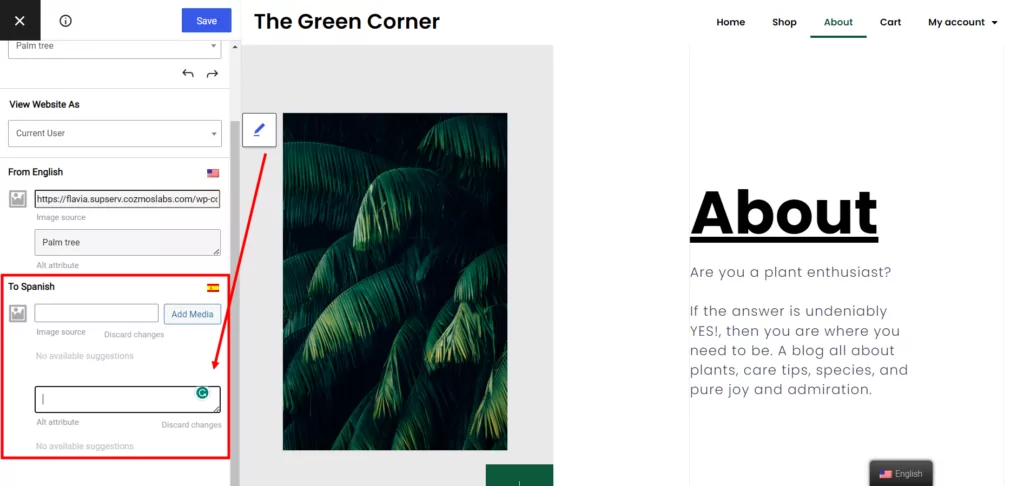
Puoi usare questo stesso approccio per tradurre tutti i tipi di immagini e contenuti multimediali, inclusi i cursori.
Vi abbiamo mostrato diversi modi per tradurre le stringhe utilizzando l'Editor Visivo. Ora, vediamo come utilizzare la nuova interfaccia di traduzione delle stringhe per lavorare sulle stringhe nascoste e dinamiche.
Come utilizzare l'interfaccia di traduzione delle stringhe
Per prima cosa, devi accedere al menu corretto. Da qualsiasi pagina del tuo sito, clicca su Traduci Sito nella tua barra di amministrazione, o da Impostazioni → TranslatePress. Dato che in questo caso non utilizzerai l'editor visivo, dovrai passare dalla scheda "Editor visivo" a quella "Traduzione stringhe" nell'angolo in basso a sinistra.
Ora vedrai che in alto ci sono tre schede che ti aiuteranno a trovare esattamente il tipo di stringa che stai cercando: Lumache, Gettext, e Email. È inoltre disponibile una funzione di filtro per ciascuna voce, che consente di restringere la ricerca.
Esaminiamo una per una le singole schede per capire come tradurre i vari tipi di stringhe.
Scheda Slug
Nella scheda "Slug" troverai tutti gli slug presenti sul tuo sito, che si tratti di slug di pagine, di post, di tassonomia o di qualsiasi altra cosa.
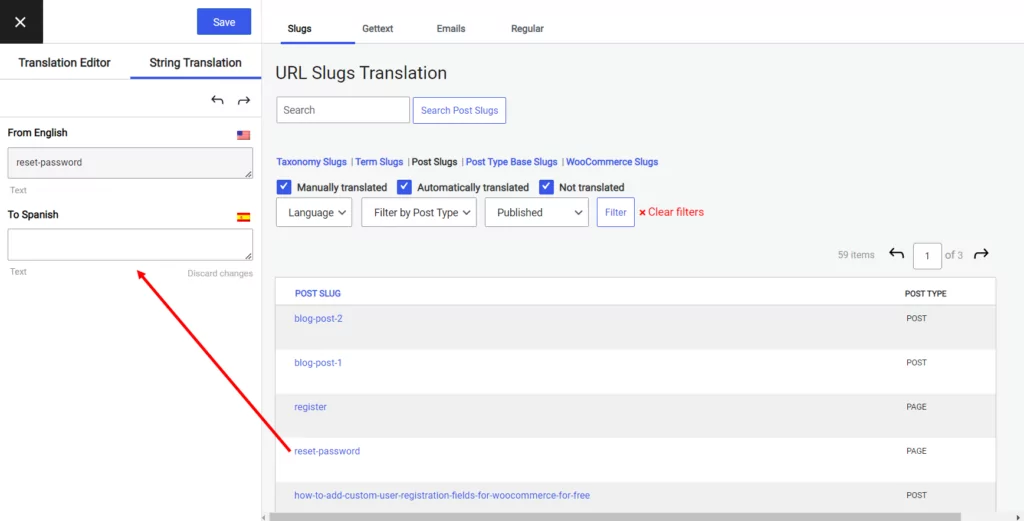
Anche se è possibile tradurre gli slug anche dall'editor visivo, qui li troverai tutti raggruppati in un unico posto, così potrai risparmiare tempo. Puoi persino utilizzare i filtri per individuare facilmente gli slug che stai cercando o per escludere quelli che sono già stati tradotti.
Scheda Gettext
Nella scheda Gettext troverai stringhe provenienti da plugin o temi che potrebbero non essere visibili nel front-end del tuo sito. Queste stringhe vengono solitamente visualizzate dinamicamente a seguito dell'invio di un modulo o di un altro tipo di messaggio di notifica.
Ad esempio, se un cliente acquista un abbonamento su un sito di e-learning, probabilmente vedrà un messaggio di conferma che il pagamento è stato approvato. Tuttavia, il testo generato dal plugin potrebbe non essere stato tradotto perché non era visibile sul front-end.
Quando apri la scheda Gettext, TranslatePress inizierà automaticamente a cercare i contenuti nel tuo sito. A seconda della complessità del tuo sito, potrebbero essere individuate diverse centinaia di pagine contenenti stringhe. Per semplificare le cose, puoi selezionare i filtri nella parte superiore della pagina per restringere la ricerca. Puoi anche inserire una parola chiave nel Cerca stringhe Gettext casella per trovare qualcosa di ancora più specifico.
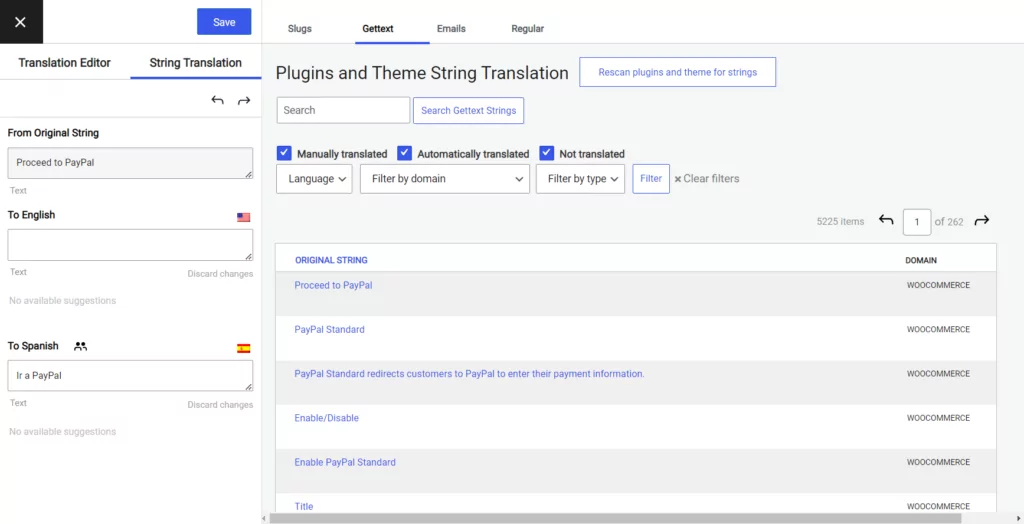
Una volta individuata la stringa che stai cercando, puoi tradurla o modificare la traduzione nel pannello a sinistra, proprio come faresti con qualsiasi altra traduzione manuale.
Scheda "Email"
La scheda "Email" mostra tutte le stringhe che compaiono nelle email generate dai plugin del tuo sito. Come ho accennato in precedenza, una notifica ai clienti di WooCommerce ne è un esempio. WPForms è un altro plugin che genera email.
Prima di iniziare la ricerca, clicca sul Scansiona di nuovo e applica il tema per le stringhe pulsante. In questo modo verrà avviata una scansione alla ricerca di eventuali stringhe di email presenti sul tuo sito. Esistono essenzialmente due tipi di notifiche via email che vengono solitamente inviate dal tuo sito web:
- E-mail inviate a un utente del tuo sito. Potrebbe trattarsi di un cliente che ha acquistato un prodotto, di un visitatore che si è iscritto alla tua newsletter o di qualcuno che ha compilato un modulo. Le e-mail di conferma e quelle relative al double opt-in rientrano in questa categoria.
- Le e-mail che vengono inviate a te, a un amministratore del tuo sito o a qualsiasi gestore del tuo negozio WooCommerce. Queste possono essere notifiche come l'acquisizione di un nuovo iscritto, l'effettuazione di un acquisto o la cancellazione di un ordine.
Per alcuni plugin, come WooCommerce, TranslatePress traduce automaticamente le notifiche via e-mail. La lingua utilizzata dipende dalla lingua che l'utente ha attivato durante la navigazione sul tuo sito web.
Tuttavia, alcuni messaggi e notifiche potrebbero non essere stati tradotti automaticamente, ed è in questi casi che dovrai utilizzare l'interfaccia di String Translator per cercarli. Potrebbe trattarsi, ad esempio, di un messaggio di conferma in un modulo o di una notifica che indica che l'invio del modulo non è andato a buon fine.
Ad esempio, una stringa che ricorre spesso in WPForms è “Inviato da %s”.
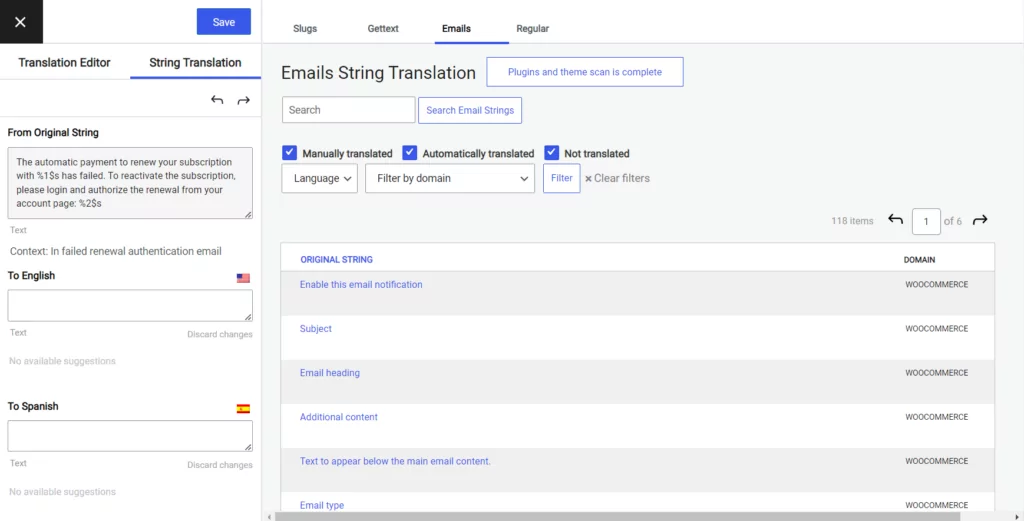
Per tradurre la stringa, fai clic su modifica. Il pannello Traduzione stringhe a sinistra mostrerà il testo originale e i campi per la traduzione in qualsiasi lingua abilitata sul tuo sito. Inserisci il testo tradotto nei campi della lingua appropriata e fai clic su Salva traduzione pulsante in alto.
Puoi continuare a cercare le stringhe di testo presenti nelle e-mail che devi tradurre e modificarle utilizzando l'interfaccia di traduzione delle stringhe.
Nella scheda "Email" troverai solo le stringhe localizzate del plugin. Ad esempio, se hai personalizzato i messaggi predefiniti di WooCommerce, dovrai cercare nella scheda "Regolare" per trovarli.
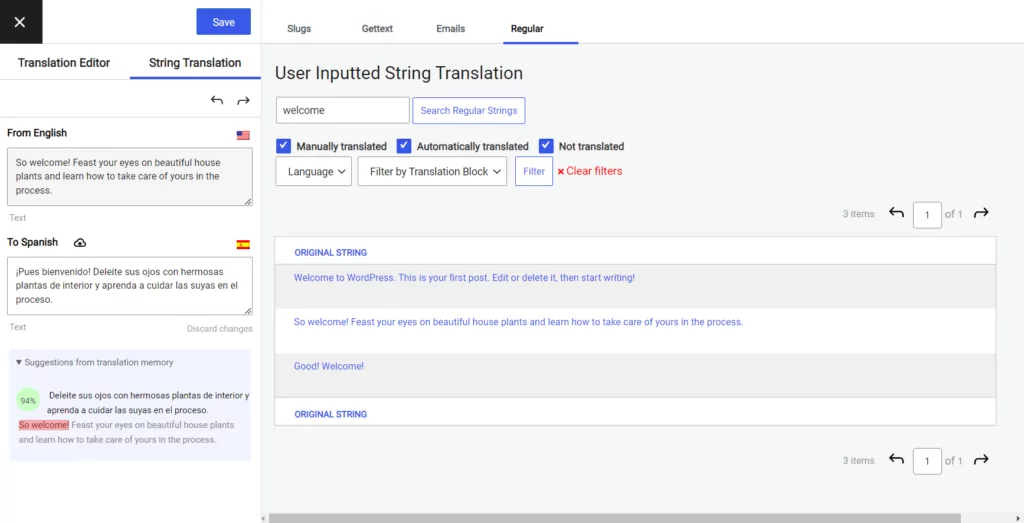
Scheda "Normale"
Se non vedi la scheda “Regular” accanto alle altre, non preoccuparti. Questa scheda è nascosta per impostazione predefinita per evitare di sovraccaricare l’interfaccia. Può essere facilmente attivata nelle impostazioni di TranslatePress. Vai su Impostazioni→TranslatePress e guarda sotto il Avanzato scheda.
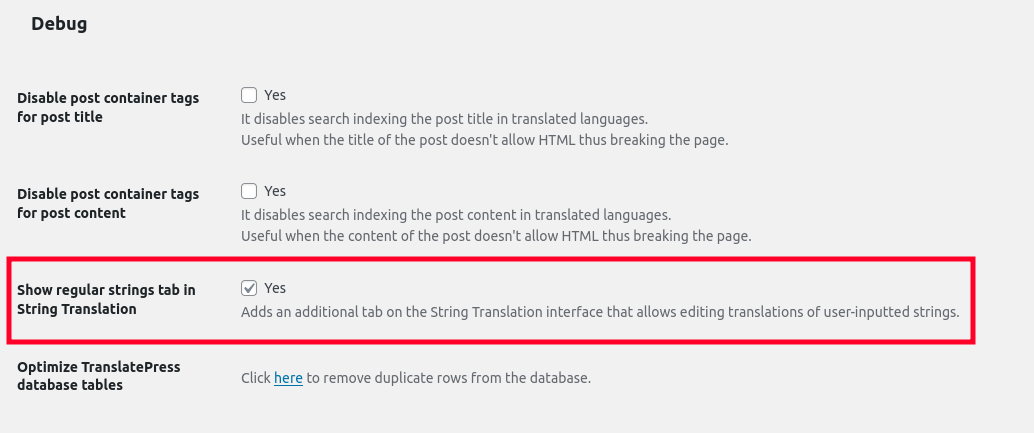
Nella sezione "Debug", abilita Mostra la scheda "Stringhe normali" in "Traduzione delle stringhe". Ora puoi tornare all'editor di traduzione delle stringhe, dove ora troverai Regolare scheda.
In questa scheda troverai praticamente tutte le stringhe presenti sul tuo sito web, comprese quelle già tradotte nell'editor visivo. Come nelle altre schede, puoi cercare stringhe specifiche e modificarne le traduzioni nel pannello di sinistra.
Inizia oggi con la traduzione delle stringhe di WordPress
Se vuoi tradurre integralmente il tuo sito WordPress, ti serve un modo per tradurre facilmente le stringhe di gettext, i contenuti generati dagli utenti nei temi o nei plugin, i menu, i widget, ecc.
Alcuni plugin costringono a utilizzare interfacce separate e/o a registrare manualmente le stringhe da tradurre, il che comporta maggiore complessità e un maggiore impegno.
Con TranslatePress, puoi risolvere entrambi i problemi:
- TranslatePress rileverà automaticamente tutte le stringhe presenti sul tuo sito, indipendentemente dalla loro provenienza. Non è necessario dichiarare manualmente determinate stringhe per la traduzione.
- Puoi gestire tutte le tue stringhe da un'unica interfaccia unificata che include l'editor di traduzione visiva e l'interfaccia di traduzione delle stringhe. Non è necessario passare continuamente da un'interfaccia all'altra ogni volta che vuoi tradurre qualcosa.
Puoi iniziare con versione gratuita di TranslatePress su WordPress.org.
Quindi, considera passaggio alla versione Pro per accedere a nuove e potenti funzionalità:
- SEO multilingue – tradurre stringhe di metadati SEO da plugin come Yoast SEO o Rank Math per SEO multilingue migliorata;
- Lingue illimitate – traduci il tuo sito in un numero illimitato di nuove lingue (la versione gratuita ti limita a una singola nuova lingua);
- Traduzione automatica DeepL – aggiungi supporto per DeepLLa versione gratuita supporta la traduzione automatica tramite Google Translate);
- Navigazione basata sulla lingua dell'utente – mostra menu di navigazione completamente diversi in base alla lingua di un utentela versione gratuita ti permette di tradurre le voci del menu, ma non puoi creare menu separati).
TranslatePress Multilingue
Hai ancora domande su come funziona la traduzione delle stringhe di WordPress con TranslatePress? Faccelo sapere nei commenti qui sotto!
Se hai trovato utile questo post, ti invitiamo a visitare il nostro Canale YouTube, dove carichiamo costantemente brevi tutorial video facili da seguire. Puoi anche seguirci su Facebook e Twitter per essere tra i primi a sapere ogni volta che pubblichiamo.


Possiamo accedere al database in cui vengono memorizzate tutte le traduzioni automatiche precedenti per modificare la traduzione in modo da non dover ripetere la correzione?