
In questo post
Cerchi un modo per tradurre la pagina della cassa e/o la pagina del carrello di WooCommerce?
Se il tuo negozio ha un pubblico multilingue, probabilmente desideri poter offrire il carrello e la cassa di WooCommerce in più lingue.
WooCommerce non include una funzione integrata per questa funzionalità, ma puoi ottenerla utilizzando il plugin giusto.
In questo post, imparerai come tradurre la pagina di cassa e la pagina del carrello di WooCommerce senza usare codice Plugin TranslatePress. Potrai anche tradurre il resto dei contenuti del tuo negozio, se lo desideri. Oppure, se ha senso per te, puoi decidere di solo Traduci le pagine del carrello e della cassa di WooCommerce e lascia il resto del tuo negozio in un'unica lingua.
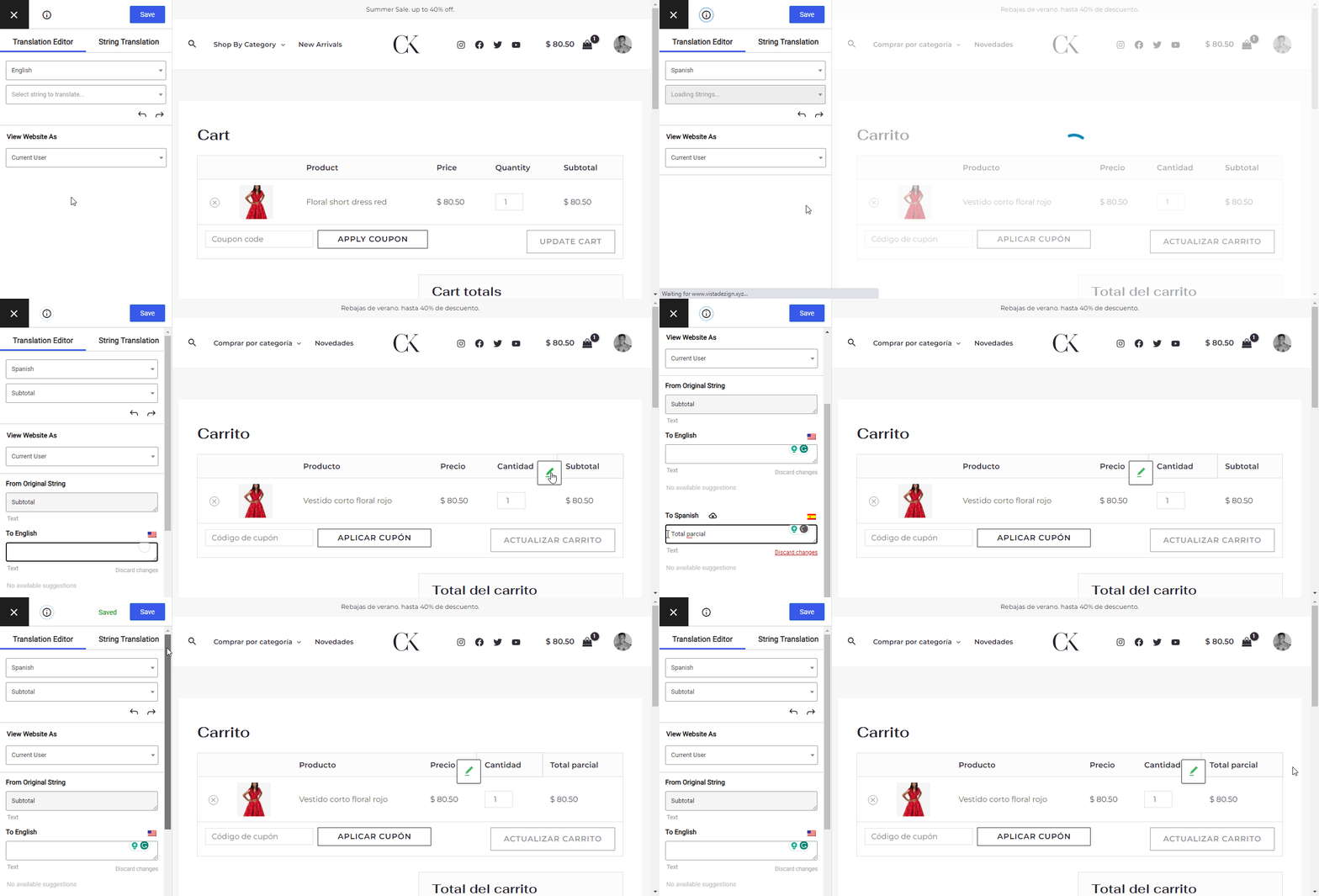
Per gestire le tue traduzioni, avrai a disposizione un semplice editor di traduzione visivo come questo:
Quindi, i vostri visitatori potranno scegliere le loro lingue preferite utilizzando una semplice interfaccia front-end cambio lingua.
Cominciamo!
Per un video tutorial rapido e semplice sull'argomento, puoi guardare anche questo:
Vi presentiamo TranslatePress: una soluzione semplice per la traduzione di WooCommerce
TranslatePress è un plug-in per principianti che semplifica la traduzione di parte o di tutto il contenuto del tuo negozio WooCommerce.
Puoi utilizzare TranslatePress per creare un negozio completamente multilingue e tradurre 100% dei contenuti del tuo sito in un numero illimitato di nuove lingue, compresi tutti i tuoi prodotti WooCommerce.
In alternativa, puoi anche utilizzare TranslatePress per esigenze di traduzione più mirate e tradurre solo determinati contenuti del tuo sito, come ad esempio solo il carrello e le pagine di checkout di WooCommerce.
Dipende completamente da te!
Indipendentemente dall'approccio che scegli, potrai utilizzare l'editor di traduzione visiva che hai visto sopra.
Come tradurre la pagina di cassa e la pagina del carrello di WooCommerce
Ora passiamo a come tradurre le pagine di cassa e carrello di WooCommerce.
Se devi tradurre solo le pagine del carrello e del checkout in una nuova lingua, puoi utilizzare la versione gratuita di TranslatePress su WordPress.org per questo tutorial.
Tuttavia, se desideri tradurre il carrello e la pagina di pagamento in più lingue nuove o creare un negozio WooCommerce completamente multilingue, potresti volerlo la versione premium di TranslatePress. Ci assicureremo di segnalare quali funzionalità richiedono la versione Premium mentre procediamo con il tutorial.
Nota – se desideri creare un negozio completamente multilingue, potresti dare un'occhiata alle nostre guide su come creare un negozio WooCommerce multilingue o come rendere WooCommerce multilingue. In questa guida ci concentriamo specificamente sulla traduzione solo le pagine del carrello e del checkout di WooCommerce, anche se TranslatePress è in grado di fare molto di più.
TranslatePress Multilingue
1. Installa TranslatePress e seleziona le lingue
Per iniziare, installa e attiva il plugin TranslatePress sul tuo sito. Quindi, vai su Impostazioni → TranslatePress per scegliere le lingue che desideri offrire nelle pagine del carrello e del checkout:
- Lingua predefinita – la lingua in cui sono attualmente presenti il carrello e la pagina di pagamento del tuo negozio.
- Tutte le lingue – una o più nuove lingue in cui desideri tradurre il carrello e la procedura di pagamento del tuo negozio. La versione gratuita di TranslatePress ti consente di aggiungere una nuova lingua mentre la versione premium ti consente di aggiungere un numero illimitato di nuove lingue.
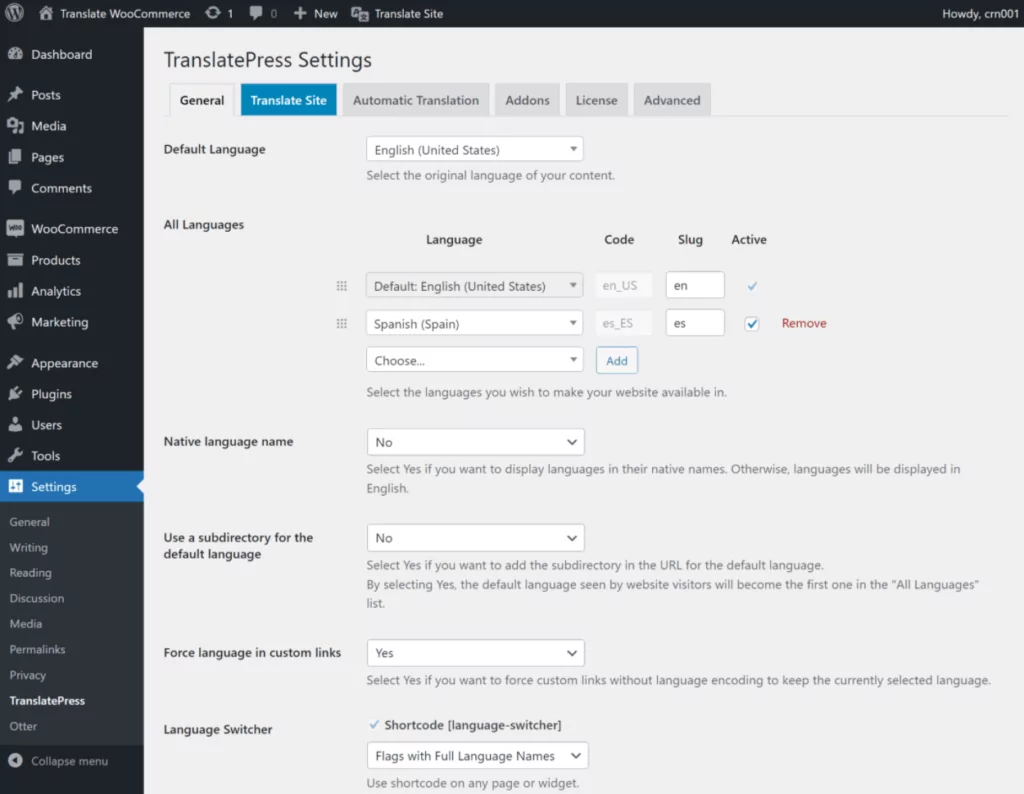
TranslatePress offre il supporto integrato per oltre un centinaio di lingue. Tuttavia, se non trovi la lingua che desideri utilizzare, puoi anche aggiungi una lingua personalizzata.
2. Apri l'Editor di Traduzione Visivo per Tradurre le Pagine Carrello e Cassa
Ora sei pronto per tradurre le pagine del carrello e della cassa. Con TranslatePress, potrai gestire tutto direttamente dal front-end del tuo sito.
Prima di addentrarci nel processo specifico di traduzione delle pagine del carrello e del checkout, vediamo brevemente come funziona l'editor di traduzione di TranslatePress.
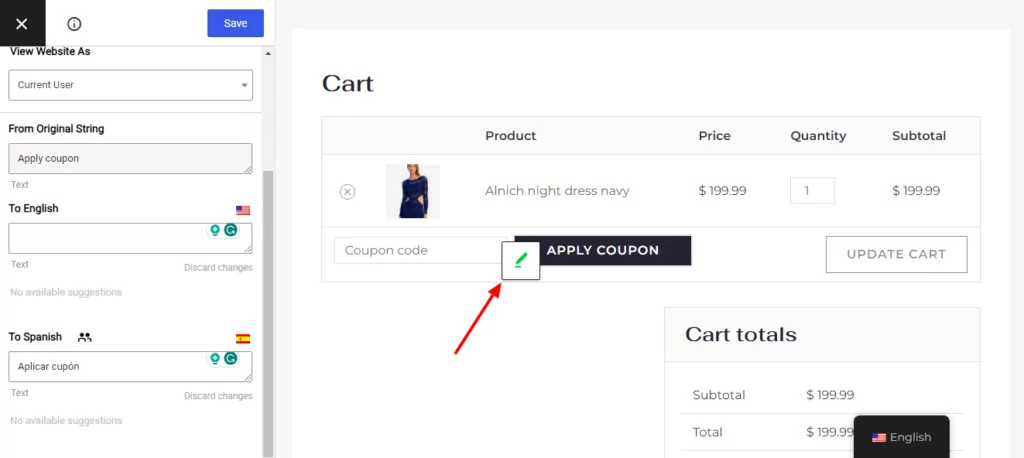
Nell'editor TranslatePress vedrai un'anteprima in tempo reale del tuo sito. Per tradurre qualsiasi elemento del sito, ti basta passarci sopra con il mouse e cliccare sull'icona a forma di matita. In questo modo si aprirà la finestra di traduzione relativa a quell'elemento nella barra laterale.
TranslatePress precompilerà automaticamente la traduzione da il pacchetto linguistico di WooCommerce se stai traducendo contenuti gettext che provengono direttamente da WooCommerce (qual è il contenuto principale delle pagine del carrello e del pagamento).
Tuttavia, potrai modificare completamente sia il testo nella lingua originale che le versioni tradotte. Per effettuare le modifiche, tutto ciò che devi fare è digitare nei campi della barra laterale:
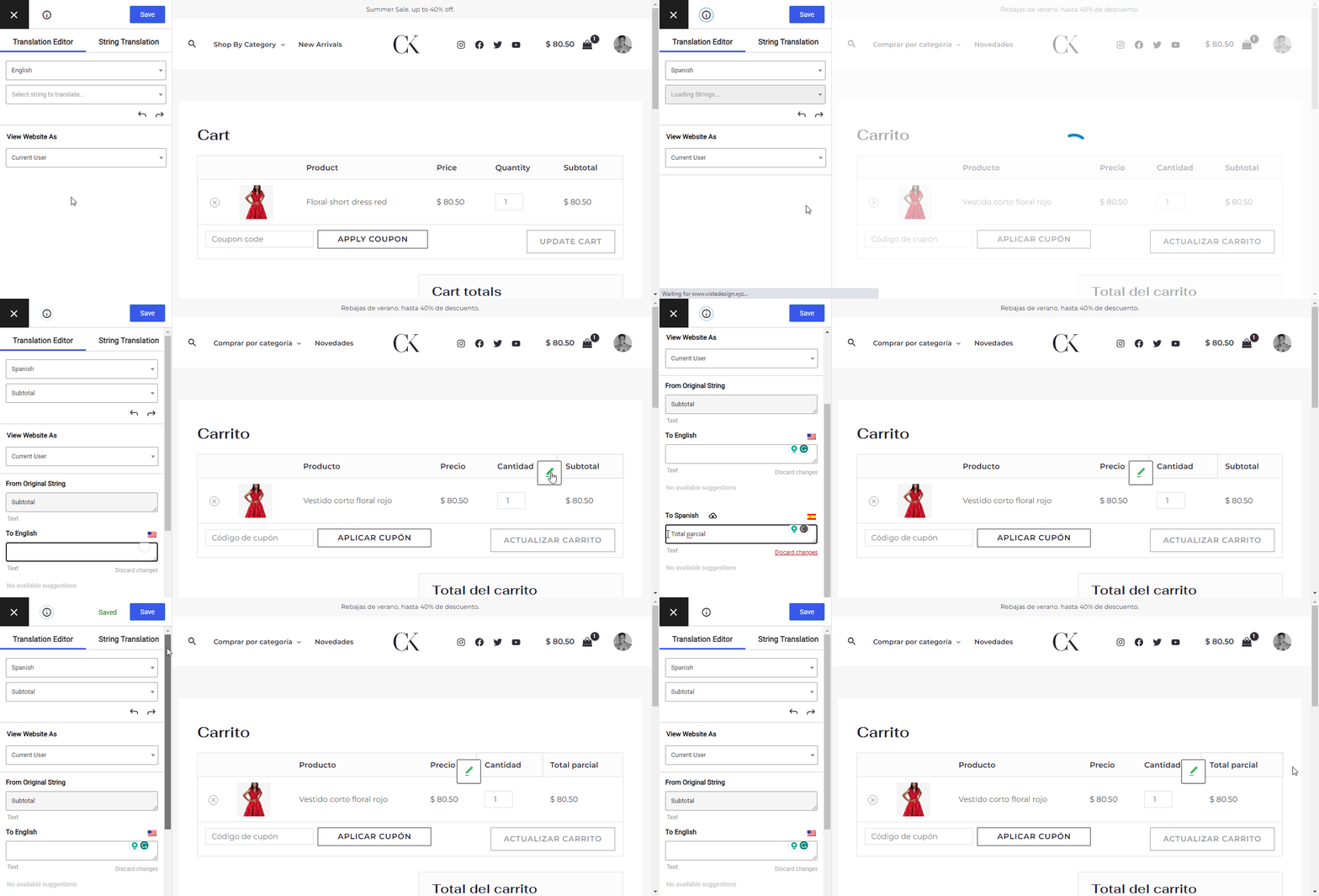
Ora vediamo come tradurre completamente il carrello e la cassa di WooCommerce…
Traduci il carrello di WooCommerce nello stato “Vuoto”
Il tuo carrello di WooCommerce ha due diversi “stati”:
- Vuoto – nessun articolo aggiunto al carrello.
- Riempito – uno o più articoli aggiunti al carrello.
Per prima cosa, vorrai tradurre lo stato vuoto. Poi, potrai continuare a tradurre lo stato pieno.
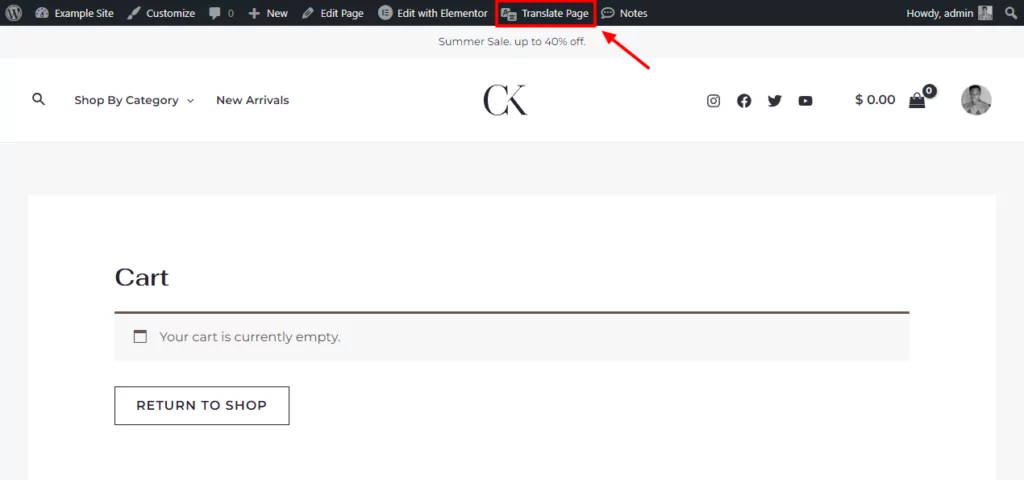
Per iniziare, apri un carrello vuoto sul front-end del tuo sito e clicca Traduci pagina opzione nella barra degli strumenti di WordPress:
Ora puoi utilizzare l'editor per tradurre il testo nella pagina del tuo carrello vuoto:
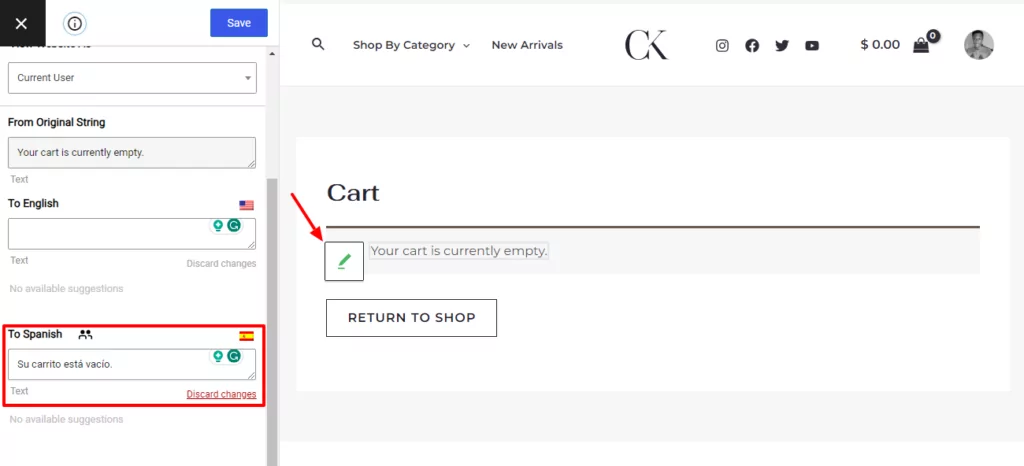
Assicurati di salvare le modifiche quando hai finito.
Traduci il carrello di WooCommerce nello stato pieno
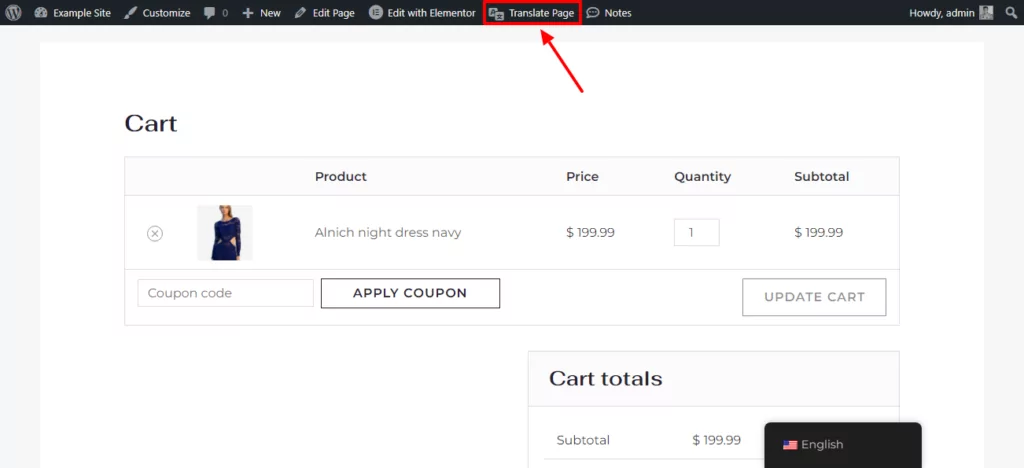
Successivamente, vorrai tradurre lo stato “pieno” del tuo carrello. Torna al front-end del tuo sito e aggiungi un articolo al carrello. Dopodiché, fai clic su Traduci pagina opzione di nuovo nella pagina del carrello:
Ora, usa lo stesso metodo per tradurre tutti gli elementi del tuo carrello. Anche in questo caso, TranslatePress importerà automaticamente le traduzioni dal pacchetto linguistico di WooCommerce, se disponibile, quindi potrebbe non essere necessario tradurre tutto da zero:
Traduci la pagina di pagamento di WooCommerce
Per concludere, ora sei pronto per tradurre la pagina di cassa di WooCommerce.
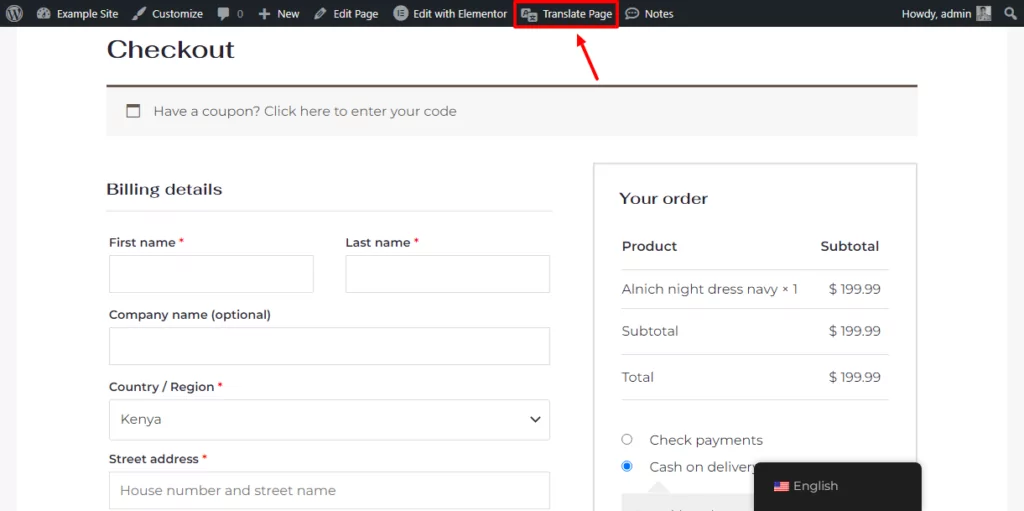
Per aprire l'editor di traduzione per il checkout, puoi utilizzare lo stesso approccio: vai alla pagina di checkout nel front-end del tuo sito e clicca su Traduci pagina opzione sulla barra degli strumenti:
Puoi tradurre la pagina di pagamento di WooCommerce utilizzando lo stesso approccio della pagina del carrello:
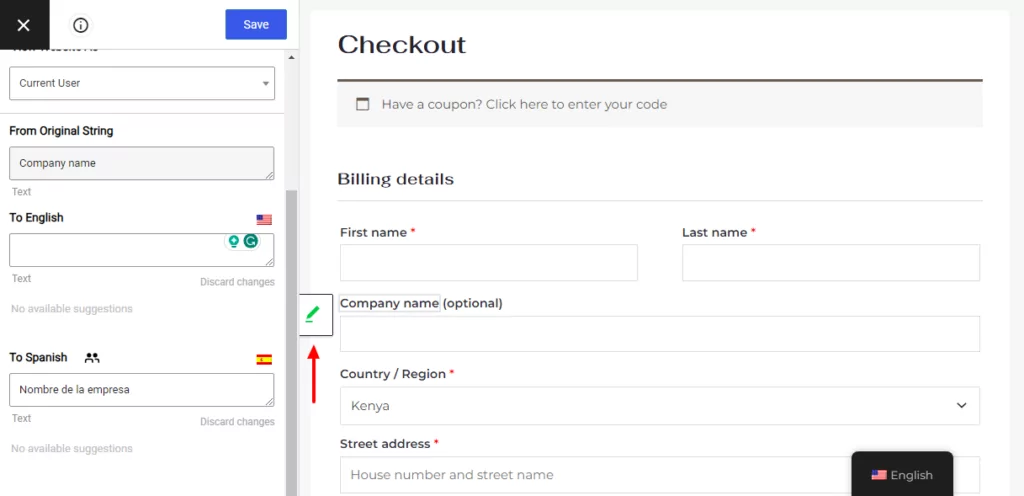
E questo è tutto! Assicurati di salvare le modifiche quando hai finito.
3. Traduci il resto del tuo negozio (facoltativo)
Questo passaggio è facoltativo. Ma se desideri creare un negozio completamente multilingua, ora vorrai tradurre anche il resto del contenuto del tuo negozio.
Per fare questo, puoi utilizzare esattamente lo stesso editor di traduzione che hai visto sopra. Puoi usare questo editor per tradurre le pagine del tuo negozio, i singoli prodotti, la tua homepage, il tuo blog e qualsiasi altra parte del tuo negozio.
Se desideri velocizzare il processo di traduzione, TranslatePress supporta anche la traduzione automatica tramite due servizi di traduzione automatica – Google Traduttore o DeepL. Google Translate è disponibile nella versione gratuita di TranslatePress, mentre per utilizzare DeepL è necessario acquistare almeno il TranslatePress Business licenza.
Per imparare a creare un negozio multilingua in generale, consulta queste guide:
- Crea un negozio WooCommerce multilingue
- Traduci prodotti WooCommerce
- Crea un sito WooCommerce multilingua
E per imparare a automaticamente traduci l'intero negozio WooCommerce, consulta queste guide:
- Come tradurre automaticamente WooCommerce
- Configurazione di Google Translate con TranslatePress
- Configurazione di DeepL con TranslatePress
4. Configurazione di selettore di lingua
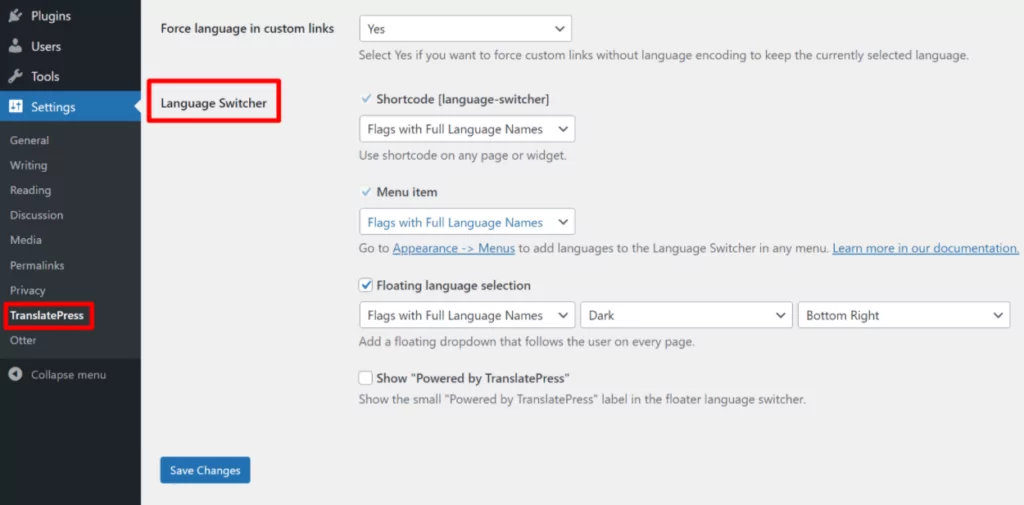
Per aiutare i visitatori a scegliere la lingua che preferiscono, TranslatePress aggiunge di default un pulsante selettore di lingua mobile nell'angolo in basso a destra del tuo sito. Tuttavia, hai anche la possibilità di modificarne il colore e la posizione, il che ti permette di spostarlo in un altro punto.
Tieni presente che il selettore di lingua apparirà solo nelle pagine in cui hai aggiunto le tue traduzioni. Quindi, se decidi di solo offri più lingue nelle pagine del carrello e del checkout, il selettore di lingua sarà visibile solo nelle pagine del carrello e del checkout.
Tuttavia, se decidi di tradurre l'intero negozio (compresi tutti i tuoi prodotti), il selettore di lingua sarà visibile in tutto il sito.
Puoi posizionare il tuo selettore di lingua utilizzando le seguenti opzioni:
- Selettore di lingua flottante – posizionalo in qualsiasi angolo del tuo sito.
- Voce di menu – aggiungilo come voce di menu andando su Aspetto → Menu.
- Codice breve – posizionarlo manualmente ovunque utilizzando uno shortcode.
È inoltre possibile configurare le funzionalità del selettore di lingua, ad esempio se visualizzare o meno le bandierine delle lingue. Per accedere a queste impostazioni, andare su Impostazioni → TranslatePress e scorri verso il basso fino al Cambio lingua Impostazioni
Traduci la tua cassa e il tuo carrello WooCommerce oggi stesso
Con TranslatePress puoi tradurre facilmente le pagine di checkout e del carrello di WooCommerce, oltre al resto del tuo negozio, se necessario.
Se vuoi specificamente solo Se vuoi tradurre le pagine del carrello e del checkout, TranslatePress può occuparsene. Puoi aggiungere selettore di lingua a quelle pagine mantenendo il resto del sito in un'unica lingua.
In alternativa, TranslatePress può aiutarti a creare un negozio WooCommerce multilingue 100%, con il supporto per la traduzione completa dei tuoi prodotti, delle pagine del negozio, dei menu, dei post del blog e di ogni altra parte del tuo sito.
Il versione gratuita di TranslatePress su WordPress.org ti permetterà di tradurre le pagine del carrello e del checkout in una nuova lingua.
Se tu acquista la versione premium di TranslatePress, potrai usare lingue illimitate e anche accedere ad altre funzionalità utili per creare un negozio WooCommerce completamente multilingua tra cui:
- Supporto SEO multilingue per tradurre titoli SEO, meta descrizioni e altro;
- Supporto DeepL per la traduzione automatica;
- Rilevamento automatico della lingua dell'utente per reindirizzare automaticamente gli utenti alle loro lingue preferite;
- L'opzione di utilizzare completamente menu di navigazione separati in base alla lingua di un utente;
- Dedicato traduttori;
- …molto altro!
TranslatePress Multilingue
Hai ancora domande su come tradurre la pagina della cassa e la pagina del carrello di WooCommerce? Fatecelo sapere nei commenti!