
En esta publicación
¿Has visto una advertencia en Google Search Console que dice “tu sitio no tiene etiquetas hreflang” pero no estás seguro de qué significa y qué debes hacer para solucionarlo?
Si su sitio web ofrece múltiples versiones de su contenido para diferentes idiomas y/o ubicaciones de lectores, es esencial que agregues etiquetas hreflang con el formato adecuado al código de tu sitio.
Si ves este error en Google Search Console, significa que Google no ha podido detectar estas etiquetas hreflang, ya sea porque no las has añadido o porque las has añadido incorrectamente.
¡Pero no te preocupes! Esta guía va a cubrir todo lo que necesitas saber para añadir etiquetas hreflang a tu sitio web y solucionar el error en Google Search Console.
Esto es lo que puede esperar de este artículo:
- Una introducción general a las etiquetas hreflang
- ¿Qué sitios necesitan usar etiquetas hreflang?si tu sitio no encaja, esta advertencia no te importa)
- Qué significa el error “Su sitio no tiene etiquetas hreflang”
- Cómo solucionar el error “Su sitio no tiene etiquetas hreflang” manualmente o con el plugin gratuito TranslatePress para WordPress
¿Qué son las etiquetas hreflang?
Las etiquetas hreflang son pequeños fragmentos de código oculto que te permiten indicar a Google y a otros motores de búsqueda qué idioma y región geográfica está targeting cada versión de una página.
Son especialmente importantes para los sitios web multilingües porque te permiten vincular fragmentos de contenido entre sí mientras especifican el idioma y la configuración regional de cada versión.
Por ejemplo, digamos que tienes una publicación —llámala “Hello World”— que está disponible en tres idiomas diferentes: inglés, español y alemán.
Las etiquetas hreflang te permiten comunicar la siguiente información:
- La versión en inglés de la publicación está en yoursite.com/hello-world
- La versión en español de la publicación está en yoursite.com/es/hola-mundo
- La versión alemana de la publicación está en yoursite.com/de/hallo-welt
En conjunto, estas tres páginas se conocerían como un clúster de hreflang porque las tres están vinculadas entre sí mediante etiquetas hreflang comunes.
No solo esto ayuda a Google a ofrecer el idioma correcto a cada usuario, sino que también le indica a Google que las tres publicaciones cubren el mismo contenido, aunque estén en diferentes idiomas.
También puedes usar etiquetas hreflang para comunicar información sobre ciertas locales además de idiomas. Por ejemplo:
- yoursite.com/hello-world ¿Es la versión en inglés para lectores de EE. UU.?
- yoursite.co.uk/hola-mundo ¿Es la versión en inglés para lectores del Reino Unido?
Añadir las etiquetas hreflang adecuadas es importante por varias razones diferentes:
- Evitar problemas de contenido duplicado – Las etiquetas hreflang ayudan a Google a comprender que estos fragmentos de contenido enlazados no son duplicados, sino que están dirigidos a diferentes idiomas y/o regiones.
- Optimizar páginas para diferentes audiencias – Las etiquetas hreflang ayudan a garantizar que Google clasifique la versión correcta de la página para cada buscador.
- Benefíciate de las señales de clasificación compartidas – Google ha insinuado que las páginas vinculadas entre sí en un grupo de hreflang pueden beneficiarse de señales de clasificación de SEO compartidas.
Si quieres aprender aún más sobre las etiquetas hreflang, puedes consulta nuestra guía definitiva sobre las etiquetas hreflang.
¿Necesitas etiquetas hreflang si tu sitio solo tiene un idioma?
Si tienes un sitio web multilingüe, necesitas absolutamente añadir etiquetas hreflang. No hay debate sobre eso.
¿Pero necesitas etiquetas hreflang si solo ofreces un único idioma en tu sitio web?
Bueno, la respuesta es que depende.
Incluso si solo ofreces un solo idioma, es posible que quieras utilizar etiquetas hreflang si tienes diferentes versiones de tu sitio que se dirigen a distintas regiones. Por ejemplo, si tienes una versión para EE. UU., una para el Reino Unido y otra para Australia, debes agregar etiquetas hreflang aunque las tres versiones estén en inglés.
La etiqueta hreflang ayudará a Google a asegurarse de que ofrece la versión australiana de su sitio a las personas que buscan desde Australia y la versión de EE. UU. a las personas que buscan desde EE. UU.
Si solo tienes una versión de tu sitio en un solo idioma, en realidad no hay mucha necesidad de usar etiquetas hreflang, aunque un pequeño número de expertos en SEO todavía lo recomienda.
¿Qué significa el mensaje “Tu sitio no tiene etiquetas hreflang” en Google Search Console?
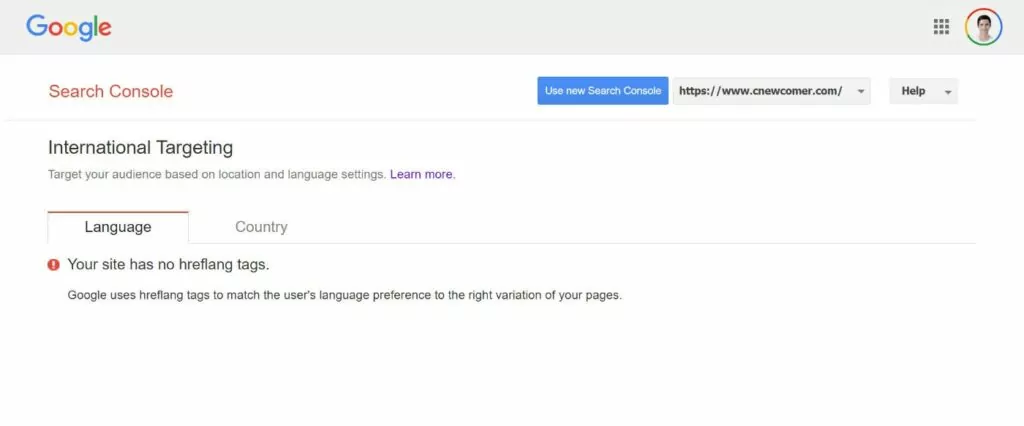
El mensaje “Tu sitio no tiene etiquetas hreflang” aparece en el Segmentación internacional herramienta de Google Search Console, que todavía está disponible como herramienta heredada.
El mensaje significa exactamente lo que parece: Google no ha podido detectar ninguna etiqueta hreflang en su sitio, lo que significa que no podrá indexar y conectar correctamente las diferentes versiones de idioma o región de sus páginas.
Esto podría deberse a que simplemente no has añadido ninguna etiqueta hreflang o a que has intentado añadirlas pero lo has hecho incorrectamente.
De cualquier manera, es importante solucionar este problema si ofreces tu sitio en varios idiomas, ya que puede tener un efecto negativo en el SEO y la experiencia de usuario de tu sitio.
La “solución” será agregar etiquetas hreflang (si aún no lo has hecho) o solucionar por qué Google no detecta correctamente tus etiquetas hreflang (si ya has intentado agregarlos).
Una vez que solucione el problema, este mensaje de error debería desaparecer en Google Search Console y ser reemplazado por un informe que le muestre cómo Google ha interpretado la estructura de etiquetas hreflang de su sitio.
Cómo configurar manualmente las etiquetas hreflang
Si estás usando WordPress, te mostraremos un mucho una forma más fácil de solucionar el problema “Tu sitio no tiene etiquetas hreflang” en la siguiente sección utilizando el complemento gratuito TranslatePress.
Sin embargo, si estás no usando WordPress, es posible que tengas que configurar manualmente las etiquetas hreflang... lo cual puede ser bastante complicado.
Puedes y debes añadir etiquetas hreflang en dos ubicaciones:
- La sección del código de cada página..
- El mapa del sitio XML de tu página web.
Lo fundamental que hay que entender con las etiquetas hreflang es que el grupo hreflang debe incluir siempre todas y cada una de las instancias de la página incluyendo la página actual.
Por ejemplo, si tienes una versión en inglés y en español de la página, cada página incluiría las etiquetas hreflang para ambos las versiones en inglés y en español. Sí, la página en inglés todavía incluye la etiqueta hreflang para la versión en inglés, a pesar de ser la página en la que el visitante ya se encuentra.
Incluir todas las instancias de una página en cada grupo de hreflang es importante para que Google pueda entender completamente cómo se conectan las cosas. Si no lo haces, eso puede desencadenar el error.
Lea a continuación el formato de código que debe seguir para solucionar el error “Su sitio no tiene etiquetas hreflang”.
Nuevamente, si te sientes abrumado por intentar agregar este código tú mismo, sigue leyendo para conocer una solución de complementos mucho más fácil para los usuarios de WordPress.
Formato del código para las etiquetas hreflang en
<link rel="alternate" hreflang="en" href="https://yoursite.com/hello-world/" />

<link rel="alternate" hreflang="es-mx" href="https://yoursite.com/es/hola-mundo/" />

<link rel="alternate" hreflang="de" href="https://yoursite.com/de/hallo-welt/" />
Formato de código para etiquetas hreflang en el sitemap XML
<url>

https://yoursite.com/hello-world/

<xhtml:link rel="alternate" "hreflang="es-mx" href="https://yoursite.com/es/hola-mundo/"/>

<xhtml:link rel="alternate" "hreflang="de" href="https://yoursite.com/de/hallo-welt/"/>

</url>
Cómo solucionar “Tu sitio no tiene etiquetas Hreflang” en WordPress
Si has construido tu sitio web con WordPress, el complemento TranslatePress ofrece una manera fácil no solo de traducir tu contenido a uno o más idiomas nuevos, sino también de hacerlo automáticamente asegúrate de que cada una de las páginas tenga las etiquetas hreflang adecuadas.
Para los usuarios de WordPress, esta suele ser la forma más sencilla de solucionar el problema “Tu sitio web no tiene etiquetas hreflang”. En lugar de tener que añadir las etiquetas manualmente (y mantenerlas actualizadas cada vez que realices cambios), puedes dejar que TranslatePress se encargue de todo por ti sin mover un dedo.
Para ofrecerte una cobertura completa, TranslatePress añadirá etiquetas hreflang tanto a la de cada página, así como a el mapa del sitio XML de tu sitio de WordPress (incluyendo compatibilidad para plugins de SEO más populares).
También te permitirá administrar todas las traducciones de tu sitio web mediante un editor visual, lo que te ofrece una forma más cómoda de trabajar con contenido multilingüe.
A continuación encontrarás una guía rápida sobre cómo utilizar TranslatePress para solucionar el problema “Tu sitio web no tiene etiquetas hreflang”. Si quieres obtener información más detallada sobre cómo crear un sitio web multilingüe con TranslatePress, también puedes consultar nuestro tutorial completo sobre WordPress multilingüe.
TranslatePress Multilingüe
1. Instala TranslatePress y selecciona los idiomas
Para empezar, instala y activa el plugin gratuito TranslatePress en tu sitio web. Está disponible en WordPress.org, por lo que puedes instalarlo como cualquier otro plugin gratuito.
Luego, ve a Configuración → TranslatePress para elegir los idiomas que desea utilizar en su sitioy por lo tanto los idiomas para los cuales desea agregar etiquetas hreflang):
- Idioma predeterminado – el idioma original de su sitio en el que escribió su contenido original.
- Todos los idiomas – uno o más idiomas nuevos que desea agregar a su sitio.
Así es como se ve agregar etiquetas hreflang tanto para inglés como para español:
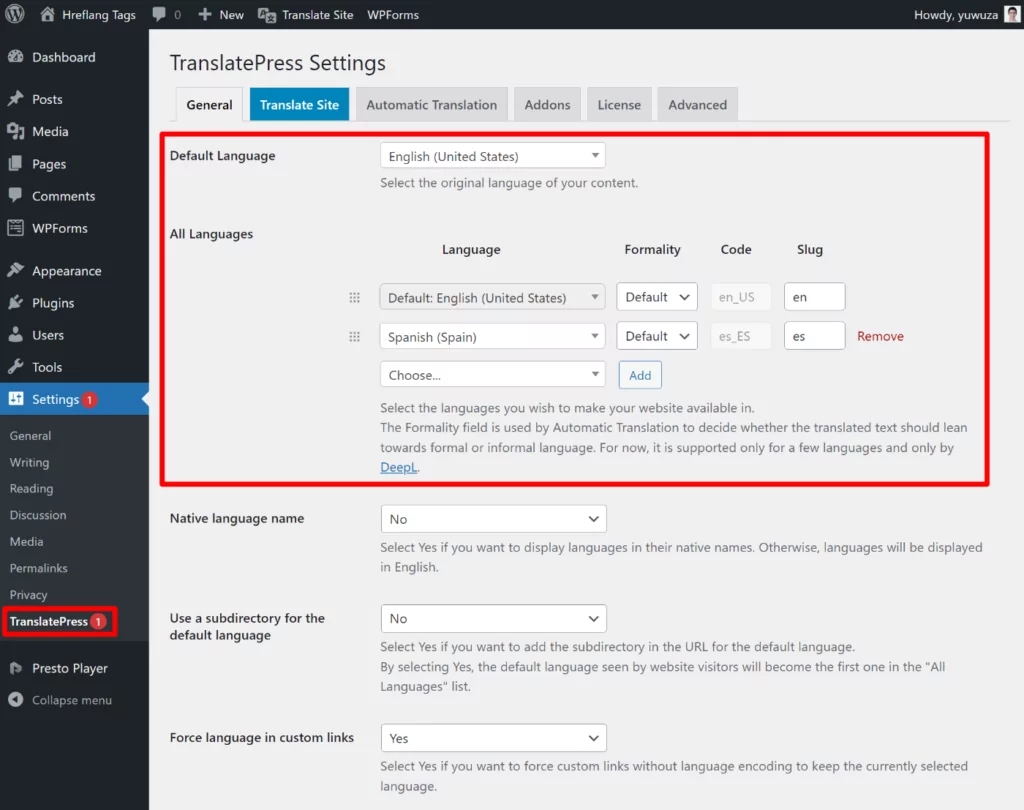
Ten en cuenta que puedes elegir ambos el idioma y la configuración regional. Incluso podrías elegir el mismo idioma dos veces, pero en diferentes configuraciones regionales.
La versión gratuita de TranslatePress te permite añadir un nuevo idioma a tu sitio web (hasta un total de dos idiomas). Si quieres utilizar más de dos, puedes actualizar a la Personal licencia para añadir compatibilidad con idiomas ilimitados.
2. Traduce tu contenido
A continuación, te recomendamos que utilices TranslatePress para traducir tu contenido; así es como crearás las diferentes versiones de tus páginas para incluirlas en las etiquetas hreflang.
Cuando utilices TranslatePress para traducir un contenido, TranslatePress creará una página estática, indexable por los motores de búsqueda, para cada versión lingüística e incluirá dicha página en el grupo «hreflang».
Puedes traducir todo tu sitio web o solo puedes traducir ciertas piezas importantes de contenido.
Si quieres ahorrar tiempo, TranslatePress también admite la traducción automática mediante o bien Google Translate o bien DeepL. Aunque utilices la traducción automática, podrás editar todas las traducciones desde el editor de TranslatePress.
Si quieres usar la traducción automática, puedes configurarla desde Traducción automática pestaña del área de configuración de TranslatePress. Puedes seguir nuestra guía sobre cómo traducir automáticamente WordPress para obtener instrucciones detalladas.
Alternativamente, también puedes simplemente traducir tu contenido desde cero.
En cualquier caso, a continuación te explicamos cómo iniciar el editor TranslatePress:
- Abre la página que deseas traducir en la interfaz pública de tu sitio web.
- Haz clic en el nuevo Traducir página opción en la barra de herramientas de WordPress.
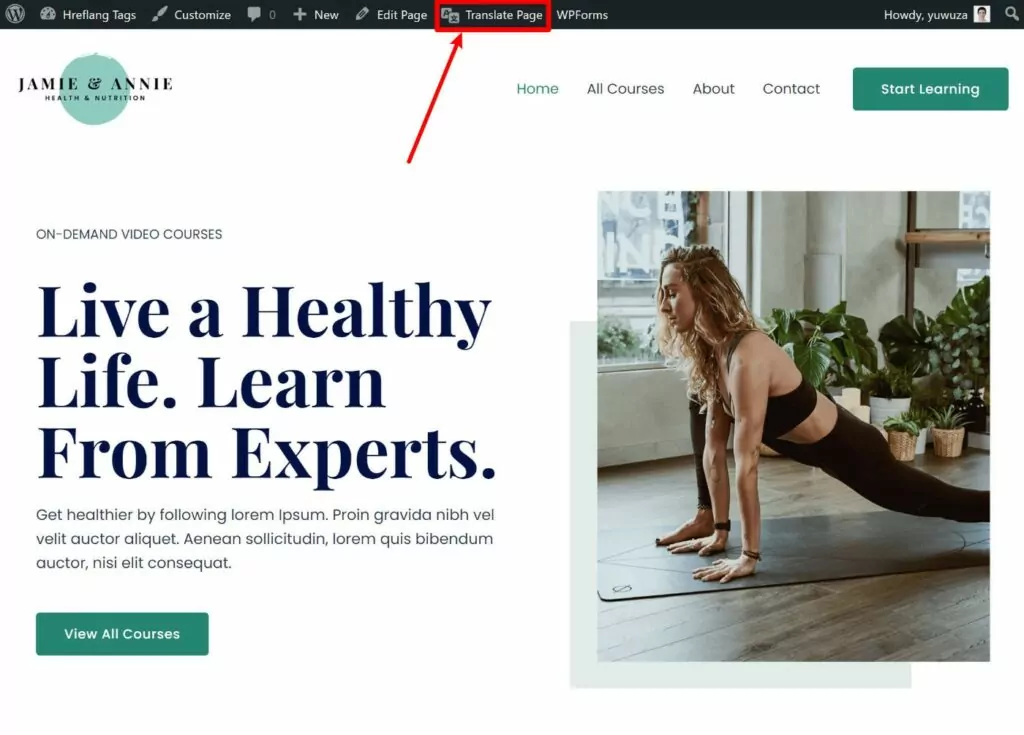
Deberías ver una vista previa visual de la página a la derecha y una barra lateral a la izquierda.
Para editar la traducción de cualquier contenido, lo único que tienes que hacer es pasar el cursor por encima y hacer clic en el icono del lápiz. Esto abrirá la traducción en la barra lateral, donde podrás añadir o editar las traducciones según sea necesario.
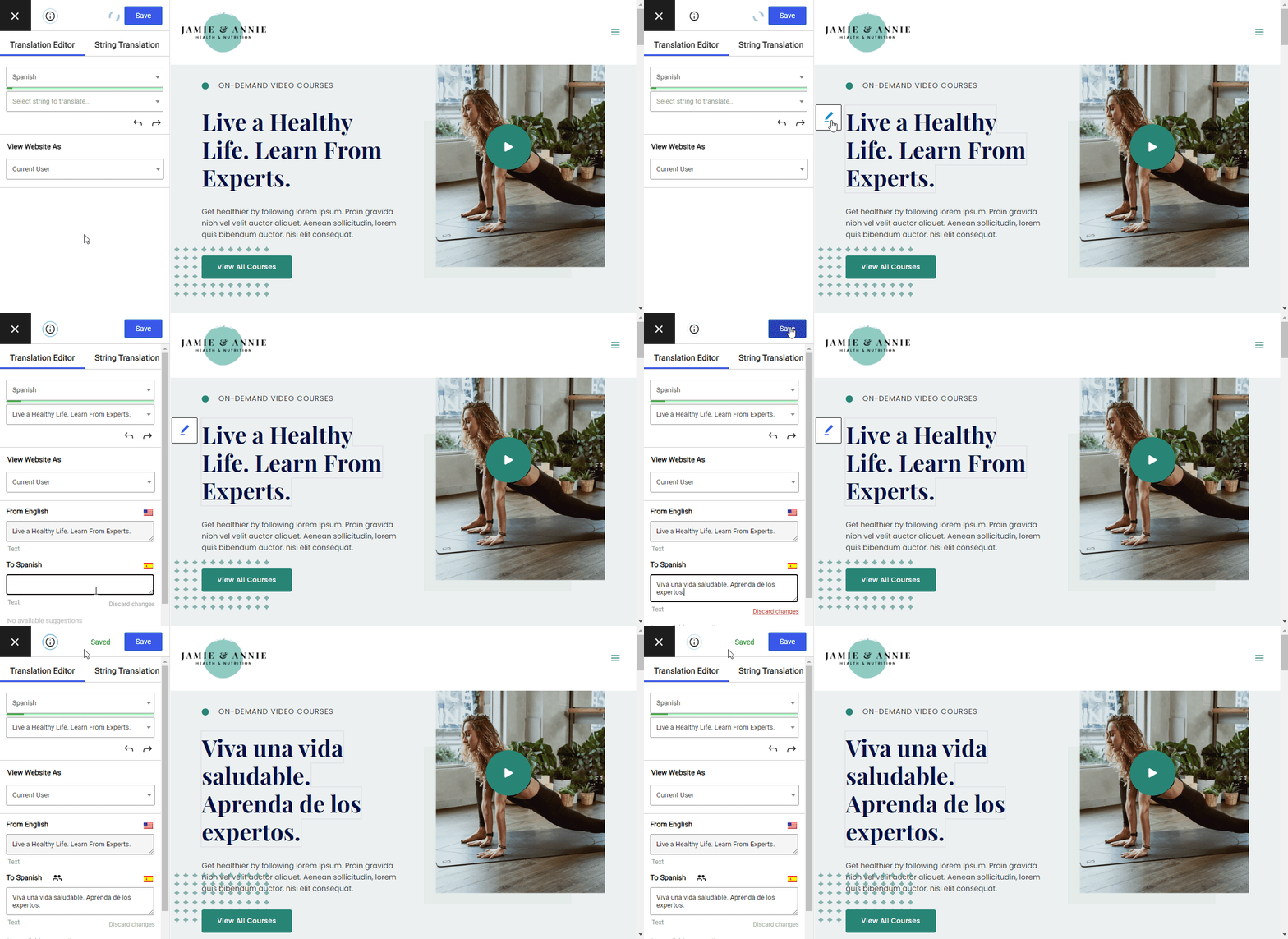
Puedes utilizar este mismo método de «apuntar y hacer clic» para traducir 100% de tu contenido, ya sea del editor de WordPress, de tu tema, de otro plugin, etc. Si quieres profundizar más en algún tema, disponemos de varias guías sobre cómo traducir distintos tipos de contenido:
- Bloques del Editor (Gutenberg)
- Campos personalizados
- Tipos de publicaciones personalizadas
- Formularios de WordPress
- Menús de WordPress
- Contenido emergente
- Deslizadores
- Productos de WooCommerce
- Elementor (constructor de páginas)
- Divi (constructor de páginas)
- Oxígeno (creador de sitios web)
3. Comprueba/Verifica tus etiquetas Hreflang
A estas alturas, ya deberías tener las etiquetas hreflang adecuadas en la sección de cada página de tu sitio web..
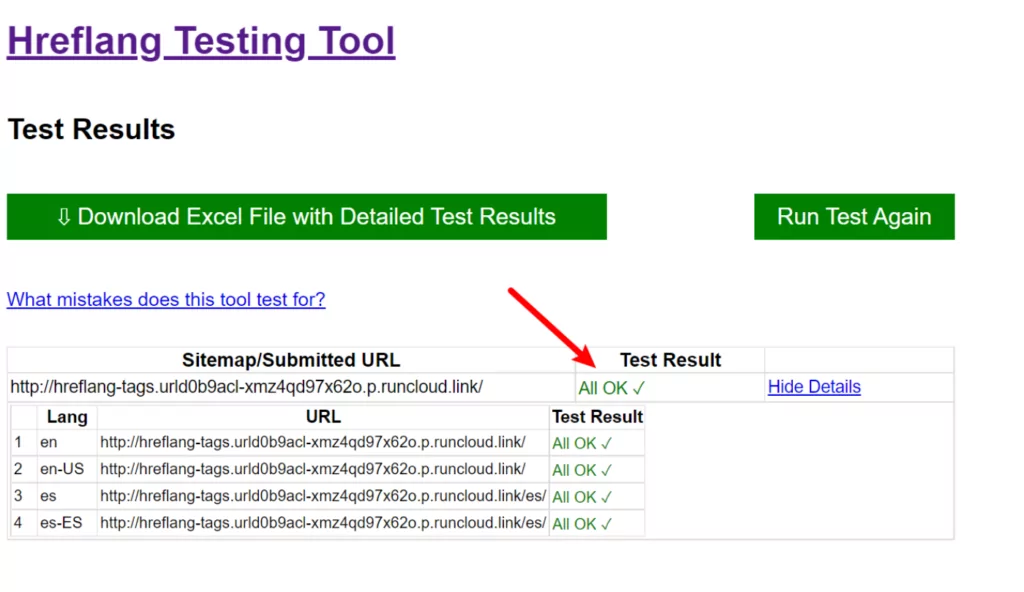
Puedes verificar esto mirando el código directamente o usando una herramienta como la herramienta de prueba hreflang.org.
Aunque hay otras herramientas con interfaces más agradables, la razón por la que nos gusta esta herramienta es que te permite revisar rápidamente todo tu sitio (introduciendo un mapa del sitio) en lugar de tener que añadir manualmente cada URL (aunque también puedes probar URLs individuales).
Aquí puedes ver que nuestro sitio de pruebas ha recibido el mensaje “todo bien” tras configurar TranslatePress:
Si además quieres añadir etiquetas hreflang al mapa del sitio XML de tu página de WordPress, puedes adquirir el TranslatePress Personal licencia para acceder al complemento SEO Pack.
El complemento SEO Pack no solo te ayuda crear un mapa del sitio multilingüe con las etiquetas hreflang adecuadas, pero además te ofrece muchas otras funciones para mejorar el SEO multilingüe como la capacidad de traducir títulos y descripciones SEO, texto alternativo de imágenes y mucho más.
4. Terminar de configurar la funcionalidad multilingüe clave
Llegados a este punto, ya has terminado por completo en lo que respecta a la corrección del error “Tu sitio web no tiene etiquetas hreflang”. Google ya debería poder detectar las etiquetas hreflang de tu sitio web y mostrártelas en Search Console (aunque los datos tardarán un poco en actualizarse).
No obstante, quizá te interese seguir algunos pasos más para ofrecer una mejor experiencia a tus visitantes humanos, como ajustar el selector de idioma de la interfaz de usuario. Para saber cómo hacerlo, consulta nuestra guía completa de idiomas de WordPress.
Soluciona el error “Tu sitio no tiene etiquetas Hreflang” para siempre
Si ofreces varias versiones de tu sitio web en diferentes idiomas o configuraciones regionales, es importante añadir etiquetas hreflang para que Google y otros motores de búsqueda puedan entender cómo se relacionan entre sí esas páginas.
Si te aparece el error “Tu sitio web no tiene etiquetas hreflang” en Google Search Console, eso significa que Google no ha podido detectar etiquetas hreflang en tu sitio web, lo cual supone un problema si tu sitio web está orientado a varios idiomas o configuraciones regionales.
Para solucionar el problema, debes añadir etiquetas hreflang con el formato adecuado a la (y, a ser posible, a tu mapa del sitio XML)..
Aunque puedes hacerlo manualmente, el complemento TranslatePress ofrece una solución mucho más simple y totalmente automatizada para añadir etiquetas hreflang en WordPress.
No tendrás que mover ni un dedo en lo que respecta a las etiquetas hreflang: solo tienes que elegir los idiomas, traducir tu contenido y dejar que TranslatePress se encargue de que cada página cuente con las etiquetas hreflang adecuadas.
Si estás listo para empezar, puedes seguir el tutorial anterior o leer nuestra guía completa para crear un sitio web de WordPress multilingüe.
TranslatePress Multilingüe
¿Todavía tienes alguna duda sobre cómo solucionar el error “Tu sitio web no tiene etiquetas hreflang”? ¡Cuéntanoslo en los comentarios!
Si encontraste útil esta publicación, por favor visita nuestro Canal de YouTube, donde subimos constantemente tutoriales en video cortos y fáciles de seguir. También puedes seguirnos en Facebook y Twitter ser el primero en enterarte cada vez que publicamos.