
In questo post
Cerchi valide alternative a Polylang WooCommerce? Sei nel posto giusto! Abbiamo un'alternativa per te qui.
In questo articolo vi illustriamo quali sono le principali sfide nella creazione di un negozio WooCommerce multilingue, come Polylang le affronta e perché considerare TranslatePress come alternativa potrebbe rivelarsi una buona scelta per molti utenti.
Le sfide nella creazione di un negozio WooCommerce multilingue
Ci sono un paio di cose da tenere in considerazione quando si cerca di rendere il tuo negozio WooCommerce multilingue.
Principalmente, la decisione principale che devi prendere è se vuoi offrire la stessa gamma di prodotti in tutti i paesi e lingue.
Se stai vendendo prodotti digitali (come download, ebook, software, ecc.), allora puoi probabilmente consegnarli ovunque senza restrizioni.
Tuttavia, se stiamo parlando di prodotti fisici più grandi, allora potresti voler riconsiderare e valutare le tue opzioni/restrizioni di spedizione.
Quindi questo è un punto! Poi c'è anche la sfida di tenere traccia del tuo inventario attraverso diverse versioni linguistiche del negozio, avere gli ordini e le informazioni dei clienti tutti in un unico posto, più tutte le etichette di spedizione corrette pronte.
Successivamente, ci sono i pagamenti e le opzioni di pagamento. A quanto pare, i clienti in diversi paesi preferiscono diversi metodi di pagamento. In altre parole, non si può sempre fare affidamento solo sulle carte di credito.
Okay, ciò sembra parecchio a cui pensare, quindi perché preoccuparsi? Vuoi tu davvero Hai bisogno di un negozio WooCommerce multilingue?
Beh, non necessariamente dovere Rendi il tuo negozio multilingue: è nel tuo interesse.
Ad esempio, secondo un sondaggio, il 75% delle persone preferisce acquistare prodotti nella propria lingua madre (dati. Ciò significa che se hanno la scelta tra due prodotti concorrenti, uno descritto nella loro lingua madre e uno no, immagina quale sceglieranno.
Acquistare prodotti da un sito web dall’aspetto straniero sembra proprio rischioso. Non si è mai sicuri che effettuino spedizioni nel proprio Paese. Nella maggior parte dei negozi è difficile trovare i termini e le condizioni generali o le informazioni sulla spedizione, quindi la gente non si prende nemmeno la briga di cercarle.
Tuttavia, quando un cliente vede le descrizioni dei prodotti nella propria lingua madre, non c’è indicazione migliore del fatto che il negozio sia pronto a fare affari con gli acquirenti del suo Paese.
Questo ci riporta a Polylang e alle alternative a Polylang per WooCommerce.
Cosa ti serve per creare un negozio multilingue con Polylang
Polylang è uno dei plugin di traduzione più diffusi per i siti WordPress e, di conseguenza, anche per i siti WooCommerce.
Tuttavia, c'è solo un problema: costruire un negozio WooCommerce multilingue con Polylang è piuttosto costoso. Immagino che tu abbia visto il prezzo dell'add-on WooCommerce di Polylang. È quello che probabilmente ti ha portato qui in primo luogo: una ricerca di alternative valide a Polylang WooCommerce.
Ecco cosa ti serve per gestire il tuo negozio WooCommerce multilingue con Polylang:
- Il plugin gratuito Polylang
- O l'estensione Polylang for WooCommerce o il Polylang Business Pack (rispettivamente 99 EUR e 139 EUR)
Polylang for WooCommerce è l'estensione essenziale, il che significa che ti permetterà di rendere multilingue il tuo negozio WooCommerce, ma non otterrai alcune delle funzionalità più avanzate. Queste sono disponibili nell'estensione Polylang Business Pack.
Le funzionalità avanzate sono cose come:
- Sincronizzazione del carrello tra le diverse versioni linguistiche
- Personalizzazione degli slug per le traduzioni
- Supporto premium, e un paio di altre cose
Oh, e ho menzionato che il prezzo di 99 EUR è per un solo sito?
Non fraintendermi, Polylang è un ottimo plugin di traduzione per il tipo di utente giusto, ma non per tutti gli utenti, specialmente se hai un budget limitato.
A proposito del giusto tipo di utente, nella prossima sezione approfondiremo l'approccio di Polylang al processo di rendere multilingue il tuo negozio WooCommerce e spiegheremo perché vale la pena considerare TranslatePress come alternativa.
In che modo TranslatePress si distingue come alternativa a Polylang per WooCommerce
In breve, Polylang è un ottimo plugin se vuoi creare versioni linguistiche completamente indipendenti del tuo sito web.
Per esempio, puoi creare un set di pagine per la tua versione inglese e poi un set di pagine completamente diverso per la tua versione in spagnolo.
Questa strategia può essere ottima per siti web che necessitano di strutture di contenuti dissimili tra le singole versioni linguistiche.
Allo stesso tempo, Polylang ti consente di creare collegamenti tra pagine nelle diverse versioni linguistiche. Ad esempio, probabilmente vorrai avere una Chi siamo pagina in tutte le tue lingue.
Polylang adotta lo stesso approccio anche per WooCommerce.
Per creare uno store WooCommerce multilingue con Polylang, dovrai creare una versione duplicata di ciascuno dei tuoi prodotti e poi tradurli nella nuova lingua. Successivamente, Polylang si occuperà di garantire che questi prodotti continuino a operare sulla stessa base di dati, tenendo conto della disponibilità e dell'inventario dei prodotti.
Costruire un normale sito WordPress multilingue con Polylang è piuttosto semplice. Fondamentalmente crei i tuoi post/pagine uno per uno e poi crei nuove versioni di essi in altre lingue. Quindi puoi collegarle insieme, in modo che il lettore possa passare da una versione linguistica all'altra, se lo desidera.
Tuttavia, se provi a creare un negozio WooCommerce multilingue senza quell'estensione a pagamento di Polylang, ti accorgerai che crea una specie di disastro.
Sebbene tu possa creare duplicati delle tue pagine WooCommerce proprio come qualsiasi altra pagina WordPress, farle funzionare senza errori è una sfida.
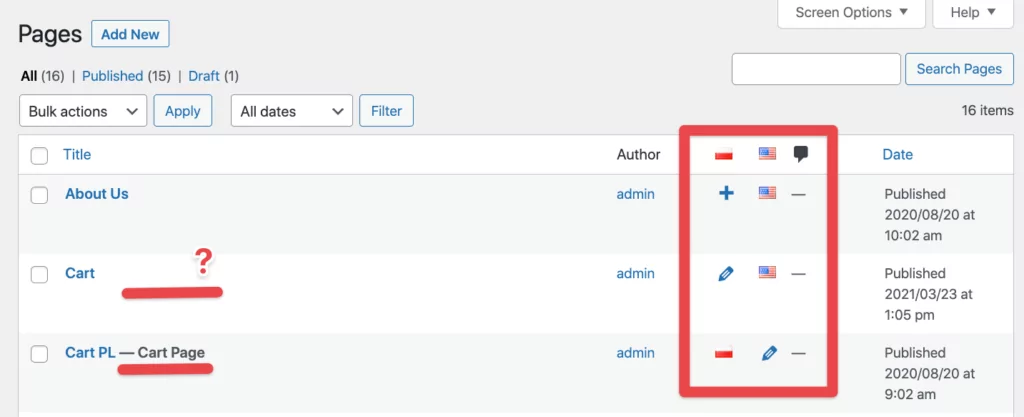
Quindi, se vai in prodotti, non puoi aggiungere versioni in lingue diverse per essi.
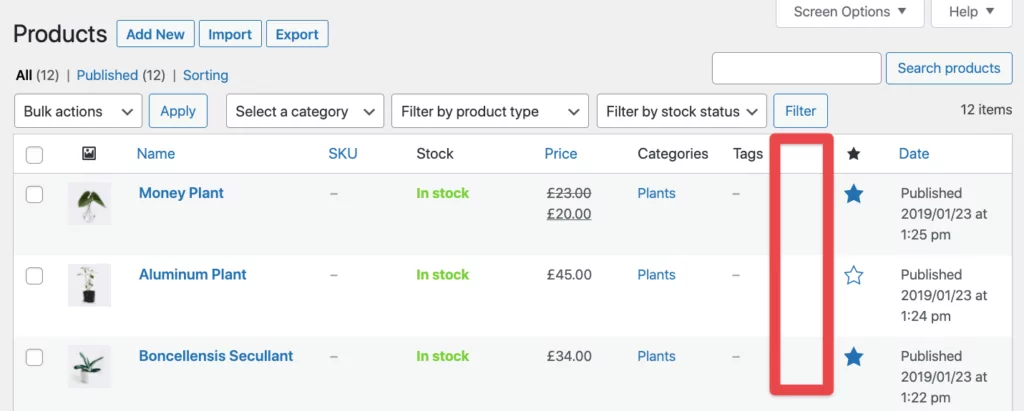
E non stiamo nemmeno considerando le impostazioni di pagamento, le valute e tutte le altre questioni tecniche. L'unico modo per farlo funzionare è con il componente aggiuntivo a pagamento.
Confronto tra Polylang e TranslatePress, quest'ultimo presenta alcuni vantaggi:
Innanzitutto, con TranslatePress, Puoi creare un negozio WooCommerce multilingue gratuitamente. Nessun componente aggiuntivo necessario, almeno per la configurazione di base.
In secondo luogo, TranslatePress non ti obbliga a duplicare le tue pagine per crearne versioni in singole lingue. Al contrario, si collega alla versione esistente della pagina o del prodotto e vi assegna i contenuti tradotti senza modificare la pagina originale.
Ecco un elenco più dettagliato delle caratteristiche che distinguono TranslatePress come alternativa a Polylang per WooCommerce:
| Polylang | TranslatePress |
|---|---|
| Componente aggiuntivo a pagamento necessario per gestire un negozio WooCommerce multilingue (da 99 EUR). | Tutte le funzionalità richieste sono già integrate nella versione gratuita del plugin. |
| Devi duplicare ogni pagina e prodotto tradotto. | Puoi abilitare lingue aggiuntive su pagine e prodotti esistenti senza duplicarli. |
| Non consente di tradurre i campi personalizzati (da ACF) nella versione gratuita. | Completo compatibilità con i campi personalizzati ACF subito pronto all'uso. |
Lascia che ti mostri come tutto questo funziona nella pratica:
Come creare un negozio WooCommerce multilingue con TranslatePress
💡 Nota. Quello che mostro di seguito è una panoramica generale su come creare un negozio WooCommerce multilingue. Se preferisci istruzioni più dettagliate, leggi la nostra guida approfondita qui.
1. Crea il tuo negozio WooCommerce normalmente
Il primo passo è semplice: crea il tuo negozio WooCommerce come faresti normalmente. Questo significa:
- Installa il plugin di WooCommerce
- Sincronizza tutte le impostazioni del tuo negozio
- Scegli un tema ottimizzato per WooCommerce
- Aggiungi i tuoi prodotti
- Configura i tuoi dati di spedizione e pagamento
- Crea pagine aggiuntive di cui il tuo negozio ha bisogno (Chi siamo, Contatti, ecc.)
Messo tutto questo alle spalle, ora puoi iniziare a rendere il tuo negozio multilingue.
2. Installa TranslatePress e aggiungi la tua nuova lingua
È possibile scaricare gratuitamente il plugin TranslatePress dalla directory di WordPress.
Il modo più semplice per installarlo sul tuo sito è andare sul tuo wp-admin, in Plugin → Aggiungi Nuovo e usa la casella di ricerca in alto:
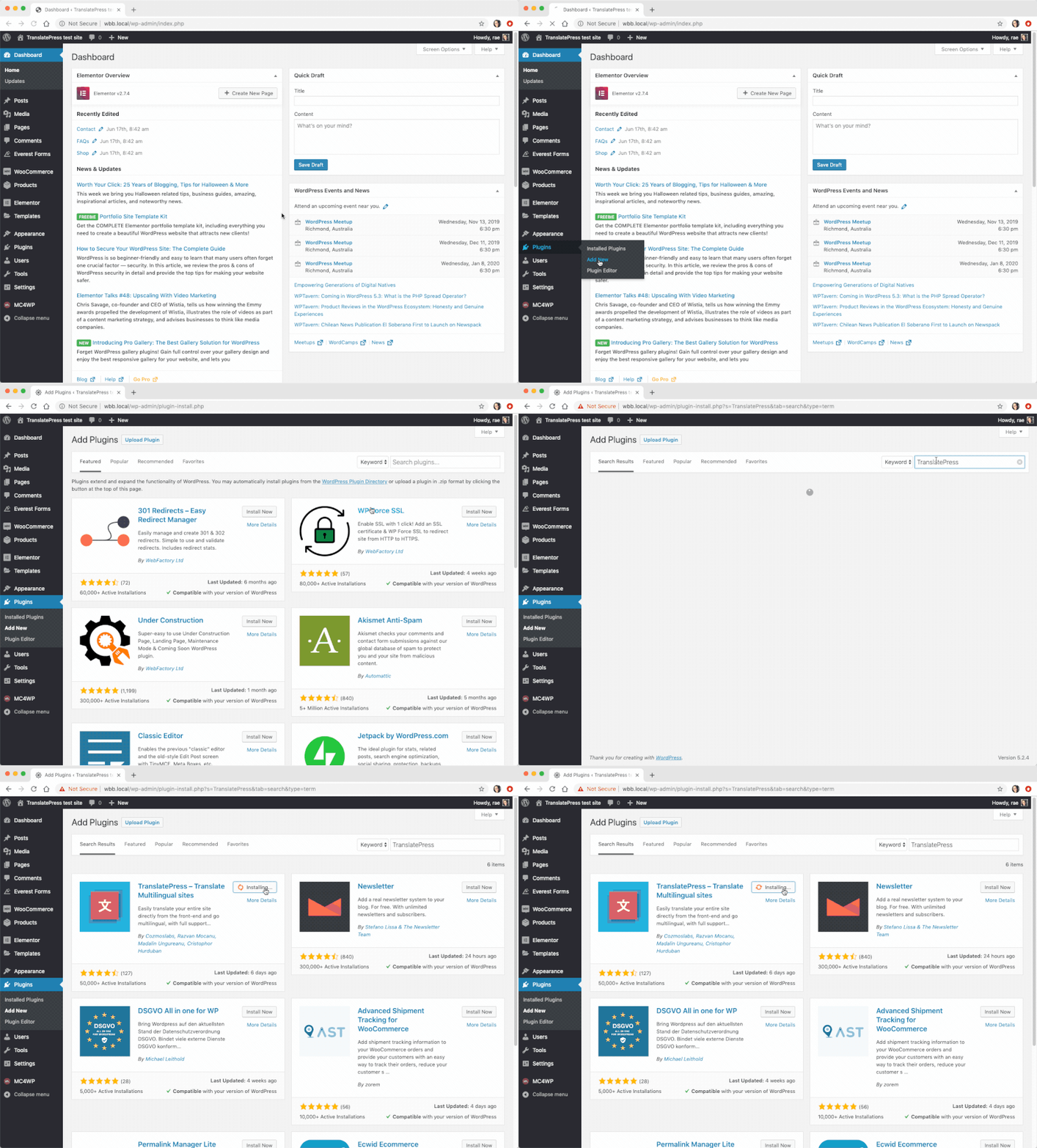
Attiva il plugin non appena avrà finito il caricamento.
Poi, vai a Impostazioni → TranslatePress per aggiungere la tua nuova lingua al sito.
Nel Generale scheda, imposta la tua lingua predefinita e aggiungi le lingue aggiuntive di cui hai bisogno sul sito.
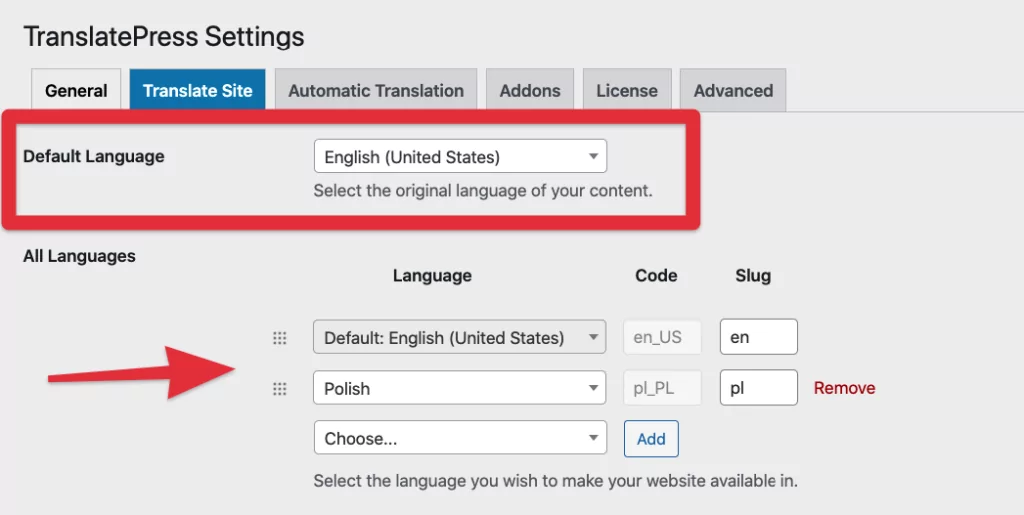
Puoi anche scegliere il tipo di selettori di lingua che desideri utilizzare e dove vuoi che appaiano.
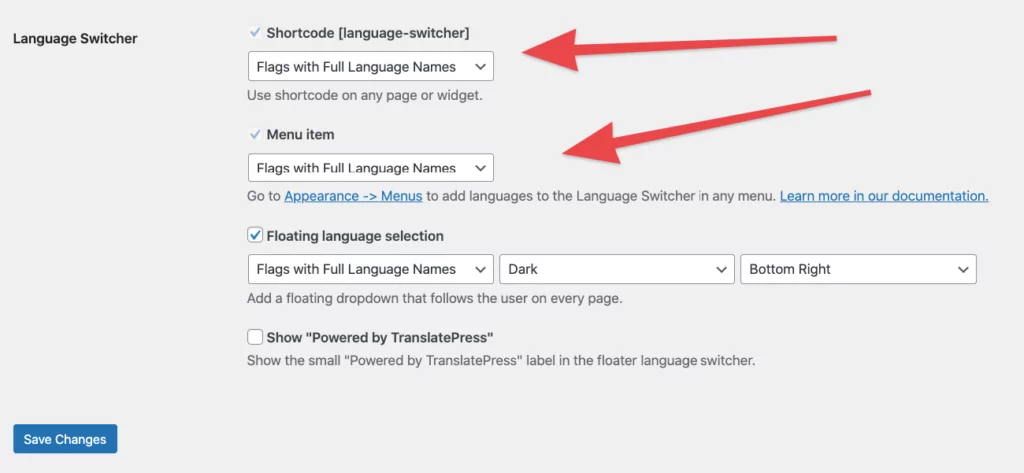
Clicca su Salva modifiche quando hai finito.
3. Abilita le traduzioni automatiche
💡 Questo è facoltativo, ma velocizzerà il processo complessivo di lancio del tuo negozio WooCommerce multilingue al pubblico.
Passa a Traduzione automatica scheda nella pagina delle impostazioni.
Una volta lì, abilita la traduzione automatica tramite il menu a discesa e seleziona Google Translate v2 come motore di traduzione.
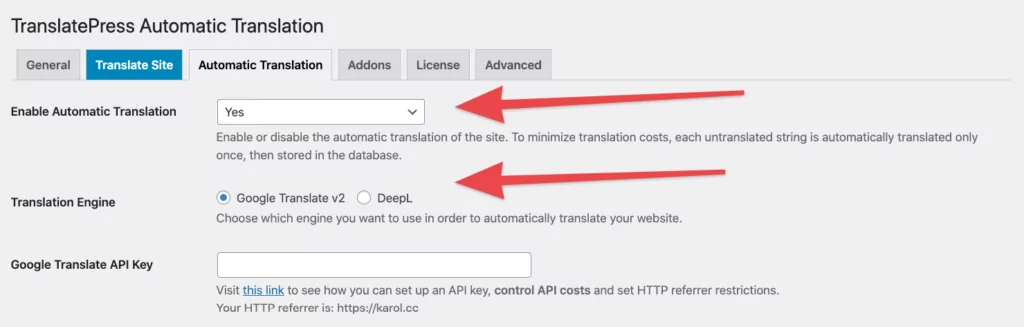
Inserisci la tua chiave API per integrare il tuo sito con Google Translate.
👉 Ecco un dettaglio guida su come tradurre WooCommerce automaticamente.
4. Traduci le informazioni sul tuo prodotto dove necessario
Con la traduzione automatica abilitata, tutti i vostri prodotti saranno tradotti da Google al momento non appena il primo visitatore tenterà di passare alla vostra nuova lingua.
Tuttavia, potresti comunque voler ritoccare un po’ quelle traduzioni a mano qua e là. Ammettiamolo, Google Translate non è sempre perfetto.
Ecco come fare per qualsiasi prodotto.
Visita normalmente il prodotto e clicca su Traduci pagina collegamento nella barra superiore:
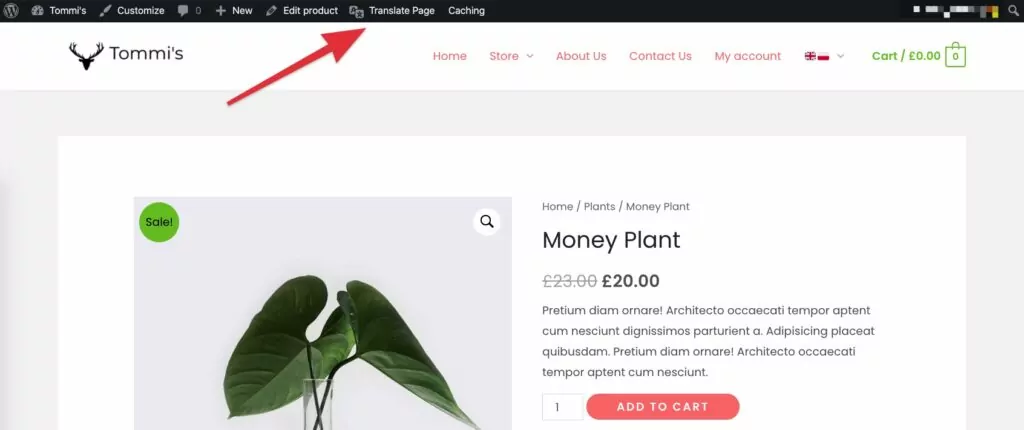
Questo aprirà un'interfaccia di traduzione visiva simile al familiare Personalizzatore di WordPress.
Una volta lì, clicca su icone di matite accanto ai testi che desideri tradurre. Nella barra laterale apparirà una casella di traduzione in cui potrai aggiungere una traduzione.
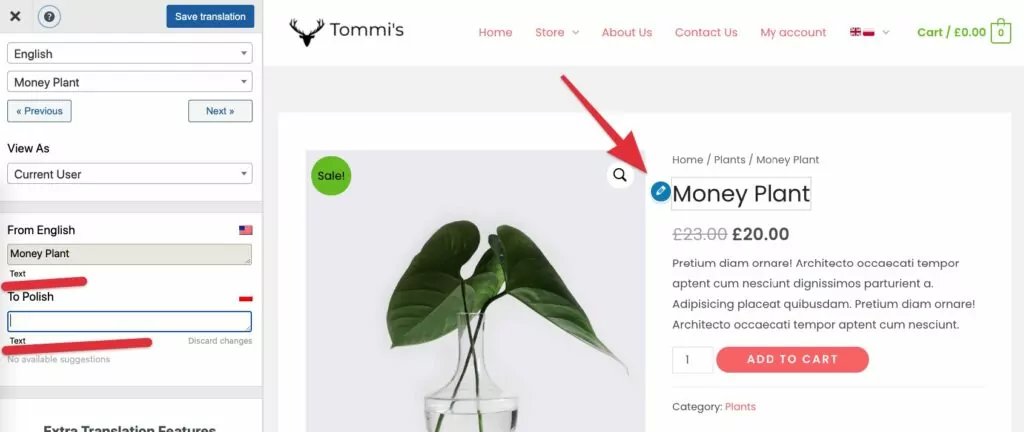
Esamina le descrizioni e gli altri parametri del prodotto e assicurati che suonino bene nella nuova lingua.
⚠️ Importante! Non “tradurre” il prezzo. Ce ne occuperemo più tardi.
Quando hai finito ogni traduzione, fai clic su Salva la traduzione Batti il cinque.
👉 Ecco di più su come traduci i tuoi prodotti WooCommerce.
5. Traduci le tue pagine del carrello e del checkout
Queste due pagine sono molto importanti per garantire il comfort del vostro cliente quando acquista dal vostro negozio.
Praticamente, se il tuo negozio torna improvvisamente alla lingua principale – esattamente mentre il cliente sta controllando il carrello, si confonderà e probabilmente se ne andrà immediatamente, abbandonando il carrello.
Fortunatamente, tradurre le pagine del carrello e del checkout con TranslatePress è piuttosto semplice.
Prima, aggiungi un paio di prodotti al carrello e poi visita la pagina del carrello stessa. Una volta lì, clicca su quello Traduci pagina link nella barra in alto di nuovo.
Quando ti trovi nell'interfaccia di traduzione, scorri tutti i testi nella pagina e modificali se necessario.
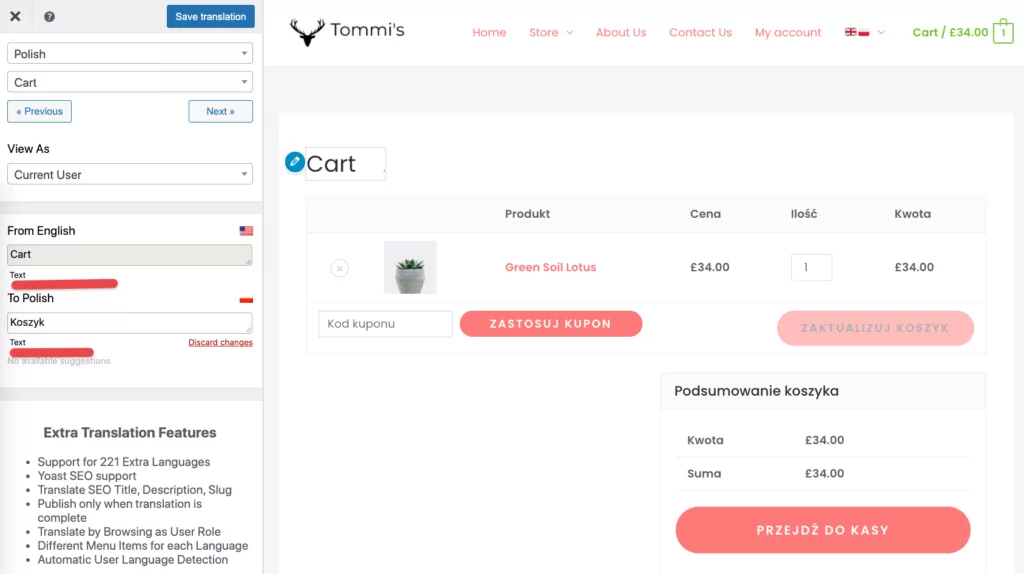
Successivamente, vai alla pagina di pagamento e fai la stessa cosa: lavora sui testi lì assicurandoti che tutto suoni come dovrebbe.
6. Imposta le tue zone di spedizione e i pagamenti
Le zone di spedizione sono una funzionalità nativa di WooCommerce che consente di controllare gli insiemi di metodi di spedizione disponibili in determinate regioni geografiche.
In pratica, WooCommerce abbinerà il cliente a una zona specifica in base all'indirizzo di spedizione inserito nella pagina di cassa.
Questa è un'ottima funzionalità poiché ti consente di offrire diverse opzioni di spedizione su misura per specifiche aree del mondo.
Ecco un guida ufficiale su come configurare le zone di spedizione.
Prossimi passi: i gateway di pagamento e le opzioni di pagamento. Come ho detto prima in questa guida, i clienti di diversi paesi hanno i loro metodi di pagamento preferiti. Se sperate davvero di ottenere vendite internazionali, dovreste consentire loro di utilizzare quei metodi di pagamento.
Ecco un guida ufficiale sulla scelta delle opzioni di pagamento.
Ultime ma non meno importanti, le valute!
Non sorprende che le persone vogliano pagare nella propria valuta locale. Ci sono un paio di modi per renderlo possibile, ad esempio:
- il WooCommerce Booster plugin, oppure
- il WooCommerce Multi-Currency plugin.
I prezzi dei vostri prodotti verranno convertiti al volo in base ai tassi correnti e alle regole di prezzo definite.
7. Facoltativamente, limita il tuo catalogo prodotti
Infine, pensa a se desideri limitare il tuo catalogo prodotti e offrire determinati prodotti solo a clienti in paesi specifici.
Se desideri davvero farlo, puoi utilizzare un plugin chiamato Restrizioni basate sul paese per WooCommerce per configurarlo.
Tutto qui!
Seguendo questi passaggi, potrai creare un negozio WooCommerce completamente multilingue con TranslatePress, senza dover acquistare il costoso plugin Polylang per WooCommerce.
Il bello di TranslatePress è che 100% delle funzionalità di cui un principiante potrebbe aver bisogno sono disponibile gratuitamente.
TranslatePress Multilingue
Hai ancora domande su Alternative a Polylang per WooCommerce? Faccelo sapere nei commenti!
Se hai trovato utile questo post, ti invitiamo a visitare il nostro Canale YouTube, dove carichiamo costantemente brevi tutorial video facili da seguire. Puoi anche seguirci su Facebook e Twitter per essere tra i primi a sapere ogni volta che pubblichiamo.
Grazie per questo utile post. Ho però un dubbio: è possibile usare Polylang e TranslatePress contemporaneamente?
Sono contento che lo abbia trovato utile. Non consiglierei di usare entrambi i plugin contemporaneamente, dato che si occupano della stessa cosa. Perché mai ti servirebbero entrambi?
Va bene!
Supponendo che io sia passato da Polylang a TranslatePress,
Come gestire lingue LTR e RTL installate sullo stesso sito!
come si risolve una cosa del genere? dato che ogni RTL e LTR ha un design invertito!
Cordiali saluti
Il modo in cui vengono visualizzate le lingue RTL dipende dal tema utilizzato dal tuo sito. È importante scegliere un tema che supporti le lingue RTL. Se hai bisogno di ulteriore aiuto con questo, non esitare a contattare il nostro team di supporto qui: https://translatepress.com/support/.
Sembra interessante. quanto sarà facile da cambiare? Qualcuno ha provato questo con prodotti con varianti?