

Dans ce post
La capacité de proposer une recherche WordPress multilingue est essentielle pour tout site web qui a été traduit en plusieurs langues. Les utilisateurs qui parcourent votre contenu dans une certaine langue ont besoin d'un moyen simple pour trouver des sujets pertinents dans cette langue exacte.
C'est à ce moment-là recherche multilingue entre en jeu.
Dans ce didacticiel, nous allons voir comment activer la recherche multilingue pour votre site traduit ou commerce électronique multilingue boutique. Le tout sans écrire la moindre ligne de code ni modifier la fonctionnalité de recherche par défaut de WordPress.
Le processus est vraiment simple et tout ce qui est nécessaire pour traduire votre site en plusieurs langues ainsi que pour activer la recherche multilingue est TranslatePress, un puissant plugin de traduction pour WordPress.
TranslatePress Multilingue
Prêt à découvrir comment le configurer ? C'est parti !.
Recherche multilingue dans WordPress
Selon l'outil de traduction que vous utilisez, la prise en charge d'une recherche multilingue sur WordPress peut s'avérer assez difficile.
C'est parce qu'en traitant différents types de contenus : publications, produits, pages, types de publications personnalisées ou champs personnalisés, l'affichage des résultats de recherche pertinents (dans la langue sélectionnée) est délicat.
De par sa conception, TranslatePress ne tient pas compte de la manière dont votre contenu a été créé. Il peut s'agir d'une page créée à l'aide d'un éditeur de pages tel que Élémentor ou un Produit WooCommerce, vous pourrez le traduire visuellement, directement depuis l'interface.
Et une fois installé, TranslatePress rendra automatiquement multilingue la fonction de recherche par défaut de WordPress.
Voyons comment ça marche.
Rendre la recherche WordPress multilingue avec TranslatePress
TranslatePress garantit que l'ensemble de votre contenu traduit est consultable via la recherche, en améliorant la fonctionnalité de recherche par défaut de WordPress.
Installation de TranslatePress et sélection des langues de traduction
Pour commencer, il suffit d'installer et d'activer le plugin TranslatePress gratuit sur WordPress.org.
Une fois le plugin activé, rendez-vous sur Paramètres → TranslatePress pour choisir la ou les langues que vous souhaitez utiliser.
Tout d'abord, choisissez la langue par défaut, c'est-à-dire la langue dans laquelle le contenu de votre site Web existe actuellement. Ensuite, ajoutez les nouvelles langues de traduction que vous souhaitez proposer. Nous allons ajouter “ l'espagnol ” pour ce tutoriel.
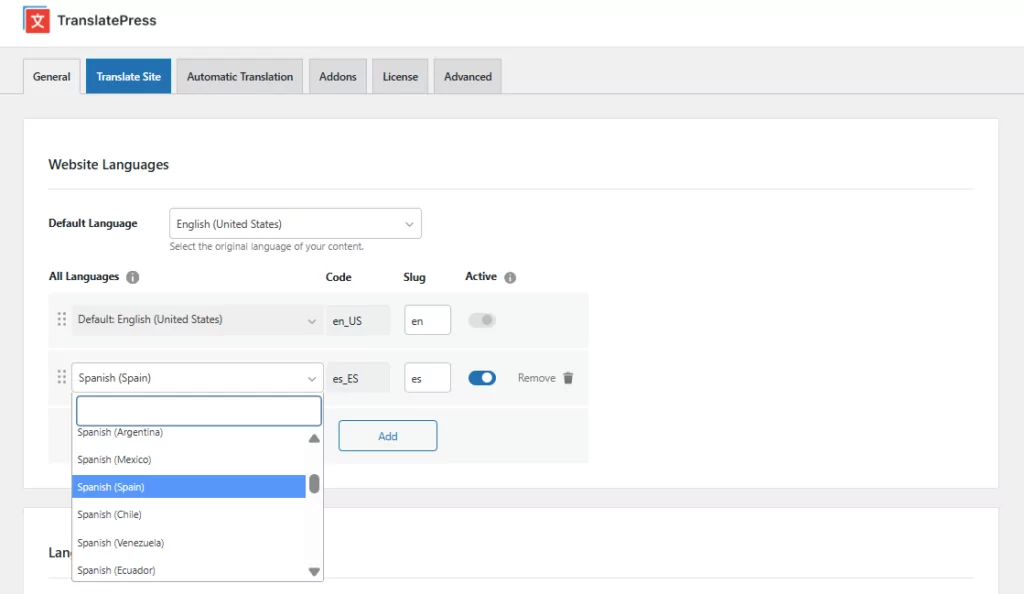
Avec la version gratuite de TranslatePress, vous pouvez traduire votre contenu dans une nouvelle langue, tandis que la version premium La version TranslatePress vous permet d'utiliser un nombre illimité de langues.
Dans les paramètres « TranslatePress », vous pouvez également configurer d'autres éléments importants, comme l'ajout et la personnalisation d'un sélecteur de langue front-end. Par défaut, le plugin ajoutera un bouton de sélecteur de langue flottant dans le coin inférieur droit de votre site qui vous suit lorsque vous naviguez sur le site.
Cliquez sur “ Enregistrer les modifications ” et vous êtes prêt à commencer la traduction.
Traduisez le contenu de votre site web
Il ne reste plus qu'à commencer à traduire le contenu de votre site web. Pour cela, cliquez simplement sur le “Site” ou accédez à l'interface publique de votre site web et cliquez sur le bouton “Traduire la page” icône de la barre d'outils WordPress.

Cela ouvrira un éditeur de traduction visuel (similaire au « Customizer »), dans lequel vous verrez un aperçu en temps réel du contenu de votre site web à droite et une barre latérale de traduction à gauche.
Pour traduire un texte, il suffit de passer la souris dessus, de cliquer sur l'icône en forme de crayon et de saisir la traduction. Appuyez sur Sauvegarder Et voilà, c'est terminé.
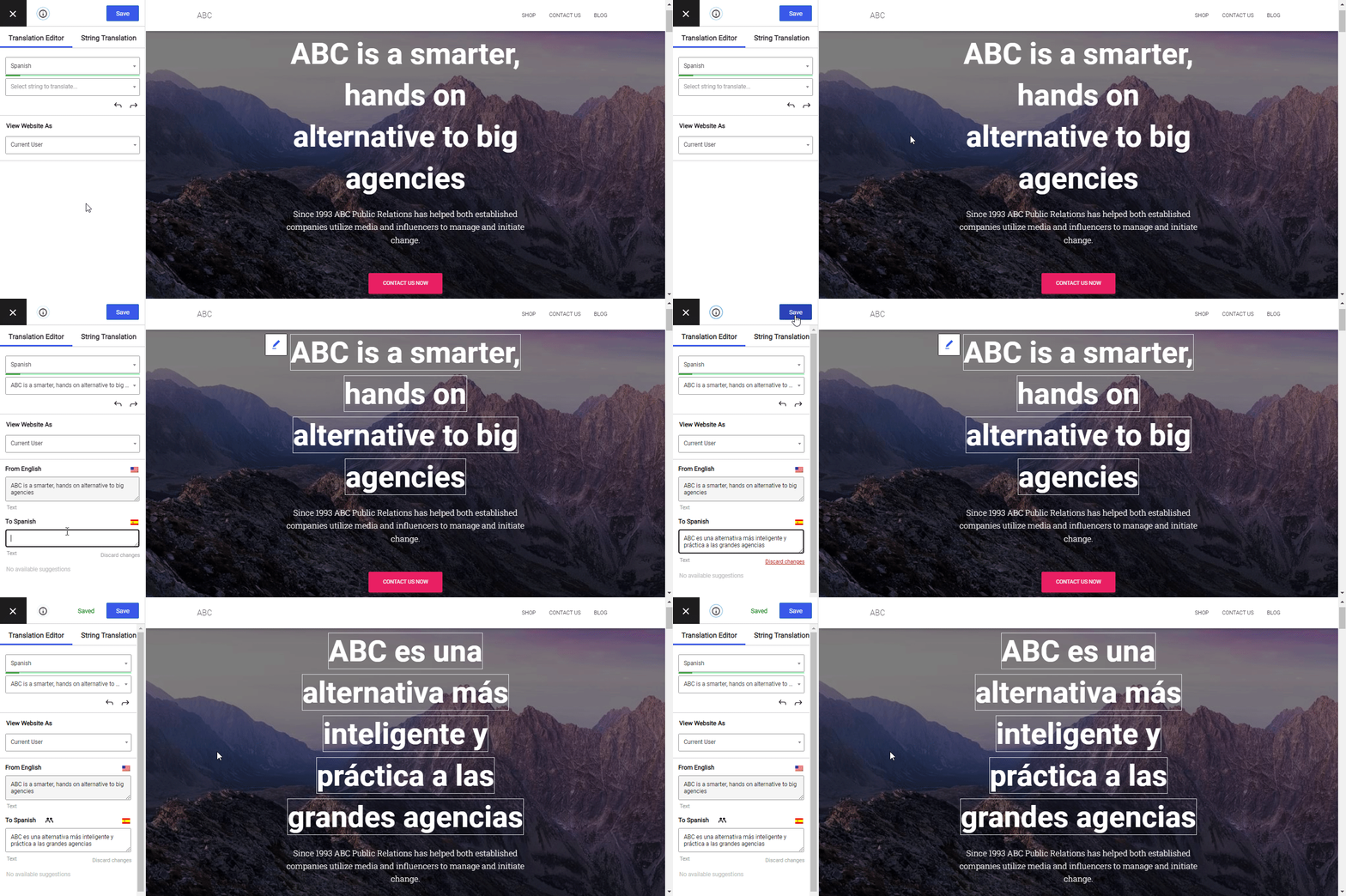
La traduction est mise à jour instantanément. Vous répétez simplement le même processus pour toutes les chaînes restantes d'une page, jusqu'à ce que tout le contenu de votre site soit traduit. C'est aussi simple que cela !
Outre le texte, TranslatePress vous permet de traduire une grande variété d'éléments : allant de images avec du texte, curseurs à formes et pop-ups. Vous pouvez utiliser la même approche de traduction visuelle pour tous.
Pour une approche plus étape par étape, consultez ce guide sur Comment créer un site WordPress multilingue.
Pour accélérer les choses, vous pouvez commencer par activer Traduction automatique avec les paramètres TranslatePress, en utilisant soit Google Traduction ou DeepL. Une fois cette fonctionnalité activée, chaque page de votre site sera automatiquement traduite lors de la première visite.
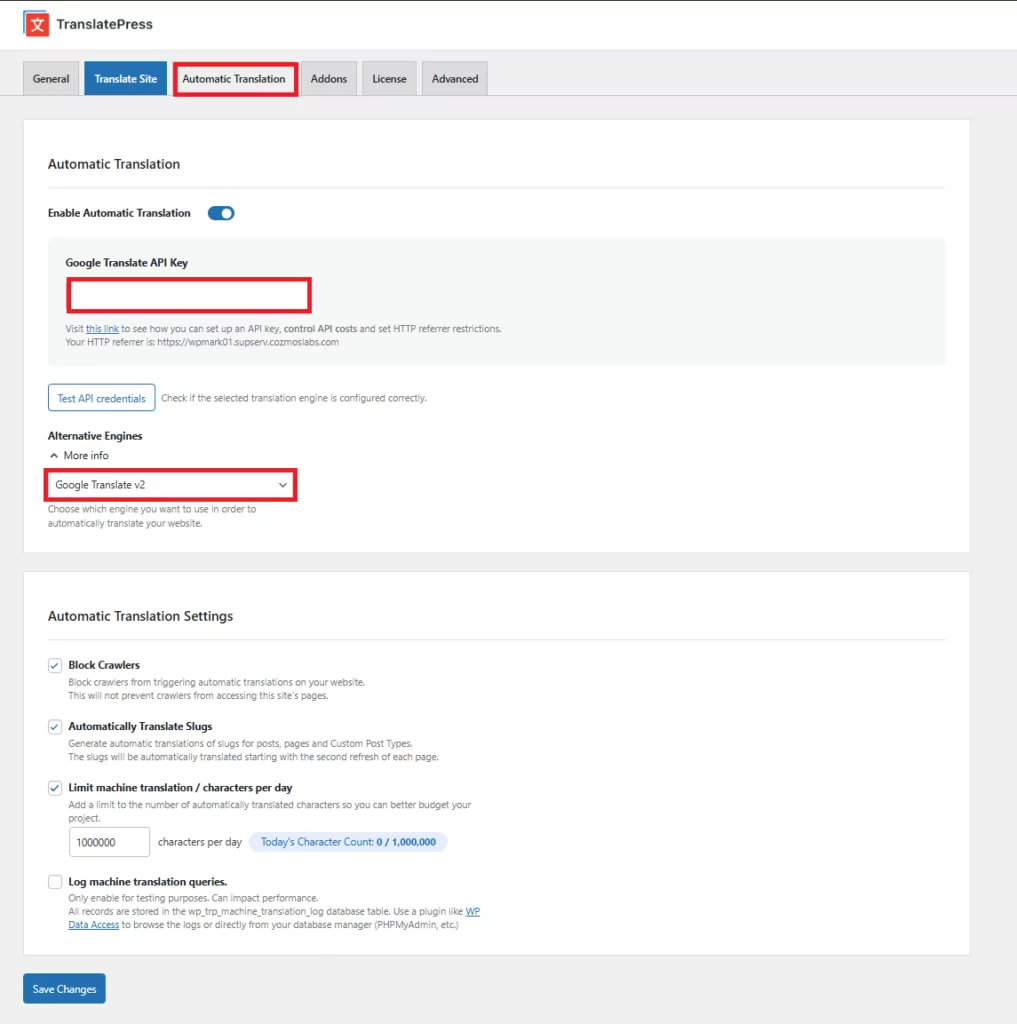
Il est important de savoir que la traduction automatique de tout contenu à l'aide de TranslatePress n'est effectuée qu'une seule fois, ce qui permet de réduire vos coûts et réduit le temps de chargement des pages.
Le plugin stocke ensuite les traductions automatiques dans votre base de données et les charge si nécessaire. Aucun autre appel API n'est effectué vers les services de traduction automatique.
Une fois tout le contenu de votre site Web traduit automatiquement, il est vivement recommandé d'affiner manuellement les traductions qui semblent bizarres ou hors contexte.
Pour en savoir plus sur la configuration des traductions automatiques, consultez Comment traduire automatiquement votre site WordPress (rapidement et à moindre coût).
Ajouter un formulaire de recherche WordPress à votre site web multilingue
Maintenant que votre site est entièrement traduit, il ne reste plus qu'à voir la recherche WordPress multilingue en action.
Pour cela, nous commencerons par y ajouter un formulaire de recherche WordPress standard. La manière la plus simple d'ajouter un formulaire de recherche à votre site est d'utiliser le widget Recherche proposé par WordPress.
Vous pouvez l'ajouter à n'importe quelle barre latérale définie par votre thème.
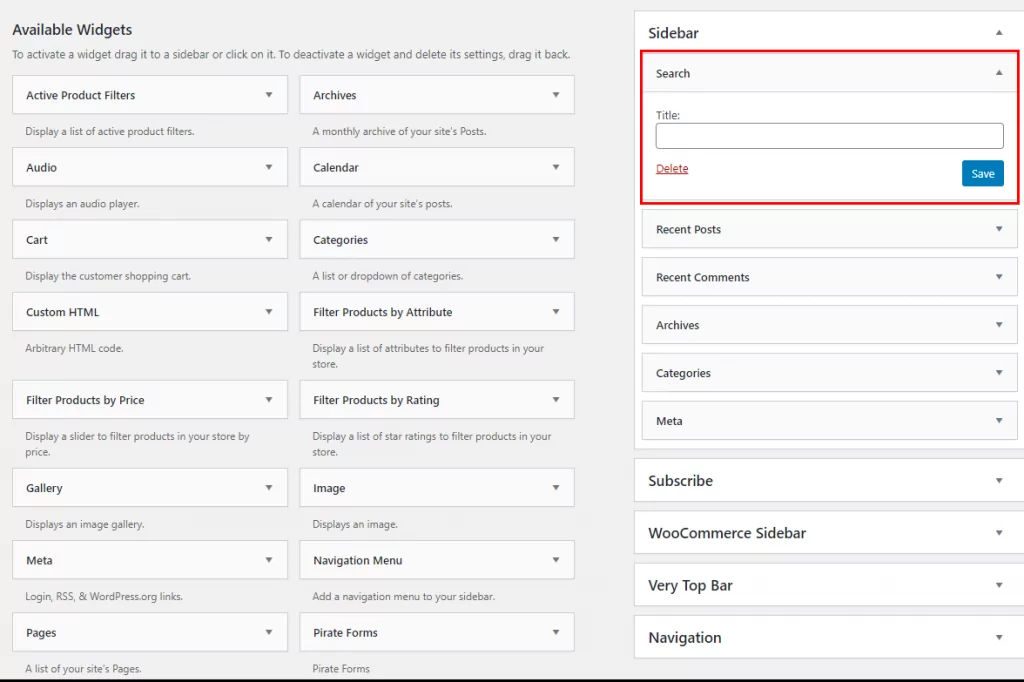
Nous allons ajouter un formulaire de recherche à notre blog, afin de permettre aux visiteurs de trouver très facilement des articles sur les sujets qui les intéressent.
Voici à quoi cela ressemble :

Maintenant, parcourons le blog en espagnol et essayons de rechercher un mot-clé en espagnol pour voir les résultats. Nous allons chercher “ marca ”, qui est la traduction espagnole correspondante du mot anglais “ brand ”.
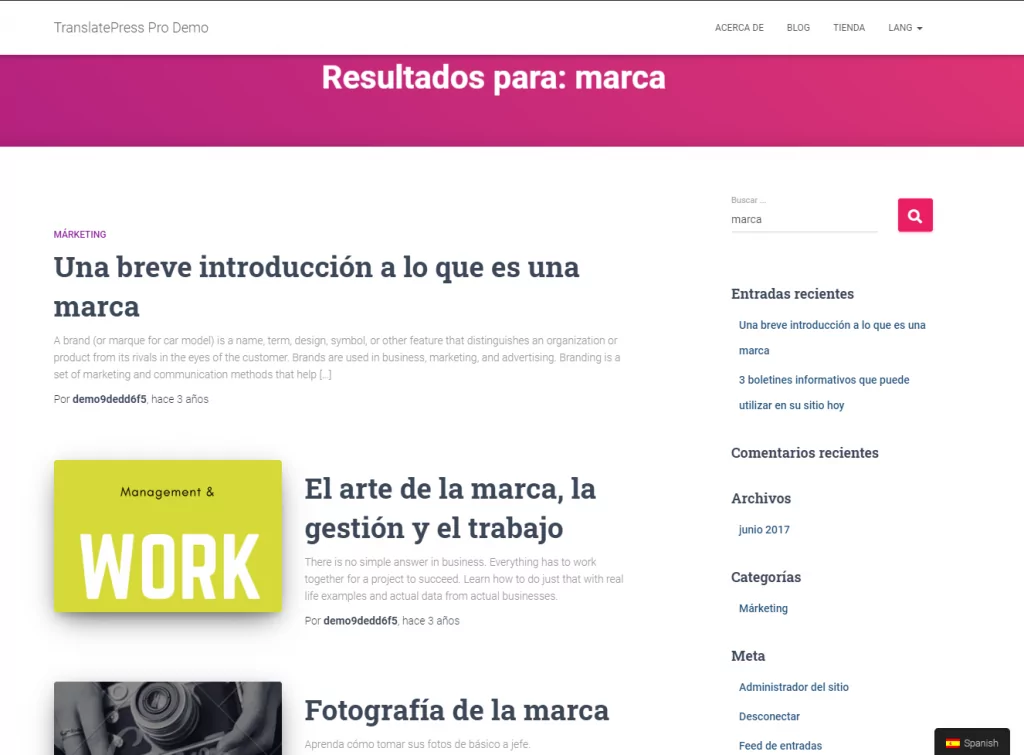
Comme vous l'avez remarqué, seul le contenu en espagnol est affiché, qui contient soit le mot-clé “ marca ” dans le titre ou le contenu d'un article, d'une page, d'un produit, etc.
Et voilà. Grâce à TranslatePress, le formulaire de recherche par défaut de WordPress n'affichera que le contenu dans la langue sélectionnée, en rapport avec le mot-clé recherché.
Recherche WooCommerce multilingue
La même chose s'applique si vous construisez un magasin WooCommerce multilingue et cherchent un moyen simple de permettre aux visiteurs de rechercher des produits dans leur langue.
Rendre les produits et les descriptions de produits accessibles à vos clients dans leur langue maternelle est un excellent moyen d'augmenter les conversions et d'accroître les revenus.
Recherche de produits WooCommerce multilingue
Si vous souhaitez restreindre les résultats de recherche multilingue aux seuls produits, vous pouvez facilement y parvenir en utilisant Widget de recherche de produits quelles offres WooCommerce.
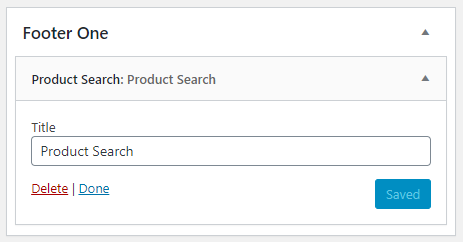
Une fois encore, TranslatePress veillera à ce que les résultats de recherche de produits affichés soient dans la langue sélectionnée et pertinents par rapport au terme de recherche utilisé.
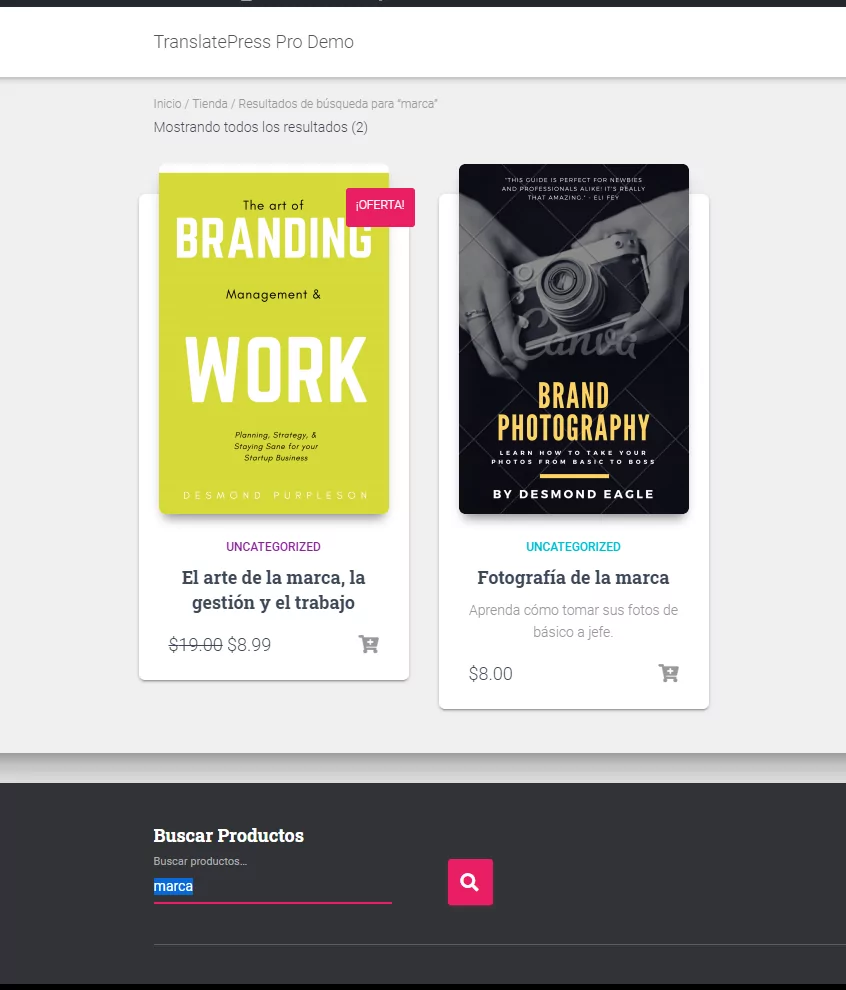
En utilisant la recherche de produits pour chercher des produits liés à “ marca ” (“ marque ” en espagnol), nous n'obtiendrons que les produits pertinents, en espagnol.
La recherche multilingue fonctionne-t-elle avec n'importe quel plugin de recherche WordPress ?
Comme vous avez pu le voir jusqu'à présent, TranslatePress améliorera la recherche WordPress par défaut ou la recherche de produits WooCommerce en les préparant pour le multilingue. Mais que se passe-t-il lorsque vous utilisez d'autres extensions de recherche WordPress ?
Tant que les plugins de recherche WordPress que vous utilisez s'appuient sur les résultats de recherche par défaut de WordPress et les filtrent (à l'aide des hooks appropriés), la recherche multilingue fonctionnera, et TranslatePress veillera à ce que vous obteniez des résultats de recherche spécifiques à chaque langue.
Si vous cherchez une solution infaillible, une excellente recommandation est JetSearch par Crocoblock, qui est entièrement compatible avec les configurations multilingues et s'intègre également aux constructeurs de pages populaires tels que Elementor, l'éditeur WordPress et Bricks Builder.
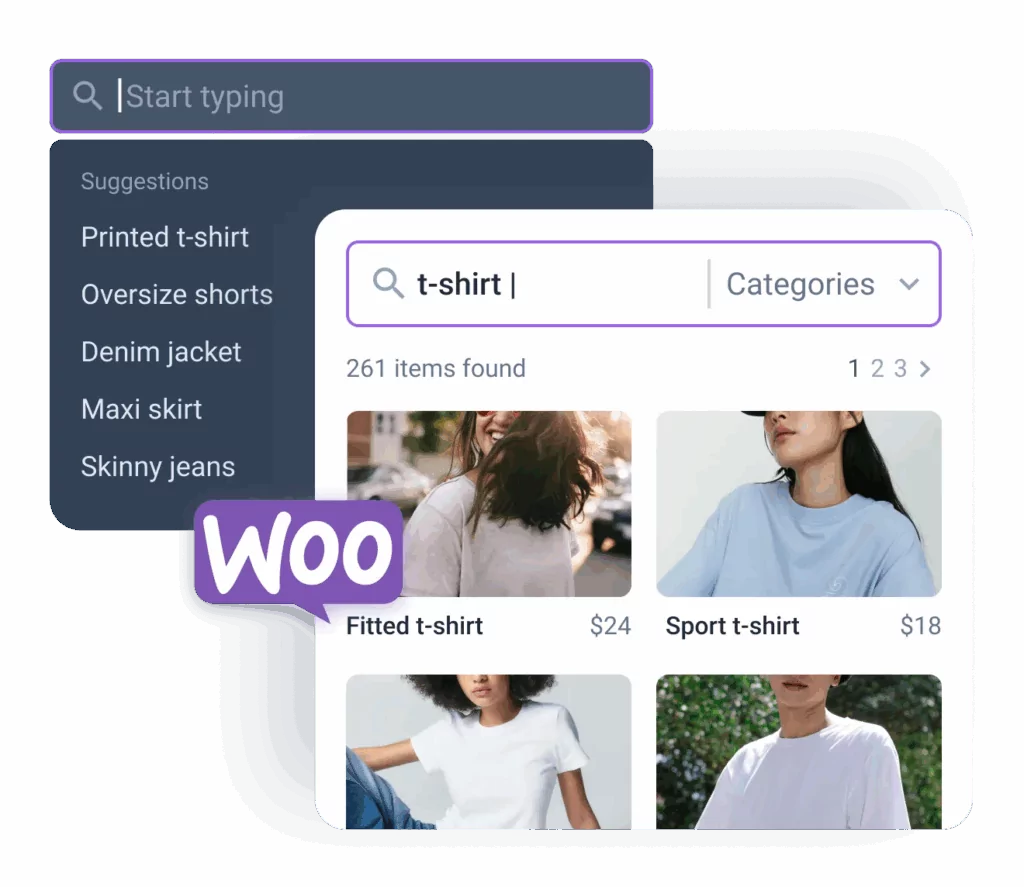
Il prend en charge la recherche dans tous les types de publications, y compris les produits WooCommerce, les champs personnalisés, les métadonnées des utilisateurs et bien plus encore, tout en affichant les résultats instantanément sans recharger la page.
Que vos visiteurs effectuent leurs recherches en anglais, en espagnol ou dans toute autre langue, JetSearch, associé à TranslatePress, leur garantit des résultats dans la bonne langue, ce qui améliore à la fois l'expérience utilisateur et la précision.
Si vous êtes amateur de solutions intégrées par l'IA, Queryra pourrait être une autre bonne option pour vous. Queryra s'intègre parfaitement à TranslatePress, ce qui permet à vos visiteurs d'effectuer des recherches et d'obtenir des résultats dans la langue qu'ils ont sélectionnée.
Propulsé par la recherche sémantique par IA, Queryra comprend l'intention de l'utilisateur au-delà des mots-clés exacts, fournissant des résultats multilingues précis de manière naturelle dans l'ensemble de votre contenu traduit et de vos produits WooCommerce.

Il existe d'autres bonnes options, mais si vous utilisez un plugin de recherche qui n'est pas compatible d'origine avec TranslatePress, vous pouvez tout de même utiliser cette solution personnalisée.
Nous souhaitons prendre en charge tous les plugins de recherche courants. Si vous utilisez un plugin avec lequel la recherche multilingue via TranslatePress ne fonctionne pas, veuillez contacter ici.
Configurez dès aujourd'hui la recherche WordPress multilingue
Comme vous avez pu le voir jusqu'à présent, TranslatePress simplifie grandement la traduction de votre site WordPress et l'ajout d'un formulaire de recherche multilingue.
TranslatePress Multilingue
Vous pouvez soit traduire le contenu manuellement, à l'aide de l'éditeur de traduction visuelle, soit utiliser la traduction automatique pour accélérer le processus et simplement affiner ce qui est nécessaire.
Une fois votre site entièrement traduit, grâce à la recherche multilingue, vos visiteurs ou clients peuvent facilement trouver et parcourir le contenu ou les produits pertinents dans leur langue maternelle.
Avez-vous encore des questions sur la recherche multilingue dans WordPress ? Faites-le-nous savoir dans les commentaires !
Si vous avez trouvé ce message utile, consultez notre Chaîne YouTube, où nous téléchargeons constamment des tutoriels vidéo courts et faciles à suivre. Vous pouvez également nous suivre sur Facebook et Twitter pour être le premier à savoir chaque fois que nous publions.



Bonjour,
Merci pour cet article que j'ai lu avec intérêt. Cela signifie-t-il que la recherche s'effectue uniquement dans le sous-répertoire ? Donc, dans ce cas, http://www.website.com/es.
Donc, si l'on prend le cas d'un site web en anglais (www.website.com) qui contient le mot “ investigation ” et de la version française (www.website.com/fr) qui inclut également le terme français “ investigation ”, je n'obtiendrai des résultats en français que si je fais une recherche alors que je suis sur http://www.website.com/fr. Est-ce correct ?
Oui Grant, c'est exact. La recherche n'affichera que les résultats dans la langue sélectionnée.
Il est logique d'agir ainsi, car il serait vraiment déroutant pour vos lecteurs d'afficher des résultats dans plusieurs langues.
Bonjour, j'utilise translatepress, mais lorsque je fais une recherche avec des termes en allemand dans la partie en allemand de mon site https://lovefoodfeed.com/de/ Je n'obtiens aucun résultat. Qu'est-ce que je fais de mal ?