
Dieses Tutorial zeigt, wie man mehrsprachige Formulare erstellt, die mit Contact Form 7 und TranslatePress.
Wie man Widgets in WordPress übersetzt und sprachabhängig unterschiedliche Widgets anzeigt
Contact Form 7 ist das beliebteste Kontaktformular-Plugin für WordPress. Es ist kostenlos und wird auf über 5 Millionen Websites eingesetzt.
Das Übersetzen von Formularen, die mit Contact Form 7 erstellt wurden, ermöglicht es Ihnen, ein einziges Formular anzubieten, das in mehreren Sprachen verfügbar ist. Sie müssen nicht für jede Sprache mehrere Formulare mit unterschiedlichen Feldnamen einrichten.
Nachfolgend betrachten wir Wie man Formulare übersetzt Erstellt mit Contact Form 7 unter Verwendung von TranslatePress.
So übersetzen Sie Contact Form 7
Wir beginnen damit, ein neues Kontaktformular einzurichten mit Contact Form 7. Nach der Installation und Aktivierung des Plugins bemerken Sie einen neuen Menüpunkt “Kontakt“.
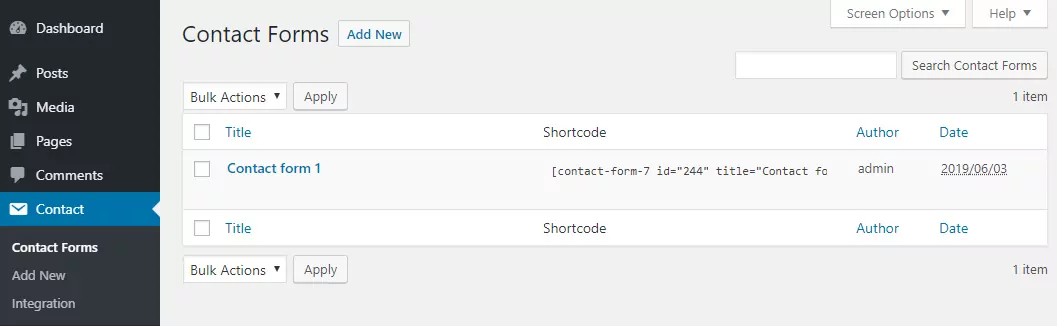
Wir wählen die Kontaktformulare Untermenüpunkt, dann klicken Sie auf das Neu hinzufügen Schaltfläche zum Einrichten unseres ersten Kontaktformulars.
Hier können wir das Formular einrichten und Dinge steuern wie:
- Bearbeiten Sie die Formularvorlage und wählen Sie die Felder aus, die das Formular enthalten soll;
- Bearbeiten Sie die E-Mail-Vorlage, die der Administrator beim Absenden eines Formulars erhält;
- Ändern Sie die Validierungs- und Erfolgsmeldungen.
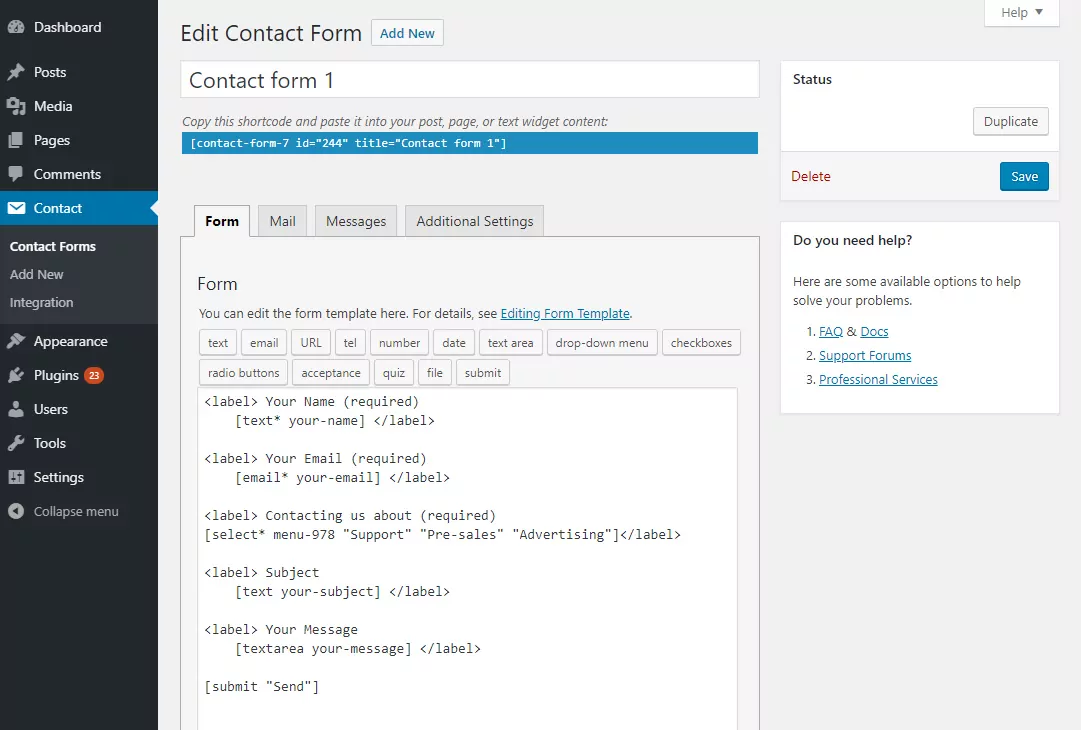
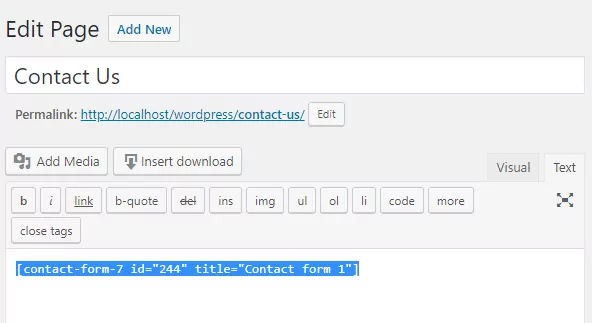
Nachdem Sie das Formular-Template fertig bearbeitet haben, klicken Sie Speichern. Es wird ein Shortcode angezeigt, den Sie auf einer Seite oder in einem Widget platzieren können, um das Formular auszugeben.
Wir werden es auf einer neu erstellten “Kontakt”-Seite platzieren.
Nach dem Speichern der Seite schauen wir uns an, wie das Formular im Frontend aussieht:
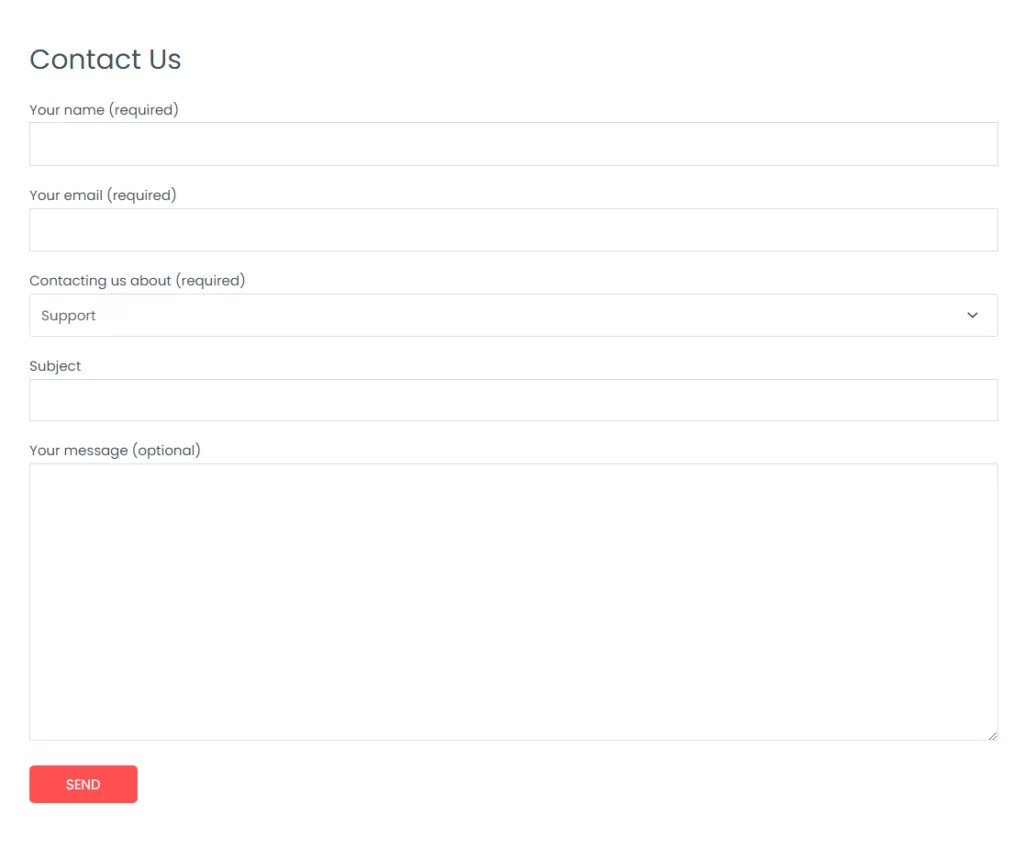
Als Nächstes werden wir mit der Installation und Aktivierung von TranslatePress zur Übersetzung von Contact Form 7 fortfahren.
Nach der Aktivierung von TranslatePress werden Sie eine neue Seite übersetzen Element in der Admin-Leiste hinzugefügt.

Fahr einfach mit der Maus darüber und klick Einstellungen. Dadurch gelangen Sie zur TranslatePress-Einstellungen Seite.
Hier können wir die Sprachen hinzufügen, in die wir das Kontaktformular übersetzen möchten. Für dieses Tutorial werden wir zwei Sprachen verwenden.
Englisch ist unsere Standardsprache, und wir werden auch Spanisch hinzufügen. Sie werden feststellen, dass es noch ein paar andere Einstellungen gibt (wie z. B. Google Translate-Integration für die automatische Übersetzung oder das Anpassen der Sprachumschalter), aber wir überspringen sie vorerst und klicken Änderungen speichern.
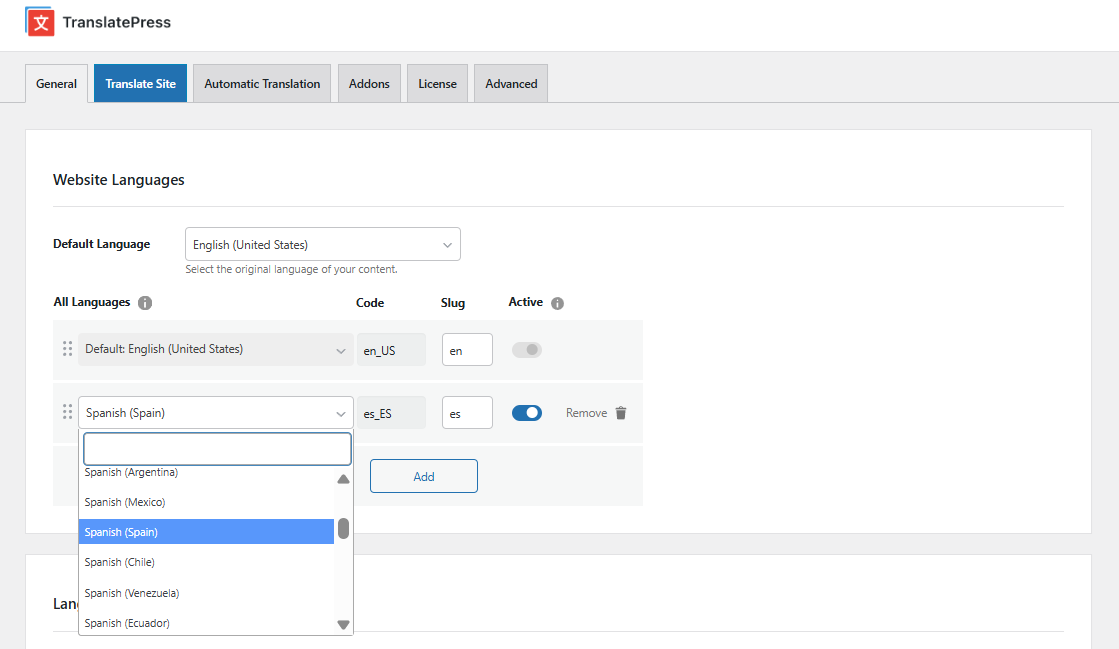
Wir sind jetzt bereit, unser mit Contact Form 7 erstelltes Formular zu übersetzen.
Felder des Kontaktformulars übersetzen
Um mit der Übersetzung der Kontaktformularfelder zu beginnen, navigieren wir einfach zur “Kontakt”-Seite (auf der sich das Formular befindet) und klicken dann auf das Seite übersetzen Button aus der Administrationsleiste.
Dadurch wird ein Frontend-Übersetzungseditor geöffnet, in dem Sie jede Zeichenfolge auf einer Seite übersetzen und die Änderungen in Echtzeit sehen können.
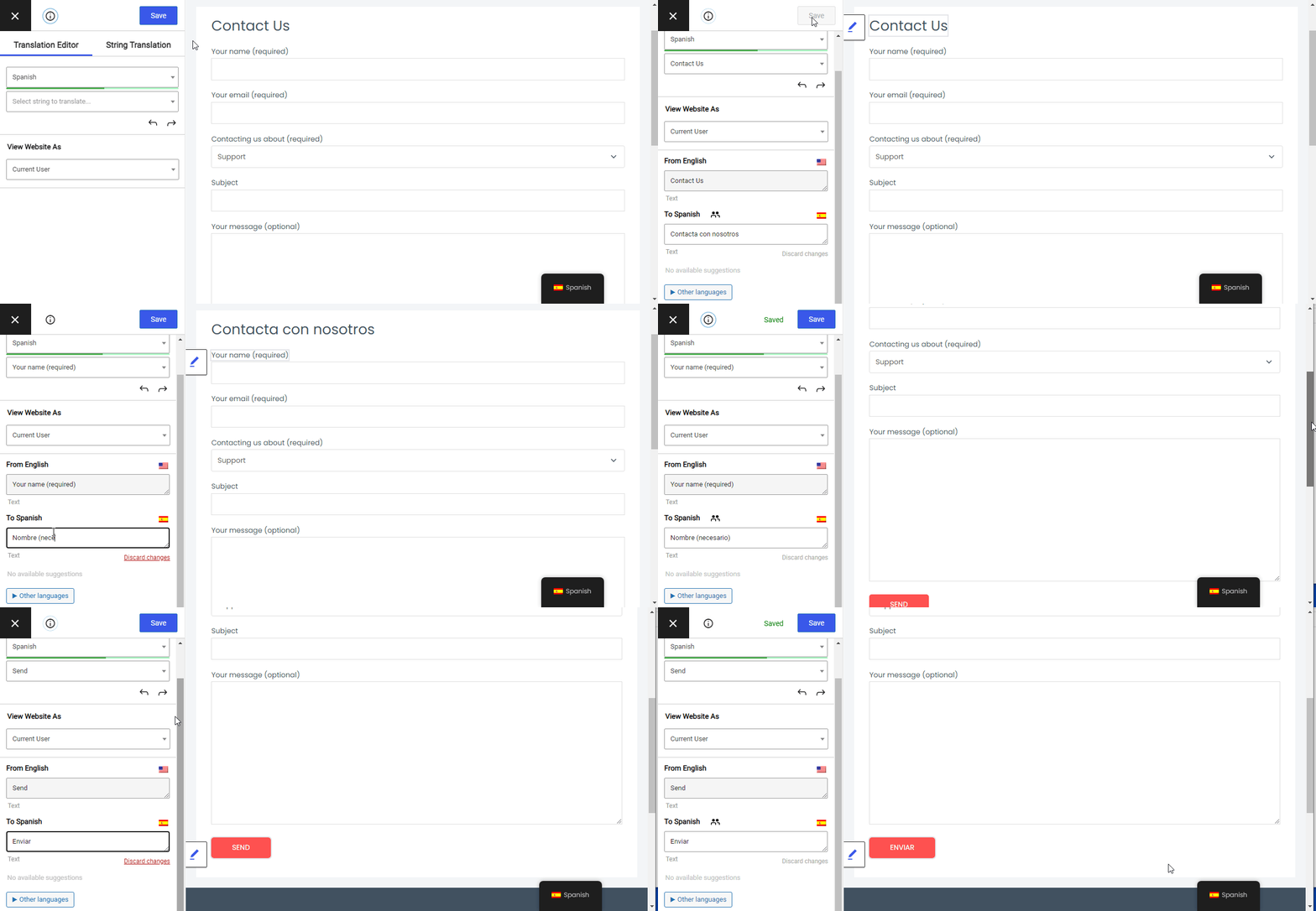
Sobald Sie mit der Maus über eine bestimmte Feldbeschriftung fahren, erscheint ein Stiftsymbol. Wenn Sie darauf klicken, können Sie diesen bestimmten Text übersetzen. Geben Sie die Übersetzung ein und klicken Sie auf Speichern Schaltfläche.
Auf diese Weise können Sie jedes Formularfeld und jede Beschreibung übersetzen, einschließlich des Textes der Schaltfläche “Senden”.
Optionswerte für Select, Checkbox, Radio usw. befinden sich alle im String-Liste Dropdown auf der linken Seite. Dieses enthält alle auf dieser Seite gefundenen Strings, sodass Sie es verwenden können, um Strings zu übersetzen, bei denen das Stiftsymbol nicht angezeigt wird.
Lassen Sie uns in diesem Fall die Optionen aus dem Dropdown-Menü “Kontaktieren Sie uns bezüglich” auswählen und übersetzen.
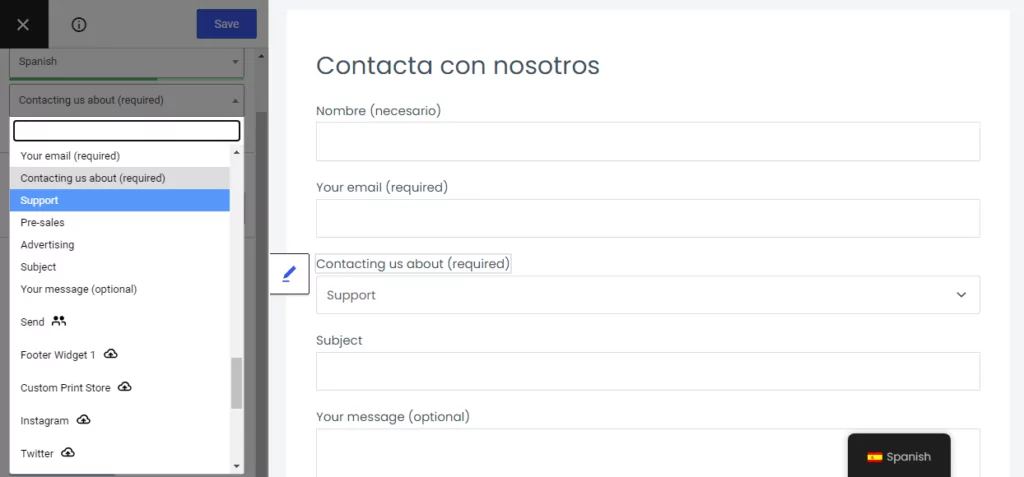
Damit ist die Übersetzung der Kontaktformularfelder abgeschlossen.
Fehlermeldungen und Erfolgsmeldungen für das Kontaktformular
Als Nächstes gibt es bestimmte Nachrichten, die ein Kontaktformular nach dem Klick auf den Absenden-Button anzeigt. Dinge wie Validierungs-, Fehler- oder Erfolgsmeldungen.
Bei Contact Form 7 befinden sich alle unter Nachrichten Registerkarte, wenn Sie ein neues Formular bearbeiten oder hinzufügen. Schauen Sie sich die Liste der Nachrichten an und prüfen Sie, welche davon auf Ihr Formular zutreffen.
Um diese mit TranslatePress zu übersetzen, müssen wir sie zunächst im Frontend auslösen. Sobald sie dann sichtbar sind, können wir sie einzeln auswählen und übersetzen.
Lösen Sie für Validierungsnachrichten das Absenden des Formulars durch Klick auf aus Senden Schaltfläche. Sobald die Fehler angezeigt werden, klicken Sie darauf und fügen Sie die Übersetzung hinzu.
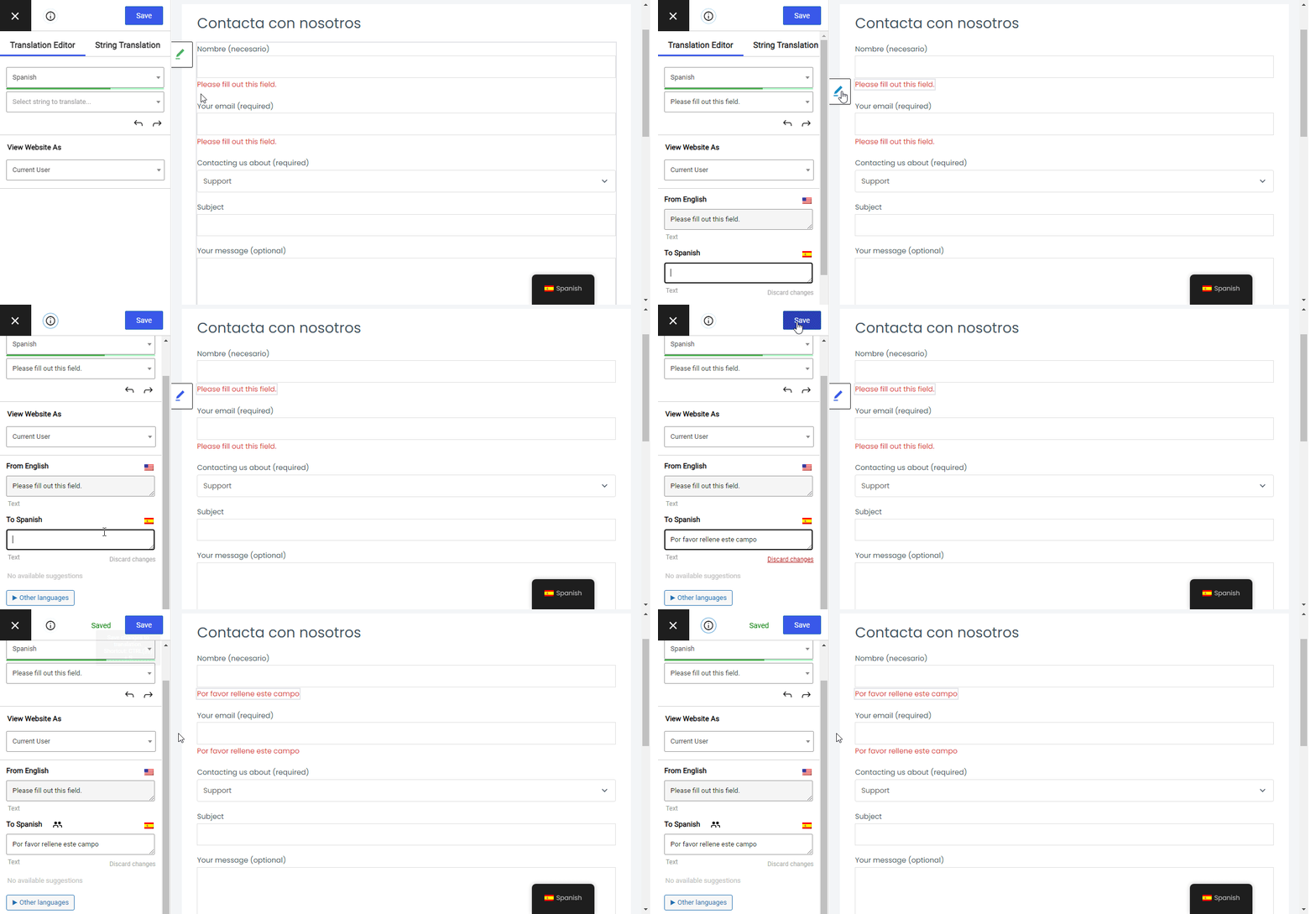
Machen Sie dasselbe für Erfolgsmeldungen und Ihr Kontaktformular ist vollständig übersetzt.
Das Ganze zusammenfassen
Das Erstellen mehrsprachiger Kontaktformulare mit „Contact Form 7“ und „TranslatePress“ ist dank des intuitiven Frontend-Übersetzungsansatzes wirklich unkompliziert.
Unter Verwendung von Tools wie automatische Spracherkennung für Benutzer Mit der in TranslatePress verfügbaren Funktion können Sie Besuchern automatisch die übersetzte Version des Kontaktformulars in ihrer eigenen Sprache anzeigen.
TranslatePress Mehrsprachig
Wenn Sie TranslatePress in Aktion erleben möchten, sollten Sie unbedingt Spielen Sie mit unserer Demo.
Haben Sie noch Fragen zum Übersetzen von Contact Form 7? Lassen Sie es uns in den Kommentaren wissen!
Wenn Sie diesen Beitrag hilfreich fanden, schauen Sie sich bitte unsere an YouTube-Kanal, wo wir ständig kurze und leicht verständliche Video-Tutorials hochladen. Sie können uns auch folgen auf Facebook und Twitter um der Erste zu sein, der jedes Mal Bescheid weiß, wenn wir etwas posten.

Schön. Aber die nächste Frage natürlich: Wie übersetzen wir die Bestätigungs-E-Mails von Contact Form 7?