
Das Übersetzen von Gutenberg-Blöcken ist wirklich unkompliziert, wenn man das kostenlose TranslatePress mehrsprachiges Plugin. In diesem Tutorial konzentrieren wir uns darauf, wie man Gutenberg-Blöcke jeder Art übersetzt, einschließlich Überschriften, Absätzen mit unterschiedlichen Formatierungen, Zitaten, Listen, Bildern, Schaltflächen und mehr.
Gutenberg ist der Standardeditor für WordPress, der seit WordPress 5.0. Es hat einen starken Einfluss auf das gesamte WordPress-Publishing-Erlebnis und macht es jedem leicht, reichhaltige und flexible Content-Layouts zu erstellen.
Gutenberg-Blöcke sind ein großartiges Werkzeug zum Erstellen und Gestalten verschiedener Arten von Inhalten, ohne eine einzige Zeile Code schreiben zu müssen. Wenn Sie Ihre Website in mehreren Sprachen verfügbar, Sie benötigen eine einfache Möglichkeit, den Inhalt jedes Gutenberg-Blocks zu übersetzen.
In diesem Tutorial zeigen wir Ihnen, wie Sie jeden beliebigen Gutenberg-Inhaltsblock mit der kostenlosen Version von TranslatePress ganz einfach übersetzen können. Los geht’s:
Verwandt: Wie übersetzt man WooCommerce-Produkte
So übersetzen Sie Gutenberg-Blöcke
Während Gutenberg der offizielle Name war, während sich der Editor in der Entwicklung befand, heißt er jetzt einfach “der WordPress-Block-Editor” oder “der WordPress-Editor”, da er offiziell Teil des Core ist.
Fügen wir nun einen neuen Beitrag hinzu, der einige der beliebtesten Gutenberg-Blöcke enthält.
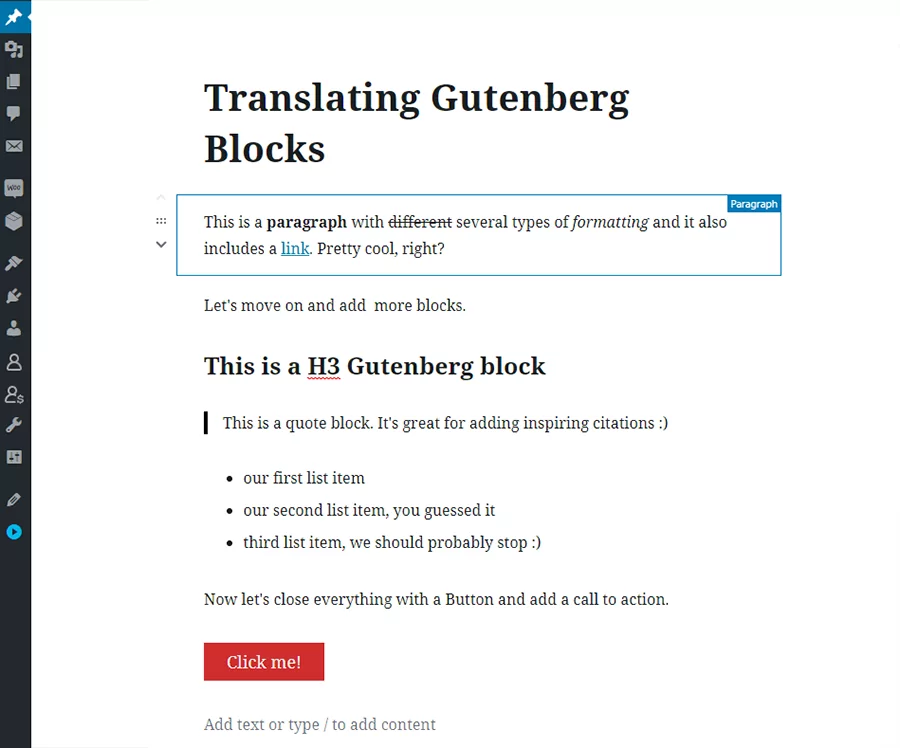
Wie Sie bemerkt haben, habe ich einen Absatz mit Formatierung, mehreren Überschriften, einem Zitatblock, einer Liste und einem Button hinzugefügt.
Alles, was jetzt noch bleibt, ist Laden Sie das kostenlose TranslatePress-Plugin herunter und installieren Sie es und übersetzen Sie jedes einzelne davon. Für dieses Beispiel fügen wir Französisch als Zweitsprache hinzu.
Nachdem Sie das Plugin aktiviert haben, navigieren Sie zu der TranslatePress Einstellungen Seite und Französisch als Zweitsprache hinzufügen.
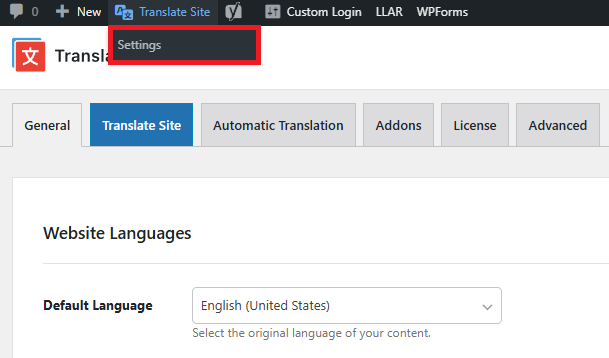
Speichern Sie die Einstellungen und klicken Sie einfach auf Seite übersetzen Schaltfläche, um mit der Übersetzung Ihrer Inhalte zu beginnen. Dadurch wird eine Front-End-Übersetzungsoberfläche geöffnet, in der Sie auf der Website navigieren und auf bestimmte Inhalte klicken können, um sie zu übersetzen.
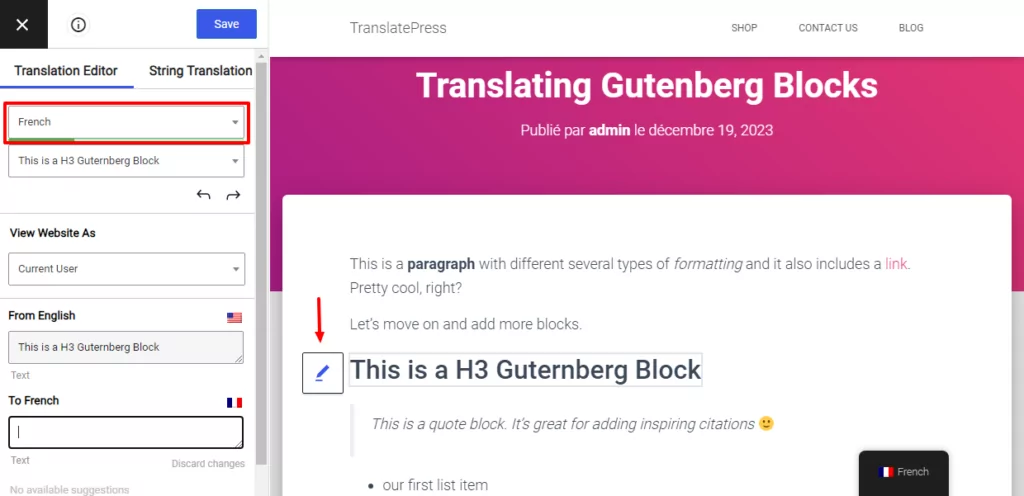
Wählen Sie im Sprachmenü auf der linken Seite unbedingt “Französisch” aus, damit wir bei der Übersetzung einer bestimmten Zeichenfolge eine Echtzeitansicht erhalten.
Ähnlich wie bei Gutenberg konzentriert sich auch der Übersetzungsprozess in TranslatePress auf Inhaltsblöcke in einer visuellen und intuitiven Benutzeroberfläche.
Übersetzen eines Gutenberg-Blocks mit Überschrift
Beginnen wir mit der Übersetzung des Beitragstitels, bei dem es sich um eine h2-Überschrift handelt. Bewegen Sie in der Übersetzungsoberfläche einfach den Mauszeiger über den Titel, und Sie werden feststellen, dass ein Bearbeiten Symbol erscheint. Durch Klicken darauf können Sie eine neue Übersetzung hinzufügen/bearbeiten.
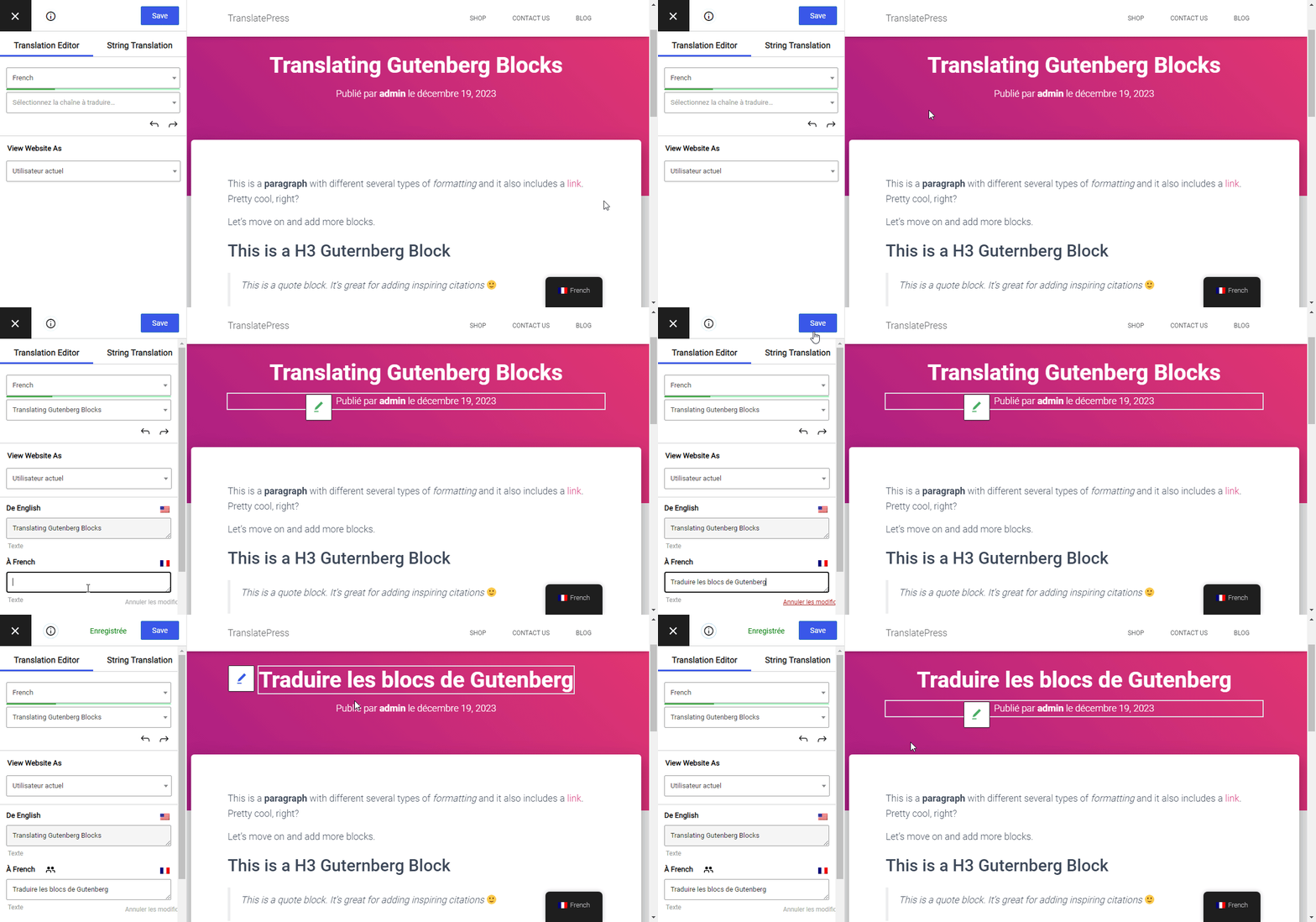
Klick auf den Speichern Klicken Sie auf die Schaltfläche, und Sie werden sehen, dass der Titel des Beitrags bereits auf “Französisch” aktualisiert wurde.
Übersetzen eines Absatzblockes mit Formatierung
Als Nächstes kommen wir zu den ersten Absatz übersetzen. Da der Text aufgrund der Formatierung mehrere HTML-Elemente enthält, wird er von TranslatePress in kleinere Teile zerlegt.
Um Den gesamten Absatz auf einmal übersetzen, dann kannst du einfach auf den Symbol „Zusammenführen“  einen einzigen Block aus dem ganzen Satz zu erstellen.
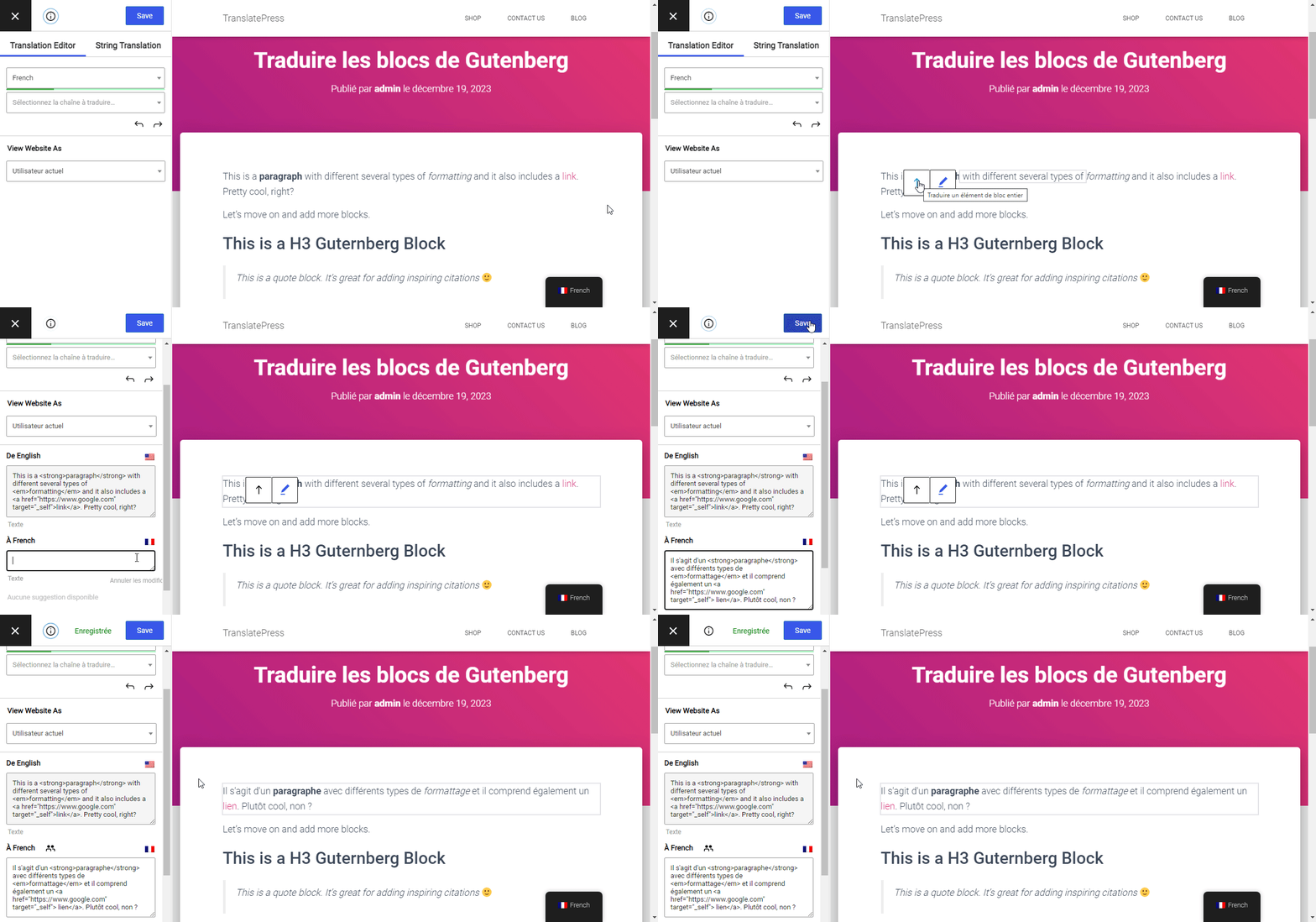
Wenn Sie sich später entscheiden, diesen Zusammenführungsvorgang rückgängig zu machen, um die kurzen Zeichenfolgen einzelner zu übersetzen, können Sie einfach auf klicken Geteilte Schaltfläche  . Die Übersetzung des gesamten Blocks ist durch das Zusammenfügen jederzeit verfügbar.
Übersetzen eines Gutenberg-Listen-Blocks
Ein Gutenberg-Listenblock wird auf dieselbe Weise übersetzt: Man fährt einfach mit der Maus darüber, wählt die einzelnen Listenelemente aus und gibt für jedes die Übersetzung ein.
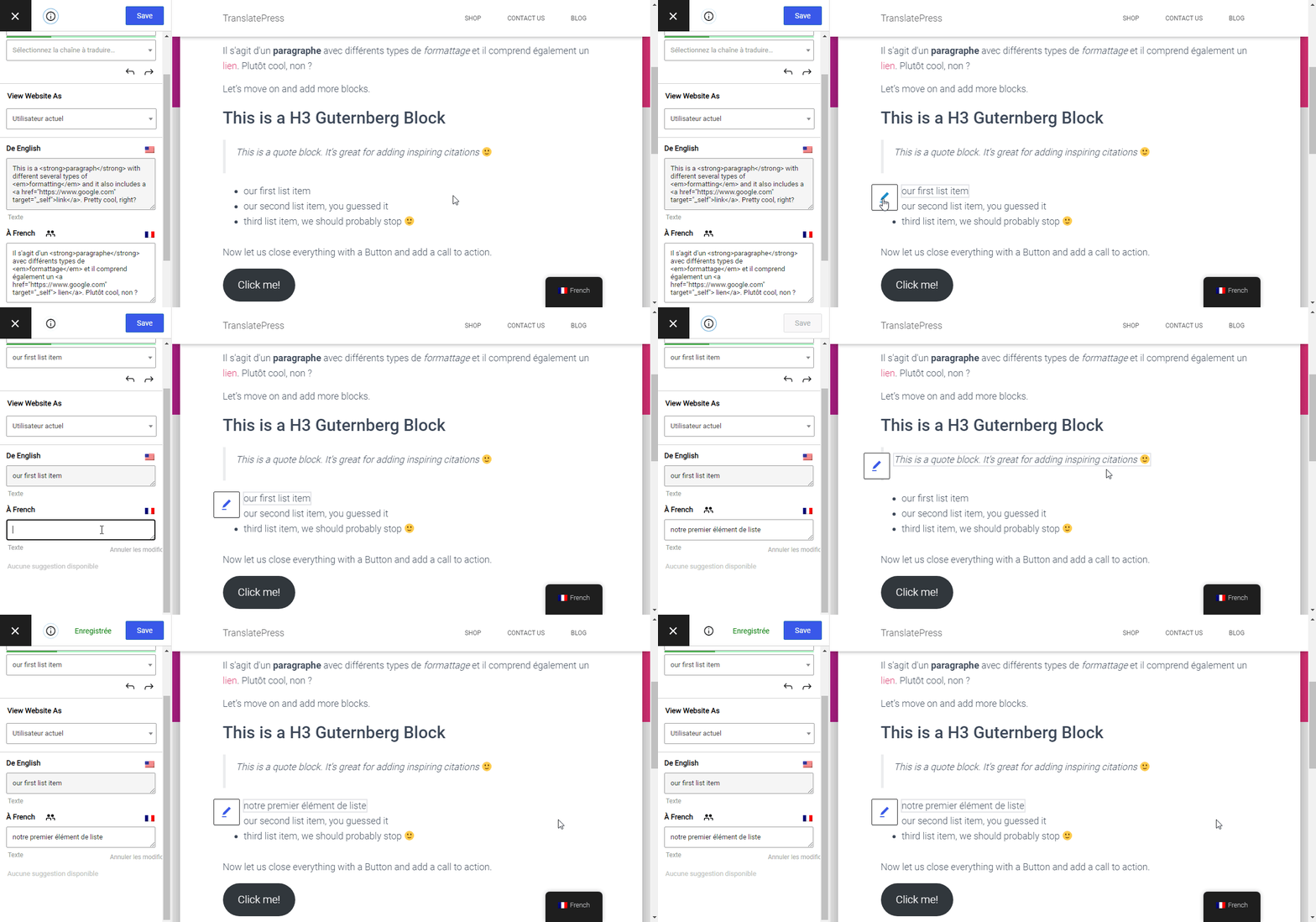
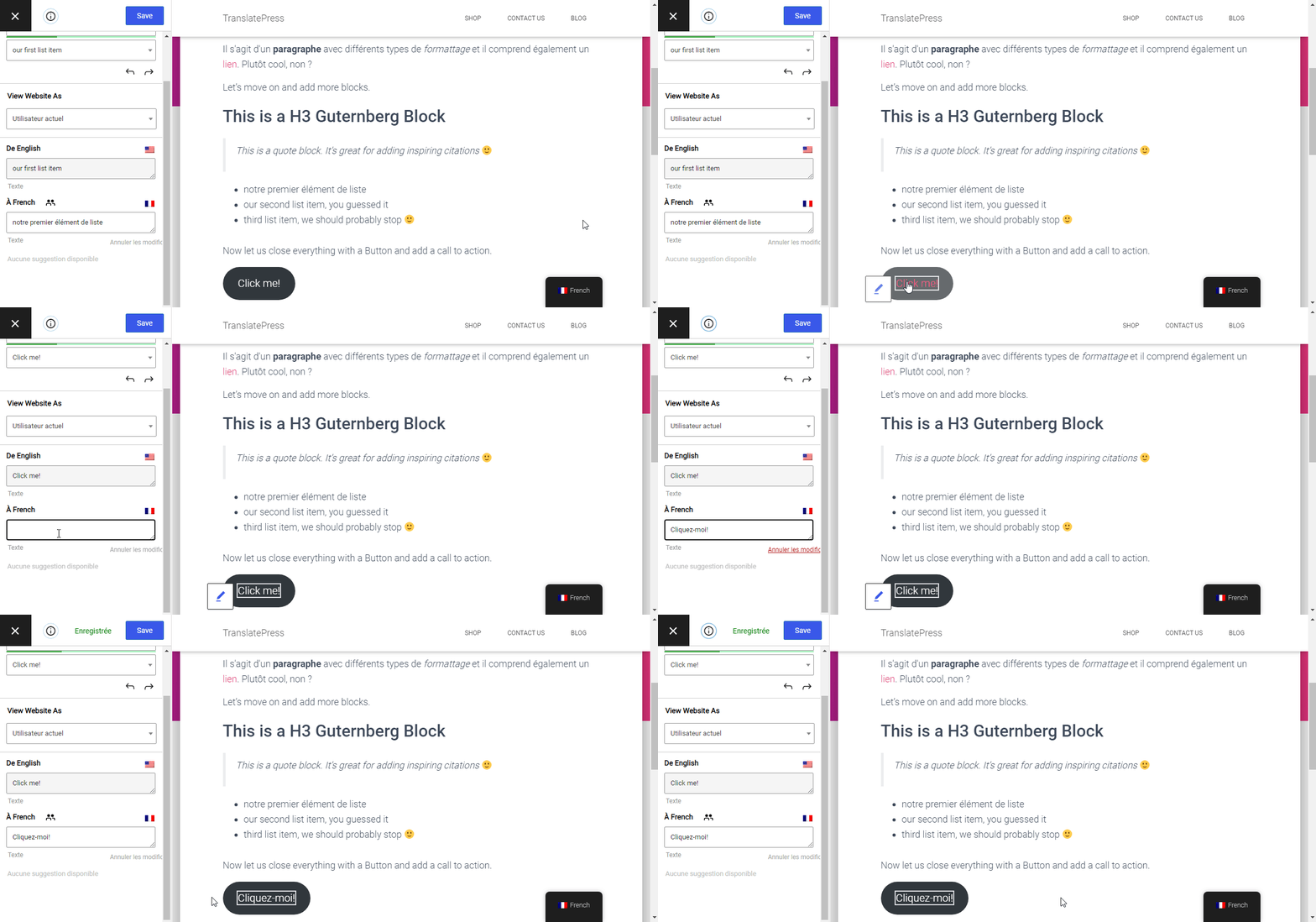
„Gutenberg“-Schaltflächenblock übersetzen
Zum Schluss übersetzen wir noch die Call-to-Action-Schaltfläche, die wir unserem Rich-Text-Beitrag hinzugefügt haben. Genau: Fahren Sie mit der Maus darüber, klicken Sie auf das Stiftsymbol, um die Übersetzung hinzuzufügen, und speichern Sie sie anschließend.
Gutenberg-Bildblock übersetzen
Bilder kommen beim Hinzufügen von Inhalten zu einer Seite recht häufig vor. Deshalb ist der Gutenberg-Bildblock einer der am häufigsten verwendeten Blöcke.
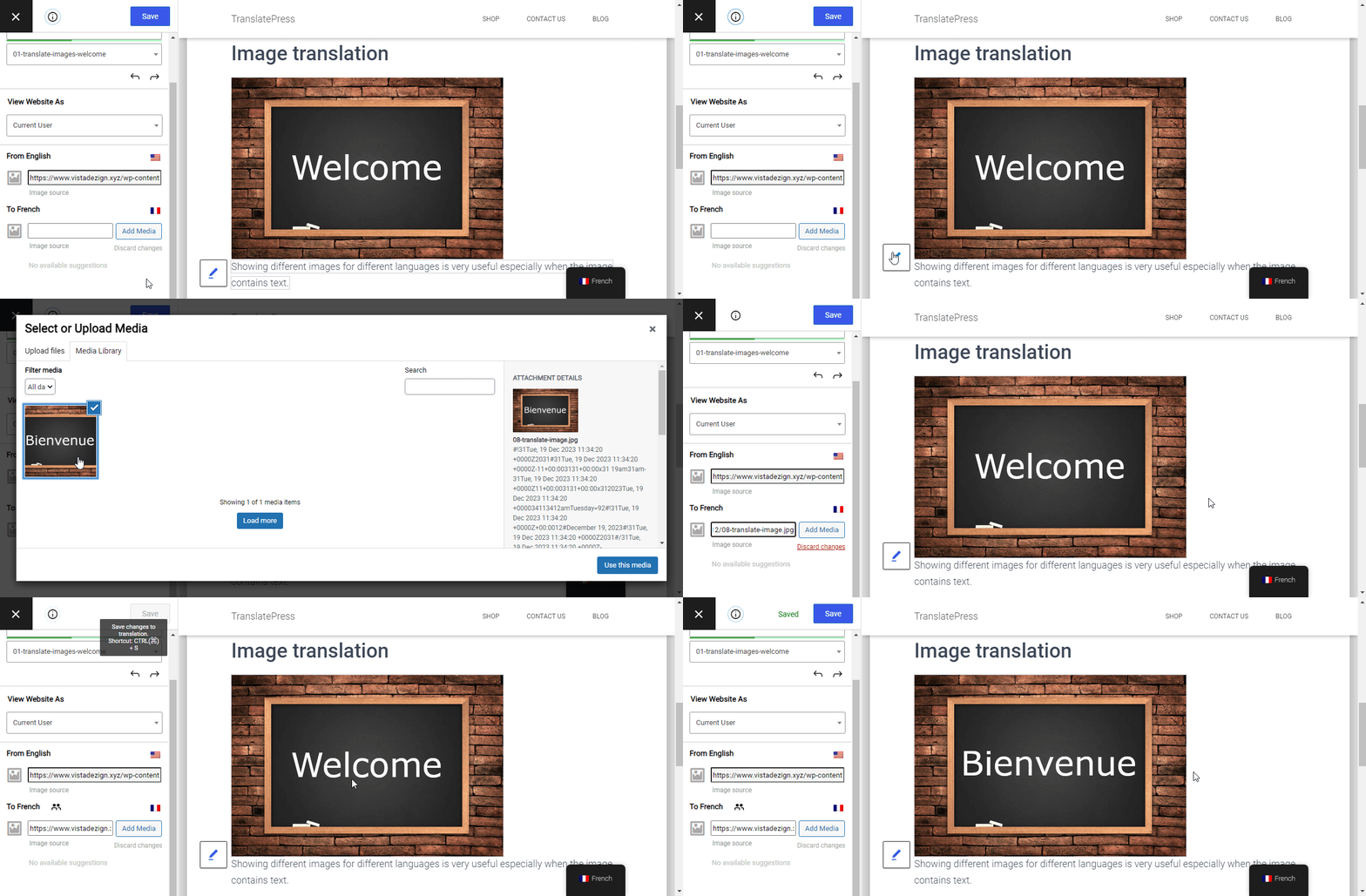
Es gibt jedoch Situationen, in denen man ein Bild übersetzen. Wenn Ihr Bild Text in einer bestimmten Sprache enthält, benötigen Sie eine einfache Möglichkeit, Zeige unterschiedliche Bilder für verschiedene Sprachen.
TranslatePress bietet Unterstützung für die Bildübersetzung und nutzt dabei dieselbe visuelle Frontend-Oberfläche für die Übersetzung.
Sie bewegen den Mauszeiger einfach über das Bild, das Sie ersetzen möchten, klicken auf das Stiftsymbol und laden ein anderes Bild für eine andere Sprache hoch oder wählen es aus.
Sie können außerdem beispielsweise Alternativtext, Bildtitel sowie Ankerlinks bearbeiten.
Das war's, unser mit mehreren Arten von Gutenberg-Blöcken erstellter Beitrag ist nun vollständig ins Französische übersetzt.
Das zeigt, wie einfach es ist, Gutenberg-Blöcke mit TranslatePress zu übersetzen.
TranslatePress Mehrsprachig
Spielen Sie mit der Demo und überzeugen Sie sich selbst und erfahren Sie mehr über das Premium-Funktionen des Plugins.
Habt ihr noch Fragen zum Übersetzen von Gutenberg-Blöcken? Lasst es uns in den Kommentaren wissen!
Wenn Sie diesen Beitrag hilfreich fanden, schauen Sie sich bitte unsere an YouTube-Kanal, wo wir ständig kurze und leicht verständliche Video-Tutorials hochladen. Sie können uns auch folgen auf Facebook und X um der Erste zu sein, der jedes Mal Bescheid weiß, wenn wir etwas posten.