
Dans ce post
Si vous passez un peu de temps sur Internet de nos jours, vous aurez besoin de traduire des pages Web à un moment ou à un autre. Peut-être faites-vous des achats sur une boutique en ligne hébergée dans un autre pays, ou s'agit-il d'un livre blanc rédigé dans une autre langue. Ou, si vous gérez votre propre site, vous souhaitez peut-être le rendre plus accessible à un public mondial.
Je vais vous montrer plusieurs façons différentes de traduire des pages Web dans cet article. Elles sont toutes simples et gratuites.
Méthodes pour traduire des pages Web
Tout d'abord, parlons des deux méthodes différentes pour traduire une page Web : dynamique et statique. Chaque scénario a son utilité, et comprendre la différence vous aidera à choisir la meilleure méthode pour vos besoins.
Dynamique La traduction signifie que c'est temporaire. Par exemple, lorsque vous tombez sur une page Web écrite dans une autre langue et que vous voulez la comprendre. Dans ce cas, vous utiliseriez une méthode dynamique pour obtenir une traduction rapide.
A statique la traduction est plus permanente. Supposons que vous souhaitiez traduire une page de votre propre site web pour la partager avec quelqu'un d'autre. Vous pouvez lui envoyer un lien vers votre page traduite à laquelle il pourra accéder à tout moment. Un autre exemple est si vous souhaitez traduire l'ensemble de votre site web, le rendant ainsi multilingue. Cela ferait partie d'un processus appelé localisation de sites Web.
Maintenant que vous comprenez les bases, je vais vous guider à travers les étapes pour traduire des pages Web de manière dynamique et statique.
1. Comment traduire dynamiquement n'importe quelle page Web rapidement
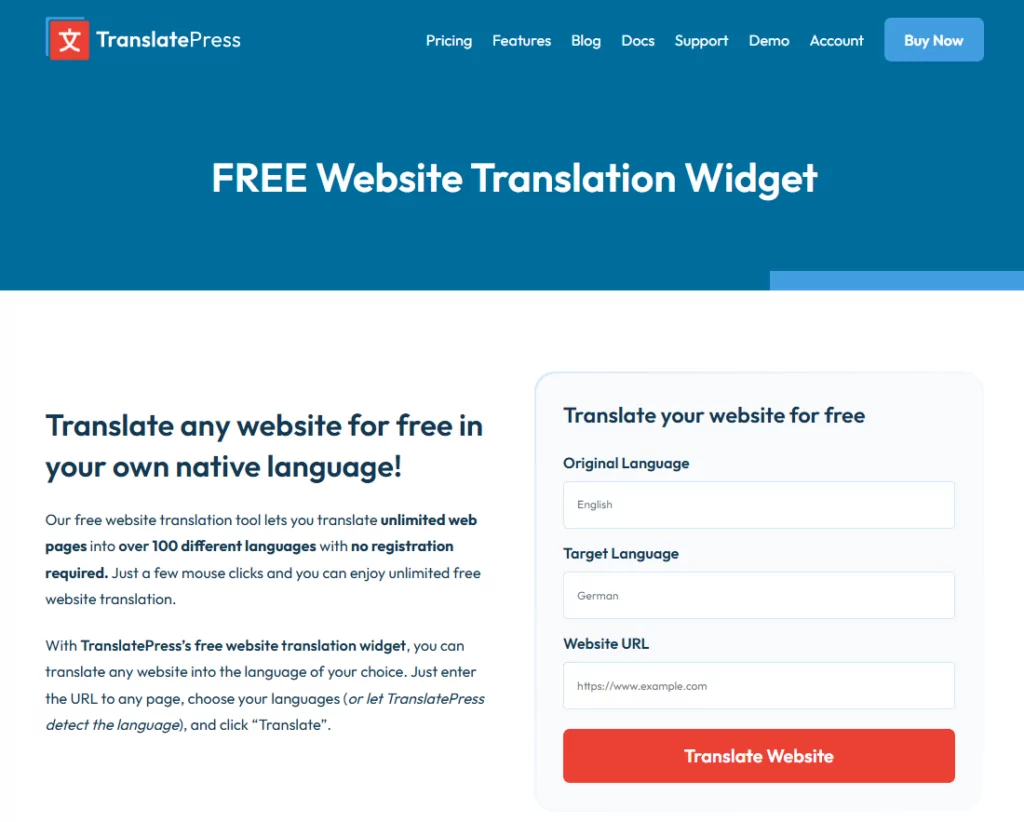
Il existe plusieurs méthodes pour traduire dynamiquement des parties d'une page Web afin de pouvoir les lire. Une façon simple et facile de le faire est d'utiliser le gratuit Outil de traduction de sites Web Extrait de TranslatePress.
En utilisant cet outil gratuit, vous pouvez traduire un nombre illimité de pages Web sans créer de compte. Plus de 100 langues sont actuellement disponibles. C'est super facile à utiliser et c'est instantané.
Tapez ou collez l'URL de la page que vous souhaitez traduire. Choisissez le Langue originale et le Langue cible, puis cliquez sur Traduire bouton. La page traduite s'ouvrira dans un nouvel onglet. Vous remarquerez qu'elle utilise le moteur Google Translate pour gérer les traductions. Si vous souhaitez envoyer la page à quelqu'un, copiez l'URL dans la fenêtre de votre navigateur. Lorsque cette personne ouvrira le lien, elle verra la page déjà traduite. C'est aussi simple que ça !
2. Comment traduire les pages Web de votre propre site
L'outil gratuit de traduction de sites Web est idéal pour les traductions dynamiques d'une seule page. Mais que se passe-t-il si vous souhaitez traduire les pages de votre site Web et les rendre statiques ?
La solution consiste à héberger votre site web à l'aide de WordPress et du plugin TranslatePress. Passons en revue les étapes de mise en place de base, de l'installation à la configuration.
Rechercher et installer TranslatePress
Il existe plusieurs endroits où vous pouvez vous procurer TranslatePress. Si vous souhaitez disposer du plugin complet avec toutes ses fonctionnalités pro et ses extensions (notamment un nombre illimité de langues et le référencement multilingue), vous pouvez téléchargez-le directement depuis le site web.
Après avoir téléchargé le fichier zip du plugin, accédez à Tableau de bord administrateur de votre site WordPress. Sélectionnez Extensions → Ajouter. Cliquez Télécharger le plugin et recherchez le fichier .zip que vous avez enregistré. Cliquez Installer maintenant, puis activez-le.
Mais si une seule langue supplémentaire suffit pour votre site et que vous préférez ne rien dépenser, vous pouvez opter pour la version gratuite du plugin. Dans ce cas, yVous pouvez rechercher l'extension depuis votre tableau de bord WordPress. Sélectionnez Extensions → Ajouter, et, Dans la barre de recherche, recherchez “ TranslatePress ”. Vous verrez cette option s'afficher. Cliquez sur Installer maintenant, puis activez-le.
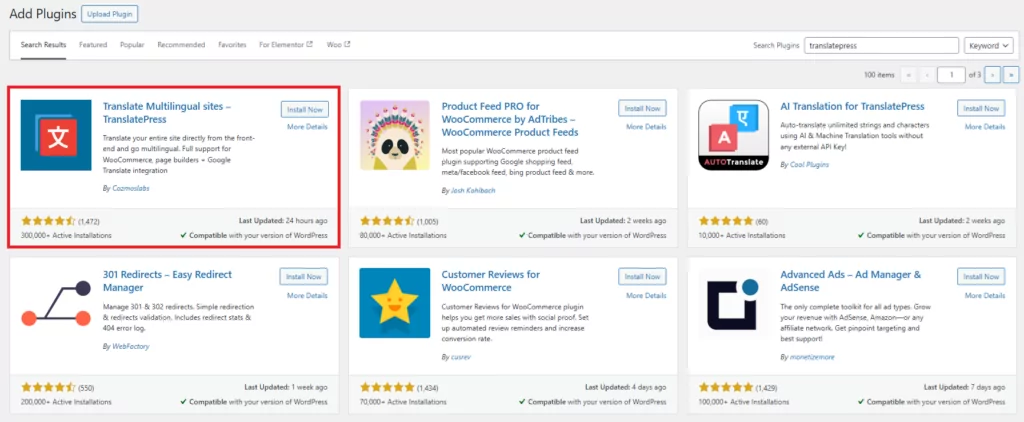
Dans le menu de gauche de votre tableau de bord d'administration WordPress, sous Paramètres, vous verrez un nouvel élément appelé TranslatePress. C'est ici que vous trouverez toutes les options pour le plugin.
Maintenant que TranslatePress est installé, passons en revue quelques paramètres de configuration.
Configurer TranslatePress
Le premier onglet que vous verrez dans le Paramètres TranslatePress est-ce que le Général onglet.
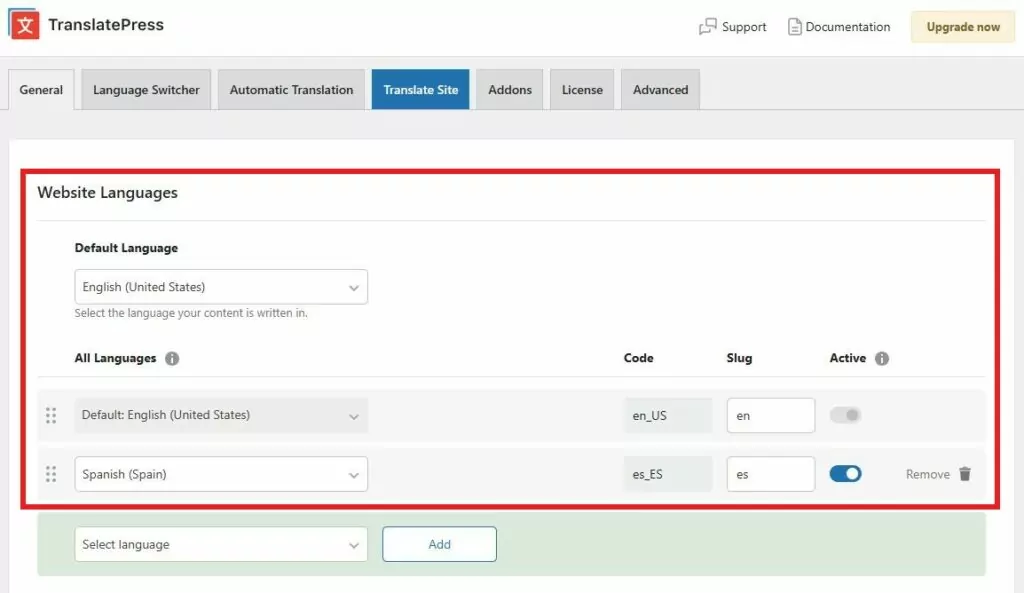
Dans cette zone, vous pouvez définir votre langue par défaut et ajouter toutes les langues que vous souhaitez utiliser pour la traduction. Pour ajouter une langue, cliquez sur Sélectionner la langue et dans la liste des langues, sélectionnez la langue dans laquelle vous souhaitez que votre site soit traduit, puis cliquez Ajouter.
En passant à l'onglet suivant, vous verrez d'autres paramètres de langue. Ces options détermineront l'apparence de l'outil de traduction pour les visiteurs de votre site.
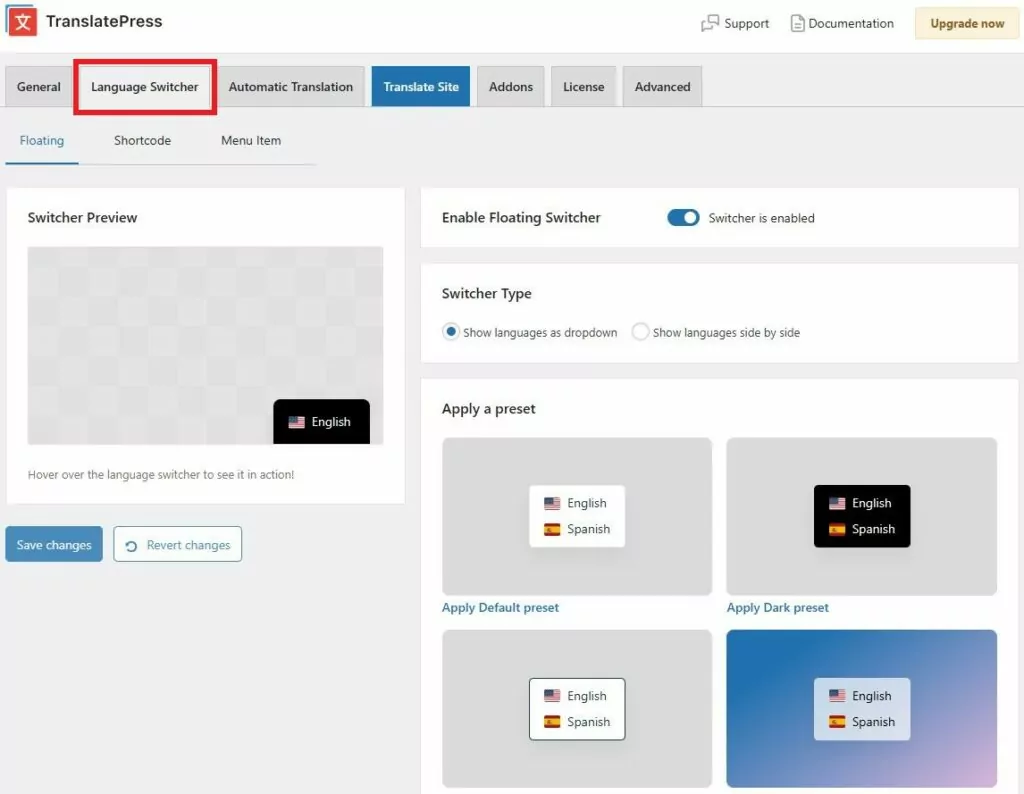
Par exemple, vous pouvez décider si le Sélecteur de langue doit être affiché sous forme de bouton flottant, dans une zone spécifique d'une page à l'aide d'un code court, ou même comme élément de menu.
N'oubliez pas de cliquer Enregistrer les modifications une fois que vous aurez fait vos choix.
C'est tout pour l'installation et la configuration de base ! Maintenant, commençons à traduire vos pages.
Traduisez vos pages Web de manière permanente
TranslatePress vous permettra de traduire n'importe quelle page de votre site et d'enregistrer la version traduite dans votre base de données. Ainsi, la traduction sera prête à être utilisée dès qu'un visiteur souhaitera consulter une page. La page n'affichera la version traduite qu'au visiteur actuel. Les nouveaux visiteurs arrivant sur votre site la verront dans la langue par défaut. À partir de là, ils auront la possibilité de passer à la version traduite à l'aide du sélecteur de langue..
Il y a deux façons de réaliser des traductions de sites Web : manuellement et automatiquement. Commençons par la méthode manuelle.
Traduisez vos pages Web manuellement
Tant que vous êtes connecté à votre site WordPress, vous verrez le Site ou Traduire la page élément de menu dans votre barre d'outils supérieure.
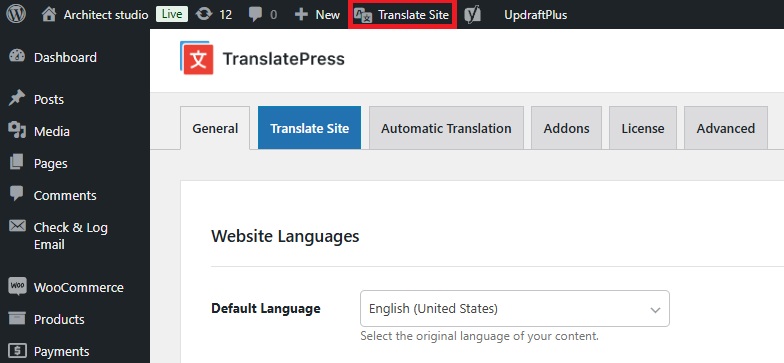
Cliquer sur cet élément ouvrira un éditeur de traduction visuel. Vous verrez une barre latérale de traduction sur la gauche de votre écran et un aperçu en direct de votre page sur la droite. Vous pouvez sélectionner n'importe quelle chaîne de texte sur la page soit en cliquant dessus, soit dans le deuxième menu déroulant sur la gauche.
Une fois votre chaîne sélectionnée, passez au champ de la langue préférée vers laquelle vous souhaitez la modifier. Saisissez le texte traduit dans le champ, puis cliquez sur Sauvegarder bouton en haut.
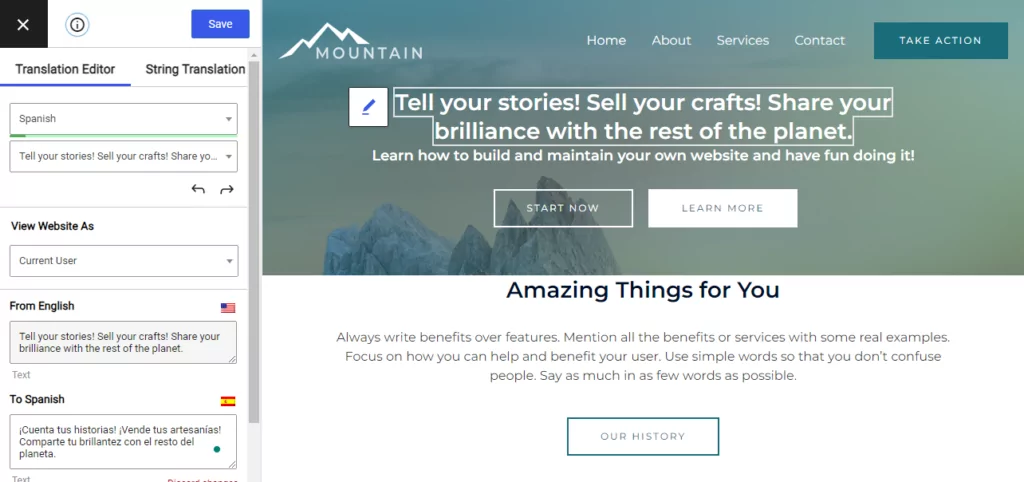
Fermez l'éditeur pour revenir à l'interface publique de votre site. Maintenant, lorsque vous cliquez sur Sélecteur de langue sur la page et choisissez la langue préférée, vous verrez que la chaîne de texte a changé. Et voilà !

Vous pouvez continuer avec cette méthode pour toutes les pages ou chaînes de texte que vous devez traduire sur votre site. Vous pensez peut-être que cela pourrait prendre un certain temps — en particulier si vous ne connaissez pas la langue préférée. Et surtout si vous avez beaucoup de pages ou de texte, vous pourriez vouloir automatiser le processus.
Voyons comment faire cela automatiquement !
Traduisez automatiquement vos pages web
En retournant au tableau de bord d'administration WordPress, accédez à Paramètres → TranslatePress et ouvrez le Traduction automatique onglet. Assurez-vous Activer la traduction automatique est allumé.
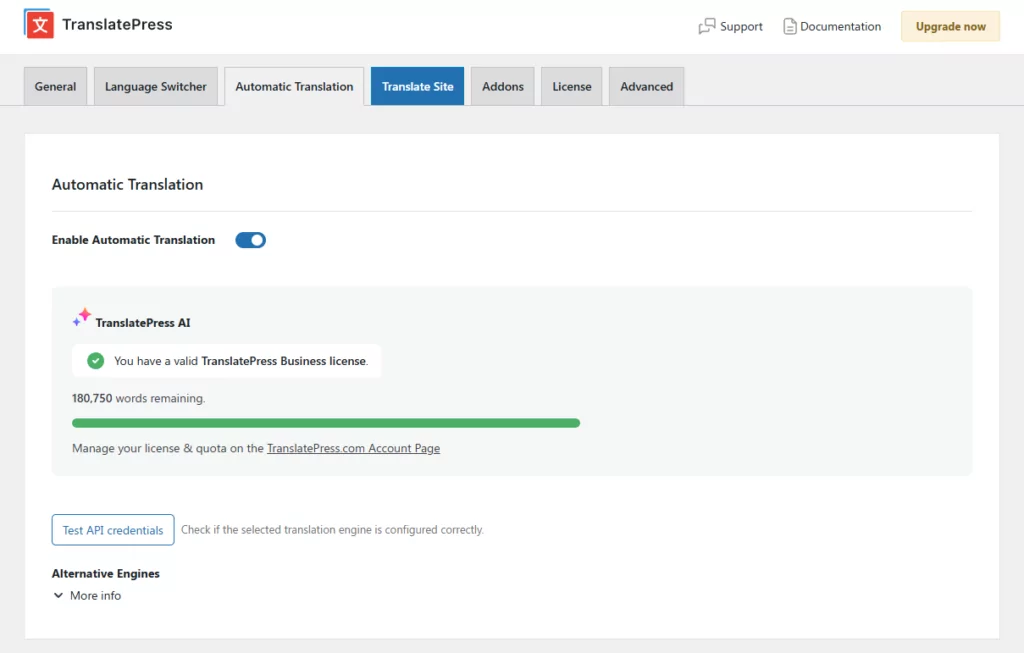
L'option la plus simple : TranslatePress AI
TranslatePress AI est le moteur de traduction intégré — et c'est le moyen le plus simple d'obtenir une traduction automatique car il n'y a pas de clé API à configurer et aucun compte externe n'est nécessaire. Tous les abonnements incluent un certain nombre de mots d'IA à utiliser avec le moteur, y compris la licence gratuite. Cependant, pour obtenir votre licence gratuite, vous devez Inscrivez-vous ici.
Une fois que vous aurez activé la traduction automatique et sélectionné TranslatePress AI comme moteur de traduction, votre site commencera à traduire dès que vous aurez enregistré vos modifications. Les visiteurs pourront alors cliquer sur le sélecteur de langue et la page s'affichera dans la langue de leur choix. Les traductions étant stockées dans votre base de données, vous n'aurez pas à supporter de frais de traduction à chaque nouvelle visite.
Préférez-vous une API de traduction externe ?
TranslatePress prend également en charge Google Translate et DeepL comme moteurs alternatifs, disponibles sous Moteurs alternatifs dans l'onglet Traduction automatique :
- Google Traduction — disponible sur tous les abonnements, y compris la version gratuite. Vous devrez créer un compte Google Cloud et générer une clé API. Voici comment faire.
- DeepL — disponible avec les abonnements Business et Developer. Vous aurez besoin d'un compte DeepL gratuit ou Pro et d'une clé API. Voici le guide d'installation de DeepL. Il y a plus de détails sur les avantages de DeepL dans ceci Avis sur DeepL Traducteur, et un Comparaison complète entre Google Translate et DeepL si vous hésitez entre les deux.
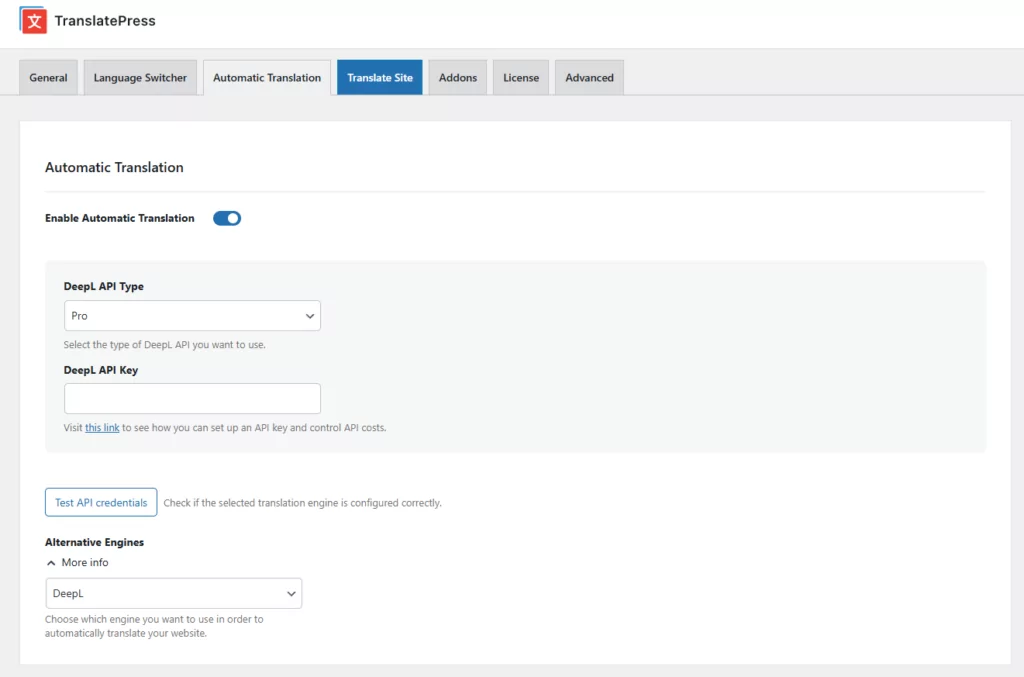
En ce qui concerne les API externes, TranslatePress ne facture aucun supplément par rapport aux tarifs pratiqués par Google ou DeepL pour leur propre utilisation. Ces deux services proposent une formule gratuite, et TranslatePress vous permet de définir une limite quotidienne de caractères afin de maîtriser vos coûts si vous avez souscrit à une formule API payante.
Traduisez vos pages Web pour tous les visiteurs
Maintenant, vous pouvez voir à quel point il est facile de traduire rapidement des pages Web et également de rendre votre propre site Web accessible à tous dans le monde entier. Les méthodes que je vous ai montrées sont toutes gratuites et ne demandent pas beaucoup de temps à configurer. Vous n'avez pas besoin de savoir coder, et vous n'avez même pas besoin de connaître plusieurs langues pour rendre votre site accessible à un marché mondial.
Grâce à WordPress et au plugin TranslatePress, votre site peut devenir multilingue et toucher un public bien plus large.
TranslatePress Multilingue
Vous avez encore des questions sur la traduction de pages Web ? Faites-le-nous savoir dans les commentaires !
Si vous avez trouvé ce message utile, consultez notre Chaîne YouTube, où nous téléchargeons constamment des tutoriels vidéo courts et faciles à suivre. Vous pouvez également nous suivre sur Facebook et X pour être le premier à savoir chaque fois que nous publions.