
In this post
Translation consistency means using the same approved terminology, tone, and brand language across every translated page of your website. For WordPress site owners using automatic translation, the most practical way to achieve it is to combine a short translation style guide with a glossary that tells the translation engine exactly how important terms should be handled.
This becomes especially useful when you rely on automatic translation. Without any guidance, the translation engine has to make its own terminology choices each time it encounters a new string, and those choices won’t always match.
Quick Answer: To maintain translation consistency across a multilingual website, define your preferred translation terms in a glossary, document tone and formatting decisions in a short translation style guide, reuse approved translations through translation memory, and use search and replace to correct terminology that is already live.
Your company name might be translated on one page but left unchanged on another. “Subscription” might become the equivalent of “membership” on your pricing page, “plan” at checkout, and “recurring payment” in your account area.
None of those translations may be completely wrong on their own. However, when they all appear on the same website, visitors are left wondering whether they refer to the same thing.
And even when readers can’t explain exactly what feels off, they’ll usually notice that the translated experience doesn’t feel as polished or intentional as the original.
I see this as a particularly common risk for WordPress websites, where the same concepts can appear across blog posts, landing pages, menus, WooCommerce pages, forms, emails, and strings generated by several different plugins.
Fortunately, you don’t need a complicated enterprise localization setup to fix it. A small glossary and a few shared style rules can already make a noticeable difference.
What Does Translation Consistency Mean?
Translation consistency is the practice of expressing the same concepts in a predictable way throughout your translated content.
It does not mean translating every word literally or using identical sentence structures on every page. A translation can, and often should, change to sound natural in the target language. The goal is to make intentional decisions and apply them consistently.
The aim is simply to make important decisions intentionally, and then apply those decisions consistently.
There are two main levels to consider:
- Terminology consistency: Using the same approved words for the same products, features, actions, and concepts.
- Tone and register consistency: Maintaining the same voice, level of formality, and relationship with the reader across pages.
You need both. Your terminology could be perfectly consistent, but the site may still feel disjointed if one page sounds formal and corporate while another suddenly uses casual slang.
In other words, the glossary helps your site use the right words, while the style guide helps those words sound like they belong to the same brand.
What Is Terminology Consistency?
Terminology consistency means using the same translation for a specific concept whenever that translation is appropriate.
For example, imagine that your website sells software subscriptions. You might decide that the English term “workspace” should always use one particular German translation.
Without an approved term, different pages might refer to the same workspace as an “Arbeitsbereich”, “Arbeitsplatz”, or “Projektbereich.” Each word could make sense in some context, but changing between them forces the reader to work out whether they refer to the same feature.
So, terminology consistency helps readers build familiarity. Once they learn what your website calls a feature, they should not have to learn a second or third name for it elsewhere.
What Is Tone or Register Consistency?
Tone consistency means maintaining the same personality and level of formality throughout the translated website.
In some languages, this involves choosing between formal and informal ways of addressing the reader. A website might need to decide whether to use the French vous or tu, the German Sie or du, or the Spanish usted or tú.
Tone decisions also cover questions such as:
- Do you use contractions and conversational phrasing?
- Are calls to action direct or polite?
- Is humor appropriate?
- Should translated copy feel concise or explanatory?
- Can translators adapt idioms, examples, and cultural references?
These choices normally belong in a translation style guide rather than a terminology glossary.
What Is a Translation Style Guide?
A translation style guide is a short set of instructions describing how your organization should communicate in each target language.
A glossary controls individual translation terms. A style guide controls the wider writing decisions around those terms, including tone, formality, punctuation, formatting, and cultural adaptation.
Professional localization teams may maintain detailed guides for every language and market. Most WordPress site owners do not need to begin with anything that elaborate.
The phrase “style guide” can make this sound like a major documentation project, but it really doesn’t have to be one.
Large localization teams may maintain detailed guides for every language and market. For a typical WordPress website, I’d start with a shared document containing five or ten clear rules.
Even a one-page shared document containing five or ten clear rules is more useful than expecting an automatic translation engine or every human editor to make the same decisions independently.
What Should a Translation Style Guide Include?
A practical translation style guide for a WordPress website can cover:
- Audience: Who the translated content is for and how much knowledge they have.
- Tone: Friendly, professional, technical, playful, reassuring, or direct.
- Formality: Whether the language should use formal or informal forms of address.
- Preferred phrasing: Common sentence patterns, calls to action, and brand expressions.
- Cultural adaptation: Whether examples, idioms, currencies, measurements, and references should be localized.
- Formatting: Rules for capitalization, dates, numbers, punctuation, and headings.
- Words to avoid: Language that is too technical, old-fashioned, aggressive, or inconsistent with the brand.
- Terminology reference: A link to the translation glossary containing approved terms.
Here is a simple translation style guide example for a fictional membership website:
| Area | Rule |
|---|---|
| Audience | Write for individual professionals rather than large enterprises. |
| Tone | Helpful, confident, and conversational without using slang. |
| Formality | Use the informal form of “you” in German and French. |
| Calls to action | Keep buttons short and action-oriented. Prefer “Start learning” over “Begin your educational journey.” |
| Product names | Keep “TranslatePress” and “TranslatePress Business” in English. |
| Cultural adaptation | Convert dates, decimal separators, currencies, and measurements to local conventions. |
| Capitalization | Use the normal capitalization rules of the target language rather than copying English title case. |
| Terminology | Follow the approved terms in the website’s localization glossary. |
This document is enough to resolve many of the decisions an automatic tool cannot make from an isolated string.
Should Every Language Use the Same Style Rules?
Not necessarily.
Your overall brand personality should remain recognizable, but the way you express it may need to change by market.
A direct, informal call to action may feel friendly in one language but overly familiar in another. Humor that works in English may need to be replaced rather than translated. A very concise sentence may also need to become longer to sound natural or polite in the target language. So, translation consistency should not come at the expense of natural language.
I’d aim to keep the intention consistent rather than forcing every language to follow the exact same wording and structure.
After all, there’s little value in using the same rule everywhere if the result sounds unnatural to the people you’re trying to reach.
What Is a Translation Glossary?
A translation glossary is a list of important source-language words and phrases together with their approved translations in one or more target languages.
It is sometimes called a terminology glossary, localization glossary, termbase, or terminology database. Although these terms can refer to systems with different levels of complexity, they all address the same practical need: deciding how important concepts should be expressed before a translation engine or translator encounters them.
A glossary gives your team and automatic translation system a shared source of truth.
For each entry, it answers questions such as:
- Should this term be translated?
- Which translation should be used?
- Which alternative translations should be avoided?
- Does the term have a special brand or industry meaning?
- Does the preferred translation change by language?
- Are capitalization or plural forms important?
Research also suggests that providing terminology directly to an AI translation workflow can materially improve term accuracy. In a May 2026 preprint studying a terminology-heavy cultural heritage text, glossary-augmented prompting achieved 81.4% exact-match terminology accuracy, compared with 69.1% for the same model without glossary retrieval and 64.4% for the neural machine translation baseline. The study was limited to one specialist use case, so the exact percentages should not be generalized to every website, but the results illustrate why explicit terminology instructions matter.
Which Translation Terms Belong in a Glossary?
A useful glossary doesn’t need to contain every word on your website, and I wouldn’t recommend trying to build one that does.
Start with the terms where inconsistency would confuse visitors, weaken your branding, or create a lot of repetitive editing later.
The best candidates are usually words and phrases that are important, repeated often, or open to several plausible interpretations.
Here are the five types of terms I’d prioritize first.
1. Brand Names and Product Names
Add company names, product names, plan names, trademarks, and branded features.
For each one, specify whether it should:
- Remain in the source language;
- Be transliterated into another writing system;
- Use an official localized name;
- Include a translated explanation on first use.
Automatic translation can misinterpret a brand name as an ordinary noun, particularly when the name is also a dictionary word. Explicitly controlling it prevents unexpected or even embarrassing translations.
2. Product and Interface Terminology
Include the words users need to navigate and understand your website.
Examples include:
- Account;
- Dashboard;
- Workspace;
- Subscription;
- Membership;
- Checkout;
- Billing cycle;
- Course library;
- Support ticket;
- Download;
- Renewal.
These translation terms often appear in content from several places: WordPress pages, plugins, themes, forms, emails, and WooCommerce templates. That makes translation consistency especially important.
3. Industry-Specific Translation Terminology
Add technical or professional terms that have a specific meaning in your industry.
A general-purpose translation engine may select a linguistically valid translation that is unusual or incorrect in your field. This is common in software, finance, healthcare, manufacturing, law, education, and other terminology-heavy industries.
Where necessary, include a short note explaining the concept, not just the preferred target word.
4. Words and Phrases That Should Not Be Translated
Some terms should remain exactly as written.
These might include:
- Brand names;
- Product editions;
- Plugin or theme names;
- Acronyms;
- Technical commands;
- File names;
- Code;
- Trademarked slogans;
- Names that have no established local equivalent.
A “do not translate” instruction is still a terminology decision and should be documented.
5. Preferred Phrasing Choices
A glossary can also resolve cases where several translations are acceptable but only one fits your product or brand.
Suppose the English word “plan” refers specifically to a paid software subscription. A translation engine might choose a word meaning project plan, pricing tier, tariff, or subscription.
Your glossary should specify the intended translation.
For ambiguous terms, it is often safer to add a longer phrase such as “pricing plan” or “subscription plan” instead of controlling the isolated word “plan” everywhere.
What Does a Translation Glossary Look Like?
Here you can see an example of a translation glossary for a fictional WordPress membership and online-course website translating from English into German and Spanish.
| Source term | German translation | Spanish translation | Notes |
| Northstar Academy | Northstar Academy | Northstar Academy | Brand name. Do not translate. |
| Northstar Pro | Northstar Pro | Northstar Pro | Product name. Do not translate. |
| membership | Mitgliedschaft | membresía | Use for the customer relationship, not “subscription.” |
| subscription | Abonnement | suscripción | Use for recurring billing. |
| course library | Kursbibliothek | biblioteca de cursos | Approved name for the full course collection. |
| member dashboard | Mitglieder-Dashboard | panel de miembros | Use consistently in menus and support content. |
| free trial | kostenlose Testphase | prueba gratuita | Avoid alternatives meaning “demo.” |
| lifetime access | lebenslanger Zugriff | acceso de por vida | Use only where access genuinely has no fixed end date. |
| support ticket | Support-Ticket | ticket de soporte | Keep “ticket” rather than translating it as a physical ticket. |
| Start learning | Jetzt lernen | Empieza a aprender | Preferred call to action. |
The notes column is valuable even when your translation tool only requires source-to-target pairs. It gives editors the context they need when reviewing the result.
For a larger localization glossary, you may also want columns for:
- Definition;
- Part of speech;
- Approved status;
- Terms to avoid;
- Product or content area;
- Example sentence;
- Date added;
- Owner;
- Last review date.
However, a basic source-term and target-term table is enough to get started.
What Should You Leave Out of a Translation Glossary?
Adding too many terms can make a glossary harder to maintain and may limit translations consistency that should vary by context.
Avoid filling it with:
- Ordinary words that translate correctly in most situations;
- Entire paragraphs or long sentences;
- Words with several meanings unless you specify the relevant phrase;
- Temporary campaign copy;
- Unapproved translations;
- Terms no one is responsible for reviewing;
- Literal translations that do not sound natural to native speakers.
A glossary is not a replacement for linguistic judgment.
For example, consistently translating the English word “home” with one fixed term may create problems because it could refer to a homepage, a physical residence, a navigation link, or a return action.
When context changes the meaning, use a more specific phrase such as “home page,” “return home,” or “home address.”
How Do a Glossary, Style Guide, Translation Memory, and Search and Replace Work Together?
These tools solve related but different problems. Understanding the main types of translation tools makes it easier to choose the right tool for each part of your WordPress translation workflow.
| Tool | What it controls | Best used for |
| Translation style guide | Voice, formality, formatting, and cultural decisions | Keeping translated content aligned with the brand |
| Translation glossary | Approved words and short phrases | Controlling product, industry, and interface terminology |
| Translation memory | Previously translated strings or segments | Reusing approved translations and reducing repetitive work |
| Search and replace | Wording already stored in existing translations | Correcting an inconsistency across previously translated content |
| Human or visual review | Meaning, context, layout, and naturalness | Catching problems that rules and automation miss |
Together, they form a lightweight translation consistency system:
- The translation style guide defines how the website should sound.
- The translation glossary defines what important concepts should be called.
- Automatic translation creates the initial translated content.
- Translation memory reuses relevant translations that have already been approved.
- Search and replace corrects terminology that was generated before a new decision was made.
- A final in-context review checks whether the page sounds natural and works visually.
You do not need an enterprise localization platform to use this model. A short document and a WordPress translation plugin with the right terminology tools can cover the needs of many small and medium-sized websites. As your website and translation team grow, you can develop these elements into a more structured translation workflow management system.
TranslatePress Multilingual
How to Use the TranslatePress Glossary in WordPress
TranslatePress includes a built-in Glossary that lets you define how specific words and phrases should be translated by the TranslatePress AI engine.
Here’s how to do it:
Step 1: Choose the Terms You Need to Control
Start by reviewing your most important pages and making a list of terms that appear frequently, are closely connected to your brand, or have already been translated inconsistently.
I wouldn’t wait until you have a complete glossary before translating the website. That can turn a useful task into a project that never feels finished. Starting with the 20 or 30 highest-risk terms is often more manageable.
A useful way to prioritize a term is to consider three factors:
- Frequency: How often does it appear?
- Ambiguity: How many plausible translations could it have?
- Impact: How confusing or damaging would the wrong translation be?
Terms that score highly in all three areas belong at the top of your list.
Step 2: Open the Glossary in TranslatePress
Assuming you already have TranslatePress installed and activated, from the settings, go to Automatic Translation → Glossary.
Here, the glossary management area lets you add a source-language word or phrase and provide the exact translation you want for each target language.
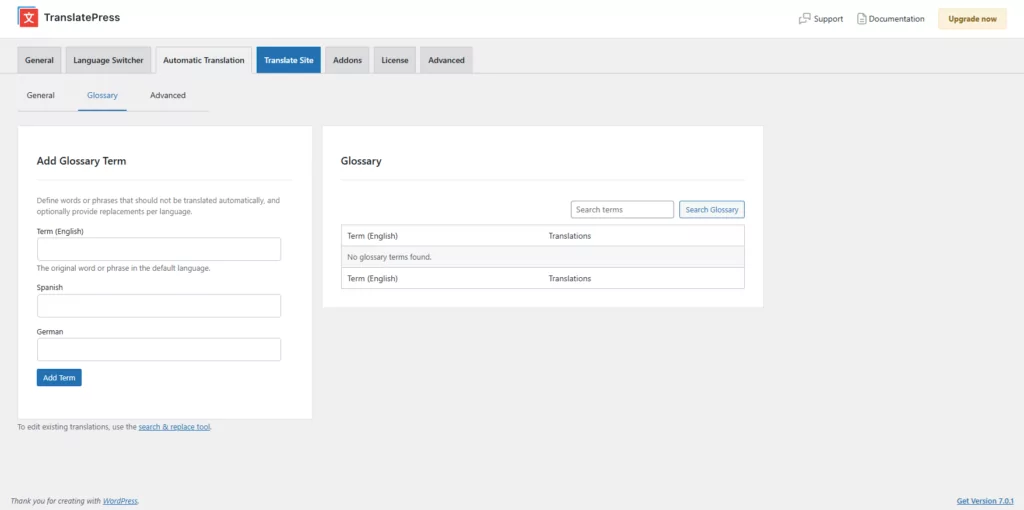
The built-in glossary currently influences automatic translation when TranslatePress AI is selected as the translation engine. When another engine is active, the glossary interface is unavailable; Google Cloud Translation and DeepL provide their own glossary systems.
Step 3: Add the Source Term and Its Approved Translations
Enter the term in your website’s default language, then add the preferred translation for each language you want to control.
TranslatePress recommends entering glossary terms and their translations in lowercase. The plugin adapts the capitalization to match how the original term appears in the content.
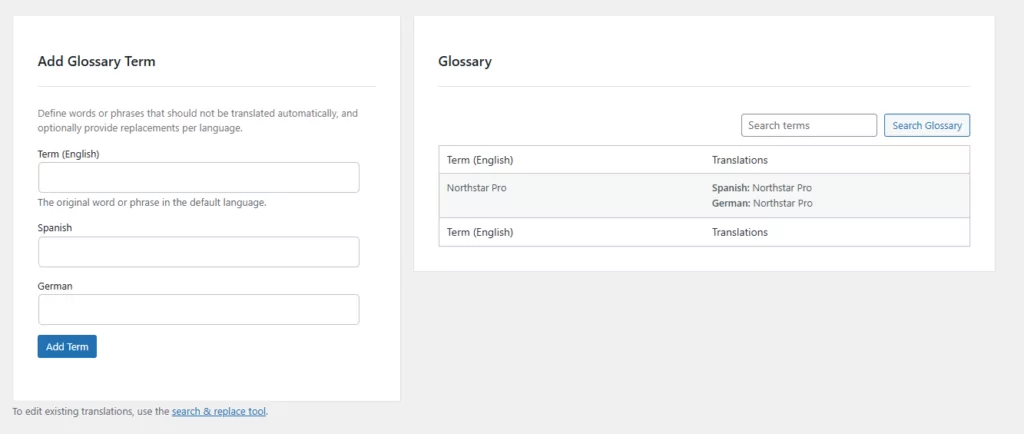
For example, a lowercase glossary entry can still produce capitalized or all-uppercase output when the source string uses those forms.
You can also leave a target-language field empty when you do not need to control that term for a particular language. In that case, the automatic engine will translate the term normally.
Step 4: Account for Plurals and Word Variations
TranslatePress uses whole-word matching for languages that separate words with spaces.
This means a glossary entry for cat matches “cat,” but not “cats” or “category.” Multi-word terms also need to appear as the defined phrase.
As a result, you may need separate entries for:
- Singular and plural forms;
- Important verb forms;
- Common product-name variations;
- Longer phrases with different meanings;
- Hyphenated and non-hyphenated versions.
For languages that do not normally separate words with spaces, including Chinese, Japanese, and Thai, TranslatePress uses substring matching instead. This makes an in-context review particularly important.
Step 5: Generate New Automatic Translations
Glossary entries affect automatic translations generated after you add the term.
When TranslatePress AI encounters a glossary term in new content, it uses your approved target-language wording rather than relying entirely on the engine’s default terminology choice.
This distinction is important: adding a glossary term does not automatically rewrite translations that are already stored in your database.
Step 6: Correct Existing Translations With Search and Replace
To fix terminology that has already been generated, open Search & Replace Translations from the Glossary area.
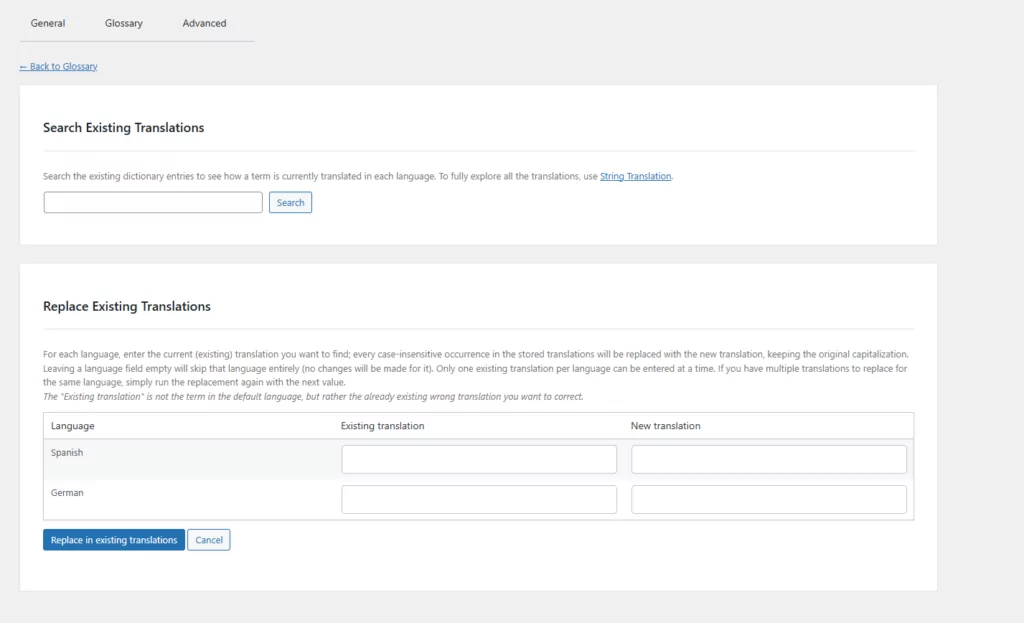
Search for the source-language term to see how it appears in your existing translations. You can then replace an unwanted target-language translation with the approved alternative.
When completing the replacement fields, enter:
- The existing translation in the target language;
- The new translation you want to use.
Do not enter the original source term in the “Existing translation” field.
For example, if English “support” was translated into Spanish as apoyo but you want manutención, enter apoyo as the existing translation and manutención as the new translation.
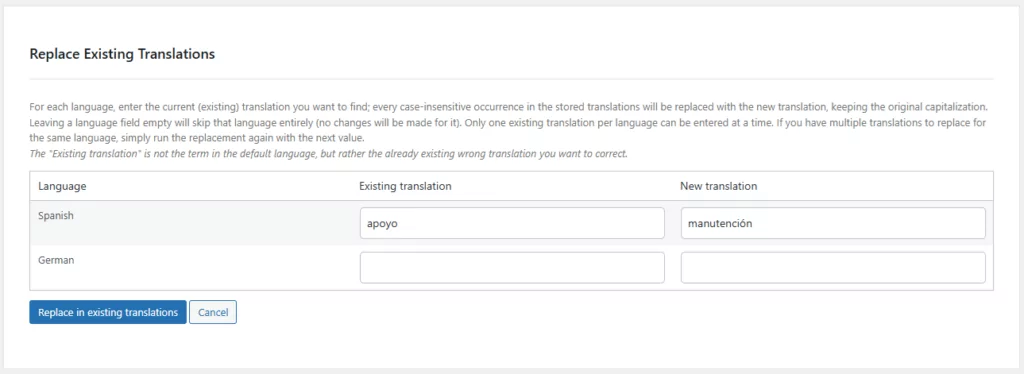
The replacement applies across matching stored translations in that language. Because this directly changes the translation database and cannot be undone through the tool, back up your database and review the replacement carefully before confirming it.
Unlike glossary management, Search & Replace Translations is available regardless of which automatic translation engine you use.
Step 7: Add Translation Memory for Similar Strings
A glossary controls specific terms. Translation memory operates at the string or segment level.
TranslatePress’s Automatic Translation Memory feature can reuse an existing translation when it finds another sufficiently similar string. By default, strings must be at least 95% similar and contain at least 50 characters to qualify. Translation memory runs before automatic translation, so a suitable existing translation can be reused before the plugin calls the automatic engine.
You can enable it under:
TranslatePress → Advanced → Miscellaneous options → Automatic Translation Memory.
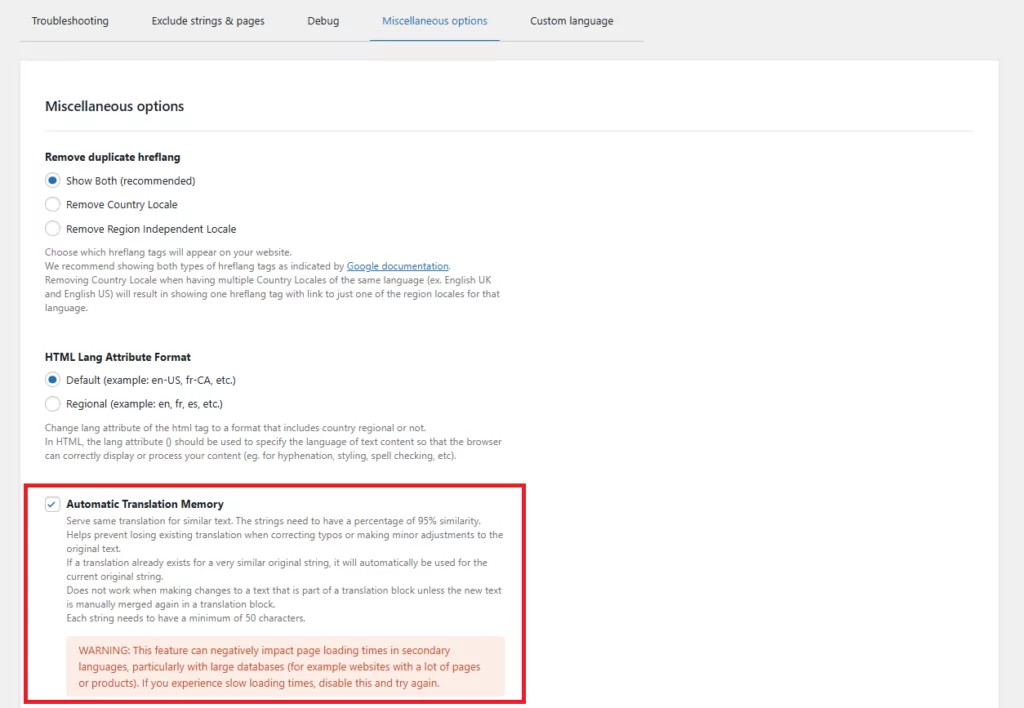
Translation memory is useful for repeated product descriptions, notices, interface instructions, and content variations. However, it does not replace a glossary because it reuses longer translations rather than defining the approved translation of one particular term.
Step 8: Review Important Pages in Context
A glossary can make your terminology much more consistent, but it still can’t decide whether every sentence sounds natural in its final context.
This is why I’d always include a visual review, even if automatic translation handled most of the initial work. You don’t necessarily have to check every blog archive and low-traffic page immediately, but I’d review at least your:
- Homepage;
- Main navigation;
- Pricing page;
- Product or service pages;
- Cart and checkout;
- Account area;
- Forms;
- Automated emails;
- Highest-traffic landing pages.
A visual review can uncover problems that are difficult to spot in a spreadsheet, including text overflow, awkward button labels, incorrect grammatical forms, and terms that are technically consistent but wrong in a particular context.
Rules are useful, but this final in-context check is where human judgment still makes the biggest difference.
How Do You Maintain Translation Consistency as the Website Grows?
A glossary should be a living resource rather than a document you create once and forget.
Use the following workflow to keep it useful.
Assign One Person to Approve Translation Terminology
Someone should have final responsibility for accepting new terms and resolving disagreements.
This does not need to be a professional localization manager. It could be a content manager, product marketer, multilingual editor, or site owner working with a native-language reviewer.
Without an owner, a glossary can collect conflicting or unverified entries.
Add Terms When You Create New Products and Features
Terminology decisions should happen when new concepts are introduced, not only after inconsistent translations appear.
When launching a new plan, feature, course, product category, or campaign, decide:
- Whether the name will be translated;
- What the approved translation is;
- Whether different regional variants need different terms;
- Which alternatives should be avoided;
- Where the term will appear.
This makes terminology management part of the content workflow rather than a cleanup project.
Review Search, Support, and Customer Feedback
Customers often reveal terminology problems through:
- Internal website searches;
- Support tickets;
- Product reviews;
- Live-chat questions;
- Checkout abandonment feedback;
- Comments from local teams.
When visitors repeatedly use a different word from the one on your website, check whether your approved translation reflects how the audience actually speaks.
Consistency is valuable, but consistently using an unnatural term is not.
Review the Glossary Periodically
Schedule a terminology review after major product updates or at least a few times per year.
Remove outdated terms, update renamed features, add missing variants, and confirm that the preferred translations still sound natural.
For multilingual sites with several editors, record the date and owner of each decision. This avoids reopening the same terminology debate every few months.
Frequently Asked Questions About Translation Consistency
What Is the Difference Between a Translation Glossary and a Translation Style Guide?
A translation glossary defines approved translations for individual words and phrases. A translation style guide defines broader writing rules, such as tone, formality, capitalization, cultural adaptation, and preferred sentence style.
Use the glossary to decide what a concept is called. Use the style guide to decide how the website communicates.
What Is the Difference Between a Glossary and Translation Memory?
A glossary contains approved translations for specific terms, such as product names, technical words, and interface labels.
Translation memory stores or reuses previously translated strings and longer segments. It can prevent repeated sentences from being translated from scratch, but it does not necessarily control how one term appears in every new context.
The two tools work best together.
How Many Terms Should a Translation Glossary Contain?
There is no required number.
A small WordPress website may only need 20–50 high-impact terms. A large WooCommerce store or technical knowledge base may eventually need hundreds or thousands.
Start with terms that are frequent, ambiguous, or important to the brand. A smaller glossary of approved, maintained terms is more valuable than a large list of unreviewed translations.
Should Brand Names Be Translated?
Usually, a brand or product name should remain unchanged unless the company has an official localized name, transliteration, or market-specific naming policy.
Do not assume every name is safe to leave to automatic translation. Names that are also ordinary dictionary words are especially likely to be translated unexpectedly.
Does Adding a Glossary Term Change Existing TranslatePress Translations?
No. TranslatePress glossary terms affect new automatic translations generated after the entry is added.
Use Search & Replace Translations to correct wording that already exists in your translation database. Back up the database before making broad replacements.
Can a Translation Glossary Handle Words With More Than One Meaning?
It can, but isolated ambiguous words should be handled carefully.
Instead of adding a broad word such as “plan,” add a more specific phrase such as “pricing plan,” “subscription plan,” or “project plan.” This gives the translation engine more precise instructions without forcing the wrong translation in unrelated contexts.
Can Automatic Translation Be Completely Consistent Without Human Review?
A glossary, style guide, and translation memory can substantially improve translation consistency, but they cannot resolve every contextual or cultural decision.
Human review and localization quality assurance remain valuable for high-impact pages, difficult language, legal or technical content, and markets where tone has a major effect on trust.
Build a Simple Translation Consistency System Today
Keeping a multilingual website consistent can sound like a job for a full localization team, but you can start with a much simpler setup.
My recommendation is to begin with four practical elements:
- A short translation style guide that defines tone and formality;
- A glossary containing your most important translation terms;
- Translation memory that reuses content you’ve already approved;
- A review and search-and-replace process for correcting existing inconsistencies.
You don’t need to document every possible translation decision before you begin. Start with the brand names, product terminology, interface labels, and ambiguous phrases your visitors encounter most often. Those are usually the entries that make the biggest immediate difference.
From there, you can add new terms whenever you launch a product, notice an inconsistency, or learn that customers use a different phrase from the one currently on your site.
TranslatePress brings the main parts of this workflow into WordPress. Its built-in Glossary guides new automatic translations created with TranslatePress AI, while Search & Replace Translations helps you correct terminology that is already stored. Translation memory and the visual editor give you additional ways to reuse approved content and check the final result in context.
Automatic translation can still take care of the high-volume work. You’re simply giving it clearer instructions and keeping control of the terminology that makes your website sound recognizable, intentional, and genuinely consistent in every language.
TranslatePress Multilingual