Beaver Builder is a very popular drag-and-drop WordPress page builder. In this tutorial, we’ll show you how to translate Beaver Builder sites using TranslatePress.
Similar to Beaver Builder’s front-end approach to creating content and templates, TranslatePress has the same visual approach when it comes to translating all your site content (including images, sliders, forms, popups, you name it).
Building a multilingual site using Beaver Builder and TranslatePress has never been easier.
Below we’ll dive into the simple steps required to translate Beaver Builder sites using TranslatePress.
Creating your website using Beaver Builder
Due to its drag-and-drop visual editor, Beaver Builder makes building a website from scratch fast and intuitive. Plus, you don’t need any coding knowledge.
It comes in both a free and paid version. The versión gratuita offers standard elements for tackling both structure and content of your site. You can easily add rows and divide them into columns. Then populate them with content in the form of text, images, headings, html & more.
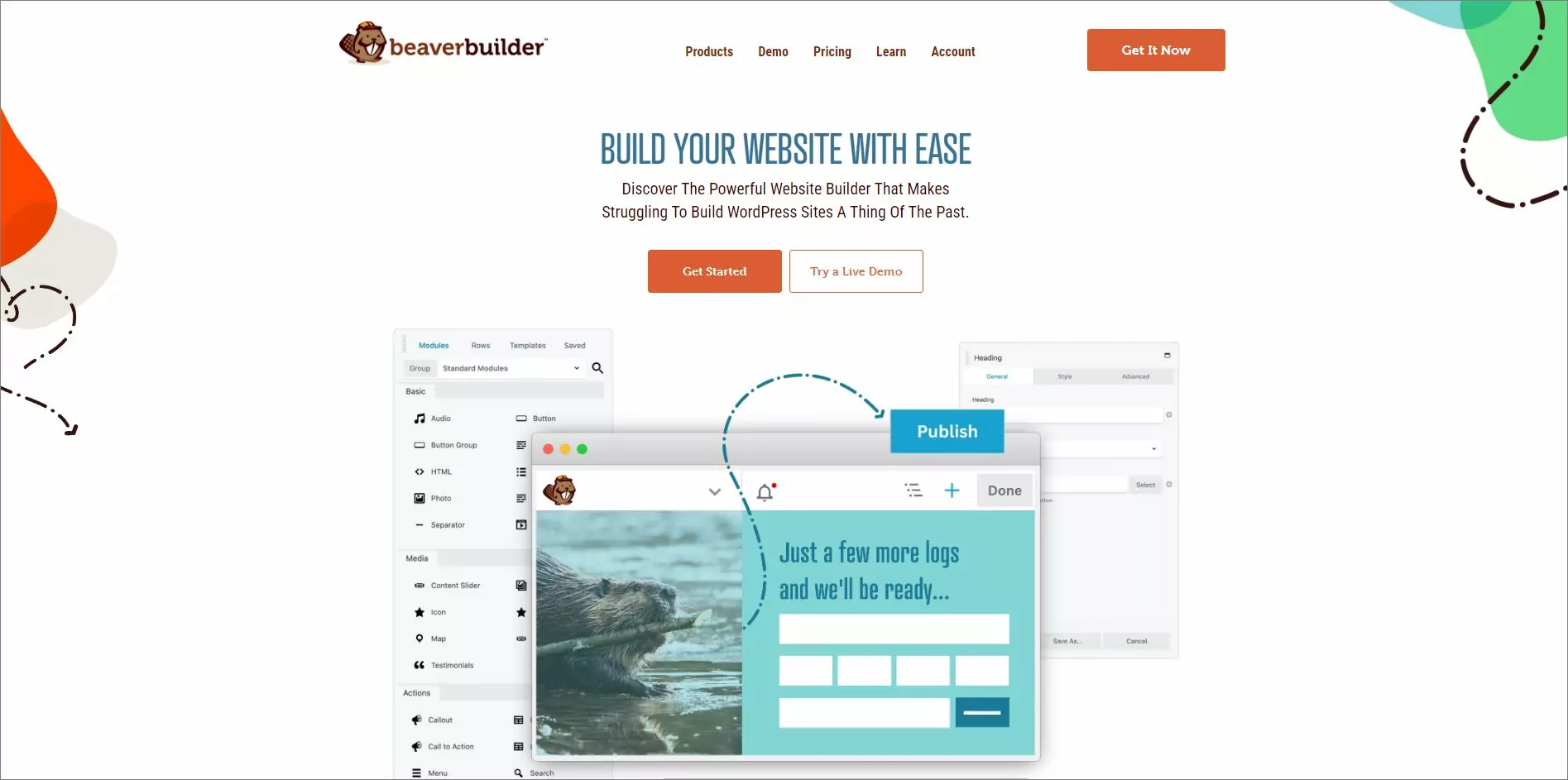
The paid version of Beaver Builder comes with premium modules and a lot of templates you can choose from. You also get access to a Beaver Builder theme that offers extended control of the header, footer, and styling of your site.
Building our first page using Beaver Builder
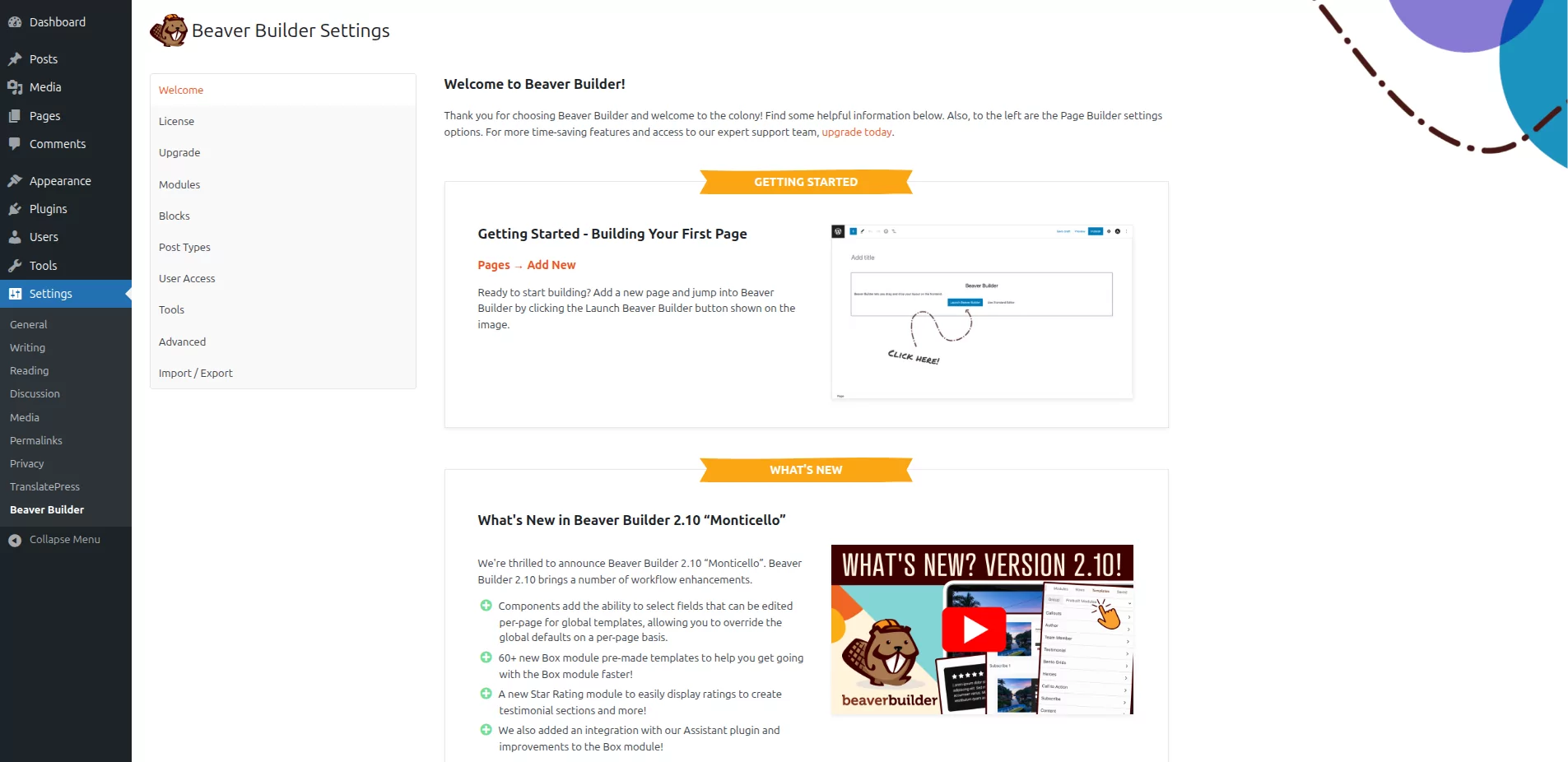
Once the Beaver Builder plugin is installed and activated, you’ll be taken to the plugin settings page.
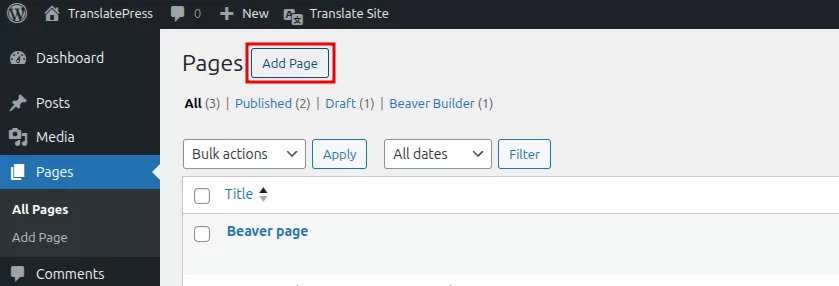
Next, we’ll start and create our first website page. Simply navigate to Pages and click Add Page.
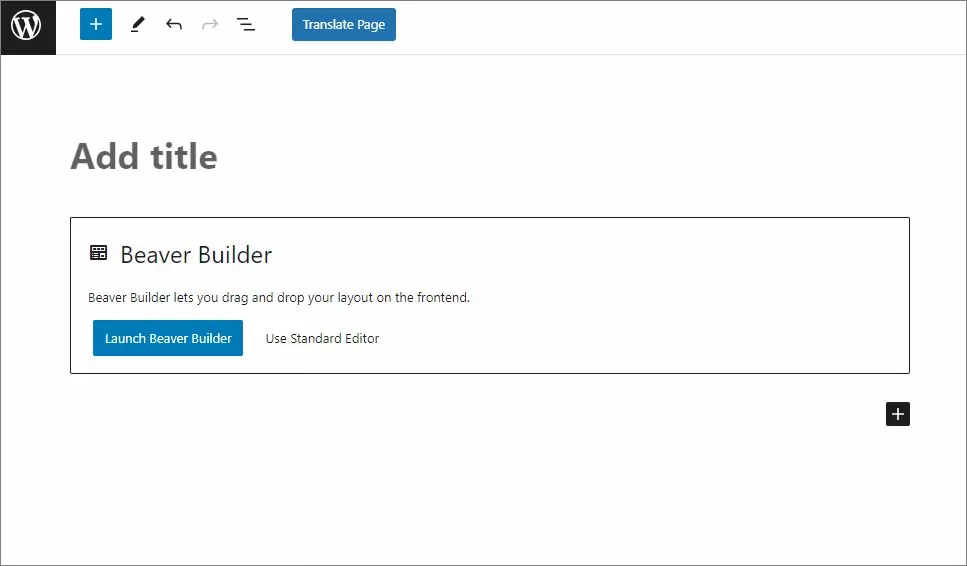
Hacer clic en Launch Beaver Builder button and you’ll be taken to the visual front-end interface where you can start building your page.
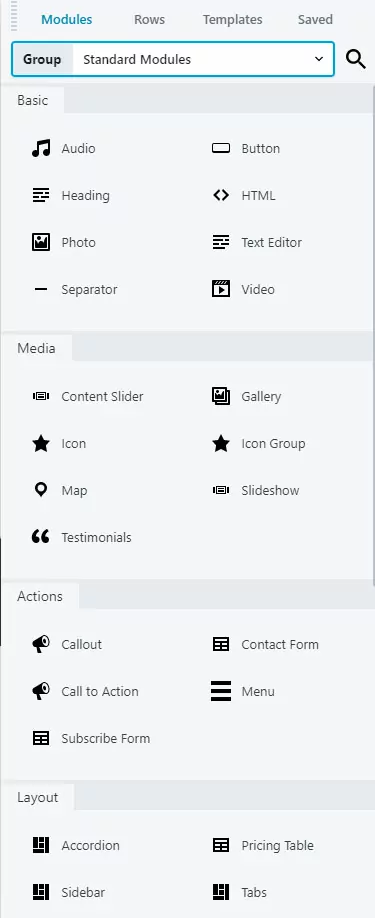
The Beaver Builder editor will let you choose Modules, Rows, or Templates that can be used to customize your page and add content.
To speed things up we’ll use one of the existing Templates. Under Plantillas you have plenty of options to choose from, we’ll go for an agency landing page.
Once you selected the template you’ll notice it will display on your page.

You can easily move content elements around and customize their settings and display options. Even duplicate them if needed. Beaver Builder offers a lot of flexibility which I invite you to explore.
Here’s what our page created with Beaver Builder looks like:

You can apply the same visual approach to creating and styling content for the rest of your website.
Translate Beaver Builder sites using TranslatePress
Now that you saw how easy it is to create your website using Beaver Builder’s drag-and-drop interface, let’s have a look at the simple steps required to make it multilingual.
Adding a second language to your Beaver Builder site
For this tutorial, we’ll look into translating the page we created using Beaver Builder into a second language (let’s say Italian).
We’ll start by installing and activating el complemento multilingüe TranslatePress.
Once TranslatePress is active, you’ll notice a new Traducir sitio item added in the admin bar.

Just hover over it and click Configuración. This will take you to TranslatePress Settings page.
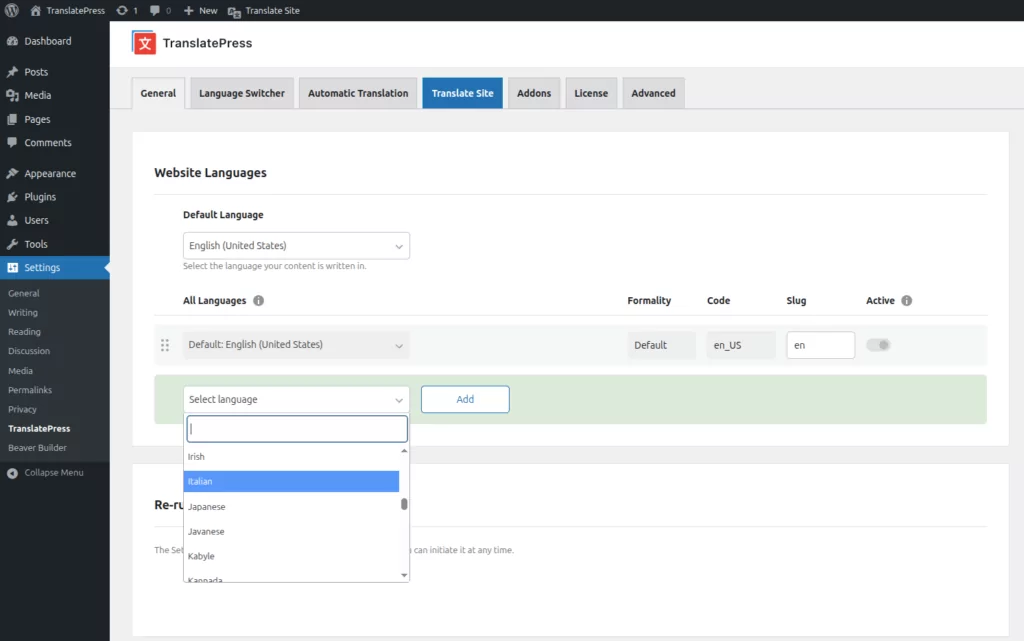
The first thing you’ll notice is Idiomas de traducción. From here you can add the translation languages you want your multilingual Beaver Builder site to be available in.
English is our default language, so we’ll also add “Italian” by selecting it from the language drop-down and clicking the Añadir botón.
Puedes añadir tantos idiomas como necesite tu proyecto usando el Complemento de múltiples idiomas para TranslatePress. La versión gratuita está limitada a dos idiomas.
There are a few other things you can set up (things like Google Traductor integration for automatic translation, or customizing the language switcher), but we’ll skip them for now and click Guardar cambios.
Translating your Beaver Builder page using TranslatePress
We’re now set to start translating our Beaver Builder website.
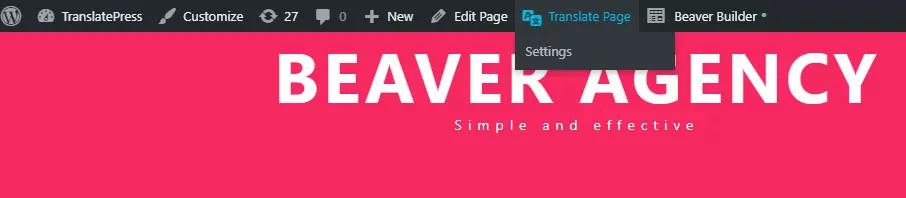
To start translating your site into Italian, you can either click the Traducir sitio blue tab under TranslatePress settings or simply navigate to the page you want to translate and click the Traducir página item from the admin bar menu (located right next to Beaver Builder).
This will open up the TranslatePress visual translation editor. Using it you can translate every string on your page and also see the changes in real-time.
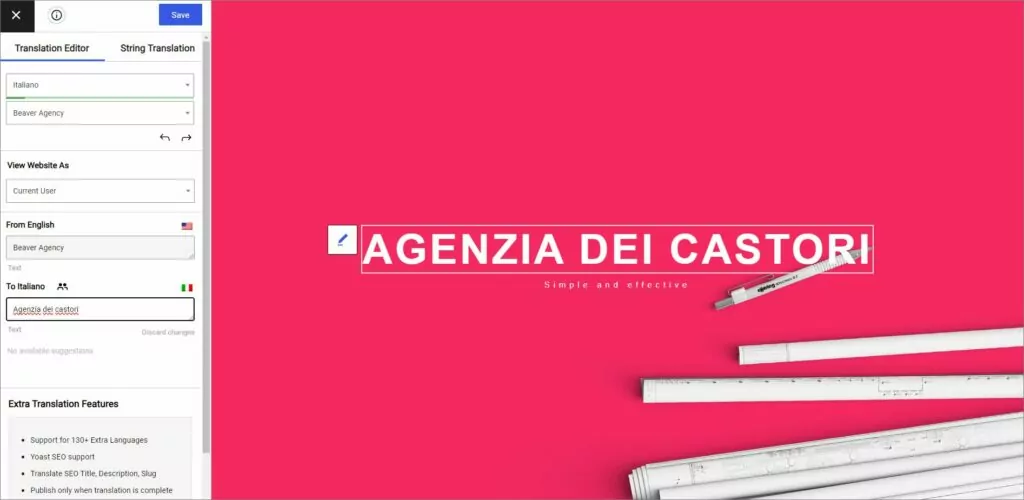
Once you hover over a certain text you want to translate, a pencil icon will appear, and by clicking it you’ll be able to insert the corresponding translation. Click Guardar traducción and you’re done, you can move to the next piece of text.
Check out how fast we translated the Services area into Italian:
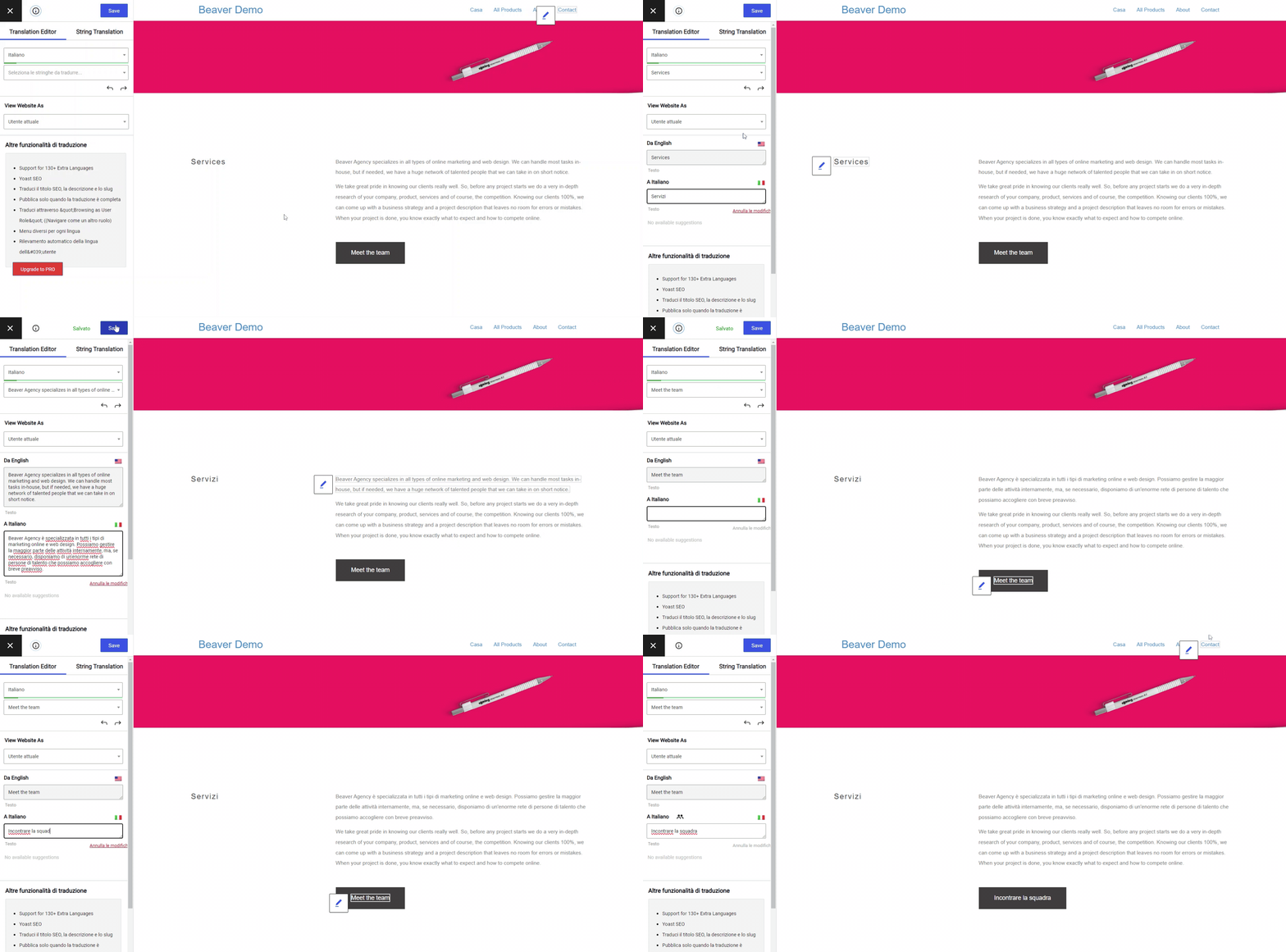
You can find all the strings on your page in the TranslatePress editor list of strings drop-down. There are atajos de teclado available to speed up the translation process and make it easier for you to navigate through all the text on a page.
TranslatePress works out of the box with any type of content created with Beaver Builder. The same translation process can be applied to all elements on a page, whether you traducir un menú de WordPress, a formulario de contacto, or even an imagen que contiene texto.
If you’re looking to build a multilingual store powered by WooCommerce, TranslatePress makes it easy for you to translate WooCommerce products también.
Adding a language switcher to your site
Last but not least, what is a multilingual site without a language switcher? Rest assured, TranslatePress takes care of this as well.
By default, once you add a secondary language under TranslatePress settings, it will automatically add a floating language selection dropdown in the front-end of your site. This will follow the user on every page.
Once you hover over it, it will show all the available languages.
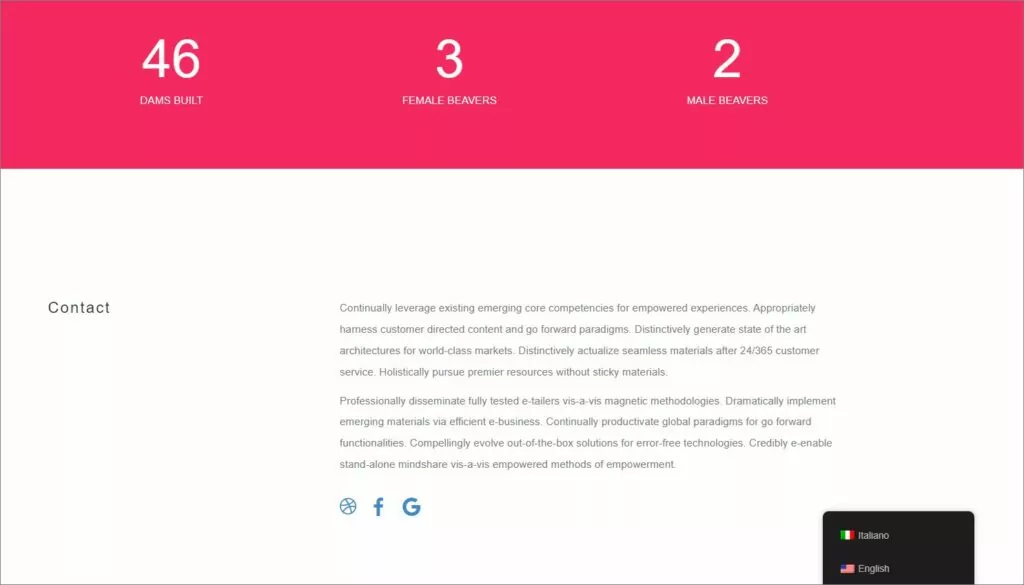
You have three options to display language switchers on your website:
- Shortcode (Use the shortcode on any page or widget);
- Menu item (Go to Apariencia → Menús to add Language Switcher Languages in any menu);
- Floating language selection (Have a floating dropdown following the user on every page. As mentioned before, this is set by default).
Translating the rest of your Multilingual Beaver Builder site
Turning your Beaver Builder site multilingual is really straightforward using TranslatePress.
Simplemente navegas por el sitio, página por página, usando el editor de traducción visual, seleccionas un texto determinado, pasas el cursor y haces clic en el icono del lápiz, luego introduces su traducción. Guardas y pasas al siguiente.
Do this for the remaining strings and you’ll have your pages and website translated in no time.
Si aún no has utilizado TranslatePress, asegúrate de juega con nuestra demostración.
Es rápido (no ralentizará tu sitio), SEO amigable, and really easy to use.